A Fifth Way to Calculate Sine Without Trig

In a previous post, I showed Four Ways to Calculate Sine Without Trig. While reading up on rational bezier curves, I came across a 5th way!

A rational bezier curve post will be coming in the (hopefully near) future, so I won’t go into too many details of that, but the important thing to know is that with a rational 2d quadratic bezier curve, you can EXACTLY represent any conic section, including circle arcs. With a regular (integral) bezier curve, you can’t.

You can in fact see that in action in an interactive HTML5 demo i made here: Rational Quadratic Bezier Curve. Note that on my main page, i have links to other 1d/2d bezier/trig rational/integral interactive curve demos. go check them out if you are interested in seeing more: http://demofox.og.

After I made the 2d quadratic bezier demo I realized something… The x and y positions of that curve are calculated independently of each other, and if you wanted to draw a circle in a program, you’d calculate the x and y positions independently, using sine for the y axis value and cosine for the x axis value. That means that if rational curves can – as people say – perfectly represent conic sections, that the two 1d curves that control each axis of that circle arc curve must be exact representations of sine and cosine, at least for the 90 degrees of that arc.

It turns out that this is true enough. I am seeing some variation, but have an open question on math stack exchange to try to get to the bottom of that.

Let’s do some math to come up with our curve based sine equation!

Math Derivation – Skip If You Want To

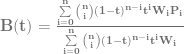
A rational Bezier equation is defined like this, which is basically just one Bezier curve divided by another:

\bf{B}(t) = \frac{\sum\limits_{i=0}^n\binom {n} {i}(1-t)^{n-i}t^iW_iP_i}{\sum\limits_{i=0}^n\binom {n} {i}(1-t)^{n-i}t^iW_i}

So, here is the equation for a rational quadratic bezier curve (n = 2):

\bf{B}(t) = \frac{(A*W_1*(1-t)^2 + B*W_2*2t(1-t) + C*W_3*t^2)}{(W_1*(1-t)^2 + W_2*2t(1-t) + W_3*t^2)}

A,B,C are the control points and W_1,W_2,W_3 are the weightings associated with those control points.

For the first 90 degrees of sine, A=0, B=1, C = 1, W_1 = 1, W_2 = cos(arcAngle/2), W_3 = 1.

arcAngle is 90 degrees in our case, so W_2=cos(45) or W_2=1/sqrt(2) or W_2=0.70710678118.

If we plug those values in and simplify, and treat it as an explicit (1d) equation of y = f(x), instead of P=f(t), we come up with the equation in the next section.

Final Equation

y = \frac{(0.70710678118*2x(1-x) + x^2)}{((1-x)^2 + 0.70710678118*2x(1-x) + x^2)}

or, so you can copy paste it:
y=(0.70710678118*2x(1-x) + x^2) / ((1-x)^2 + 0.70710678118*2x(1-x) + x^2)

That gives us the first quadrant (first 90 degrees) of sine. To get the second quadrant, we just horizontally flip the first quadrant. To get the third quadrant, we vertically flip the first quadrant. To get the fourth quadrant, we vertically and horizontally flip the first quadrant.

Equation In Action

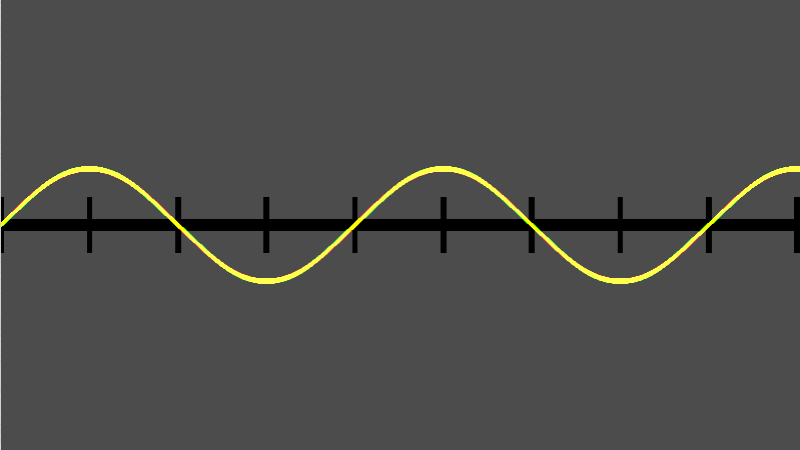
Here’s a screenshot from a shadertoy where I implemented this. red = true sine value, green = the value made with the curve, yellow = where they overlap and are equal. Any place you see red or green peaking out means they aren’t quite equal. I sort of expected it to be exactly dead on correct, but like I said, I have an open math stack exchange question to find out why it isn’t and will update this with my findings if they are relevant or interesting. It still is pretty darn good though.

Also, this formula may not be the most efficient way to calculate sine without trig that I’ve shown, but it is interesting, and that’s why I wanted to show it (:

You can see this in action at Shadertoy: Sin Without Trig IV

Easy Binomial Expansion & Bezier Curve Formulas

In this post we are going to explore two things:

  1. Learn how to easily be able to expand (x+y)^N for ANY value N using the binomial theorem (well, N has to be a positive integer…)
  2. Use that for coming up with the equation for a Bezier curve of any degree (any number of control points)

Binomial Theorem

The binomial theorem is a way of easily expanding (x+y)^N. As you probably know, if N is 2, you can use FOIL (first, outer, inner, last). If N gets above 2, things start to get harrier though and more tedious.

Let’s check out how the values look when N is 1, 2 and 3:

N (x+y)^N Expanded
1 x+y
2 x^2+2xy+y^2
3 x^3+3x^2y+3xy^2+y^3

To help make the patterns more visible, let’s make things a bit more explicit:

N (x+y)^N Expanded
1 1x^1y^0+1x^0y^1
2 1x^2y^0+2x^1y^1+1x^0y^2
3 1x^3y^0+3x^2y^1+3x^1y^2+1x^0y^3

The easiest pattern to see is that there are N+1 terms.

The next pattern that might jump out at you looking at the above table, is that in the first term, y starts out at power 0, and the next term has a power of 1, and the power of y keeps increasing by 1 for each term left to right until we run out of terms. Similarly, x starts out at a power of 0 on the last term, has a power of 1 on the second last term, and counts up going from right to left, until we run out of terms.

Those patterns explain how many terms there are and the powers of x and y for each term. There is one piece left of the puzzle though, which is those constants that each term is multiplied by.

Those constants are called the “binomial coefficients” and they also appear as rows on pascal’s triangle. In short, each number in pascal’s triangle is a sum of the numbers directly above it. Below is an image to show what I’m talking about. Check the links section at the end for more detailed info.

So if you notice, the 2nd row of pascal’s triangle is “1,1”. Those are the constants multiplied by each term for the N=1 case. The next row down is “1,2,1” which is the constants multiplied by each term for the N=2 case. Lastly the next row down (fourth row) is “1,3,3,1” which is the constants multiplied by each term for the N=3 case. Essentially, you just use the N+1th tow of pascals triangle to come up with the constants to multiply each term by.

There are algorithms for calculating the N+1th row of the pascal’s triangle. I have one such algorithm in the example code below, but also check the links section for more info on that.

TADA! That is the binomial theorem.

Bezier Curve Equation Generalized (Again)

You may remember that I previously showed you a generalized way to get the equation for a bezier curve of any order in Bezier Curves Part 2 (and Bezier Surfaces).

It wasn’t too difficult, but it DID require you to manually expand (x+y)^N. Now that we know how to do that more easily, thanks to the section above, let’s revise how we come up with bezier curves of any order.

What you do is evaluate P=(s+t)^N, and then multiply each term by a unique control point (A,B,C,etc). After you have your equation, you can optionally replace all s‘s with (1-t), or you can just remember that when you evaluate the equation, since the first form is less messy.

Boom, you are done, that’s all!

Here’s the quadratic (N=2) version to see the end result:
P = As^2 + 2Bst + Ct^2

Formalized Mathematical Description

The above makes a lot of sense and is easy to understand, wouldn’t it be neat if math could describe it that way?

Well… it turns out it can, and does. Here is the formal “explicit definition” of bezier curves:
\sum\limits_{i=0}^n\binom {n} {i}(1-t)^{n-i}t^iP_i

If you remember from above, s is the same as (1-t) so you could also write it like this:
\sum\limits_{i=0}^n\binom {n} {i}s^{n-i}t^iP_i

The \sum\limits_{i=0}^n (Sigma, going from 0 to n) means that you are going to sum (add) together n+1 terms (it includes both 0 and n), using i as the loop variable in your summation. It’s basically a for loop, adding together each iteration of the for loop. Everything that comes after is what happens during each iteration of the for loop that gets summed together.

The \binom {n} {i} part means to take the ith number from the (n+1)th row of Pascal’s triangle. More formally, this specifies to use specific binomial coefficients.

The next part s^{n-i}t^i means that you multiply the binomial coefficient by s to the (n-i)th power, and t to the ith power. This is the same as saying s starts at power n and counts down left to right, while t starts at 0 and counts up left to right. This fits the pattern we saw above in binomial expansion.

Lastly comes P_i which means to use the ith P. So, P is basically an array with n+1 elements. This array is the control points, so each P is a different control point.

So, to sum it all up, it’s saying to make a for loop from 0 to n where you are going to add up the results of each for loop. For each loop iteration, where i is the index variation of the loop, you are going to:

  1. Start with the ith item from the (n+1)th row of pascals triangle
  2. Multiply that by s^(n-i)t^i
  3. Multiply that by a unique control point

There ya go, formalized math descriptions with crazy symbols can actually mean something useful. Who would have thought?!

Here is the quadratic bezier curve again for you to look at (quadratic means n = 2), in a form that will help you when thinking about the steps above:
P = 1s^2t^0A + 2s^1t^1B + 1s^0t^2C

And when it’s cleaned up, it looks more familiar:
P = As^2 + 2Bst + Ct^2

Example Code

#include <stdio.h>
#include <vector>

//=====================================================================================
void WaitForEnter ()
{
    printf("nPress Enter to quit");
    fflush(stdin);
    getchar();
}

//=====================================================================================
std::vector<unsigned int> PascalsTriangleRow(int row)
{
	std::vector<unsigned int> ret;
	ret.push_back(1);
    for (int i = 0; i < row; ++i)
        ret.push_back(ret[i] * (row - i) / (i + 1));
	return ret;
}

//=====================================================================================
void main(void)
{
	printf("Expand (x+y)^N and give Bezier curve order NnnPlease enter N:n");
	unsigned int N;
	// keeping it limited to a sane value. also protects against -1 being huge.
	// Also, so we don't run out of letters for control points!
	if (scanf("%u",&N)==1 && N < 26)
	{
		auto row = PascalsTriangleRow(N);

		// binomial expansion
		printf("nBinomial Expansion:n");
		if (N == 0)
		{
			printf("1");
		}
		else
		{
			for (unsigned int i = 0, c = row.size(); i < c; ++i)
			{
				if (i > 0)
					printf(" + ");

				if (row[i] != 1)
					printf("%u", row[i]);

				unsigned int xPow = N - i;
				if (xPow > 0)
				{
					printf("x");
					if (xPow > 1)
						printf("^%i", xPow);
				}

				unsigned int yPow = i;
				if (yPow > 0)
				{
					printf("y");
					if (yPow > 1)
						printf("^%i", yPow);
				}
			}
		}

		// bezier curves
		printf("nnBezier Curve Order %u:nP = ", N);
		if (N == 0)
		{
			printf("A");
		}
		else
		{
			for (unsigned int i = 0, c = row.size(); i < c; ++i)
			{
				if (i > 0)
					printf(" + ");

				// control point name
				printf("%c*",'A'+i);

				if (row[i] != 1)
					printf("%u", row[i]);

				unsigned int sPow = N - i;
				if (sPow > 0)
				{
					printf("s");
					if (sPow > 1)
						printf("^%i", sPow);
				}

				unsigned int tPow = i;
				if (tPow > 0)
				{
					printf("t");
					if (tPow > 1)
						printf("^%i", tPow);
				}
			}
		}

		// bezier curves
		printf("nnOr:nP = ", N);
		if (N == 0)
		{
			printf("A");
		}
		else
		{
			for (unsigned int i = 0, c = row.size(); i < c; ++i)
			{
				if (i > 0)
					printf(" + ");

				// control point name
				printf("%c*",'A'+i);

				if (row[i] != 1)
					printf("%u", row[i]);

				unsigned int sPow = N - i;
				if (sPow > 0)
				{
					printf("(1-t)");
					if (sPow > 1)
						printf("^%i", sPow);
				}

				unsigned int tPow = i;
				if (tPow > 0)
				{
					printf("t");
					if (tPow > 1)
						printf("^%i", tPow);
				}
			}
		}

		printf("n");
	}
	else
	{
		printf("Invalid value for Nn");
	}
	WaitForEnter();
}

Example Output

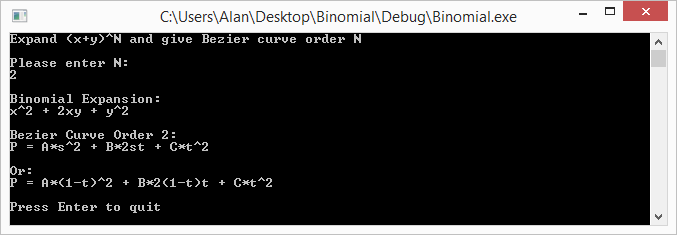
Here are some runs of the program


Links

Note that even though we talked about binomials, and bezier curves, these techniques can be expanded to trinomials and bezier triangles – and beyond! (hint: there is such thing as Pascal’s pyramid!)

Here are some links to more info about some of the topics talked about above:
Wikipedia: Binomial Theorem
Wikipedia: Pascal’s Triangle
Wikipedia: Binomial Coefficient
StackOverflow: How to efficiently calculate a row in pascal’s triangle?

Bilinear Filtering & Bilinear Interpolation

Take a look at the picture below. Can you calculate the values at points A,B and C?

There’s a technique for doing this called bilinear interpolation which extends the idea of linear interpolation into two dimensions.

To calculate bilinear interpolation, you just do linear interpolation on one axis, and then the other.

Check out these examples:

Point A
Point A has a coordinate of (0.2,0.8). Let’s start with the X axis.

Firstly, we’ll do interpolation across the top of the square on the X axis. That means we need to go 0.2 (20%) of the way from 7 to 0. That 0.2 is our x axis coordinate. To calculate that we do this:
7 + (0-7) * 0.2 = 5.6

Next, we’ll do interpolation across the bottom of the square on the X axis. So similar to above, we’ll go 0.2 (20%) of the way from 3 to 5. To calculate that we do this:
3 + (5-3) * 0.2 = 3.4

Now that we have interpolated across our X axis we need to interpolate across our Y axis. We are now going to go 0.8 (80%) of the way from our bottom value (the value of Y = 0), to our top value (the value of Y = 1). The bottom value is the bottom interpolation we did (3.4) and the top value is the top interpolation we did (5.6).

So, we need to go 0.8 (80%) of the way from 3.4 to 5.6. To calculate that we do this:
3.4 + (5.6 – 3.4) * 0.8 = 5.16

So, the value at point A is 5.16. The image below should help explain visually the process we went through.

Point B

Point B has a coordinates of (1.0,0.5).

Let’s start with the X axis interpolation again (although you could easily start with Y first if you wanted to! You’d end up with the same result).

Doing the X axis interpolation across the top, we need to go 1.0 (100%) of the way from 7 to 0. I’m sure you can guess what the answer is but here it is calculated:
7 + (0-7) * 1.0 = 0

Similarly, let’s do the X axis interpolation across the bottom. We need to go 1.0 (100%) of the way from 3 to 5.
3 + (5-3) * 1.0 = 5

Next up comes the Y axis interpolation. We need to go 0.5 (50%) of the way from 5 to 0.
5 + (0-5) * 0.5 = 2.5

There we go, the value at point B is 2.5. That should make sense too by looking at the diagram. It’s basically 1d linear interpolation between 5 and 0, and is half way between them, so intuitively, the answer 2.5 should make sense.

Point C

Point C has a coordinate of (0.8,0.2).

Once again, let’s do the X axis interpolation across the top of the box. We need to go 0.8 (80%) of the way from 7 to 0.
7 + (0-7) * 0.8 = 1.4

Then, we need to do the x axis interpolation across the bottom of the box. We need to go 0.8 (80%) of the way from 3 to 5.
3 + (5-3) * 0.8 = 4.6

Lastly, the y axis interpolation. We need to go 0.2 (20%) from 4.6 to 1.4.
4.6 + (1.4-4.6) * 0.2 = 3.96

The value of point C is 3.96

Bilinear Filtering

While bilinear interpolation is useful if you have a grid of data that you want to interpolate values within (such as a height field that represents terrain?!), where this really shines in game development is in bilinear texture filtering.

Basically, when you have a texture coordinate that doesn’t perfectly line up with the center of a pixel in the texture (because there’s a remainder), it uses the fractional part of the coordinate within that pixel to do bilinear interpolation between the 4 pixels involved to come up with the final pixel color. It does bilinear interpolation on each of the channels: Red, Green, Blue and Alpha.

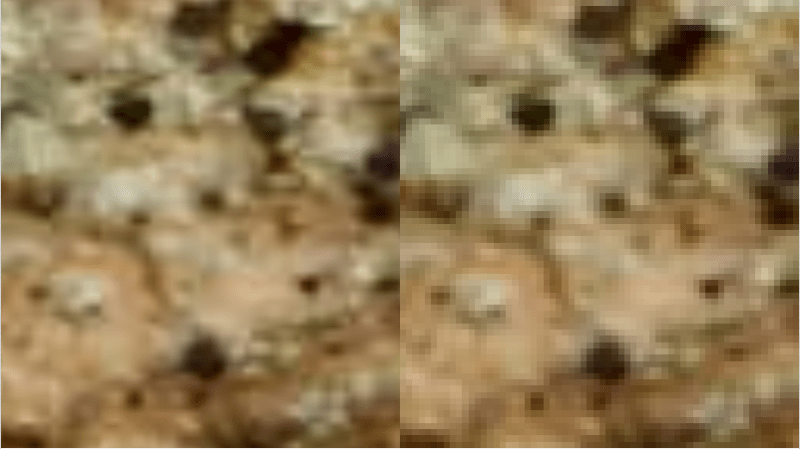
The end result is pretty good! Check out the image below to see it in action on a texture that we are zoomed in too far on. The left side uses bilinear filtering, while the right side does not, and just shows you the nearest pixel.

Consequently, bilinear texture filtering has to do 4 pixel reads to be able to interpolate between them, instead of a single pixel read like when doing nearest pixel sampling. More pixel reads = more overhead, and not as cheap (computationally) to use.

Links

For some folks who are reading this, this info is pretty basic and you might be wondering why i bothered writing about it. Look to the next post for something kind of bizarre regarding bilinear filtering. This was needed as a stepping stone to the next thing I want to show you guys 😛

Wikipedia: Linear Interpolation

Wikipedia: Bilinear Interpolation

Wikipedia: Bilinear Filtering

The Dark Side of Bilinear Filtering

Check out these links for some deeper info about some shortcomings (and some workarounds) of hardware based bilinear sampling:
iq: hardware interpolation
iq: improved texture interpolation

FlipQuad & FlipTri Antialiasing

Here are the last two SSAA algorithms/sampling patterns that I wanted to share – FlipQuad and FlipTri.

FlipQuad

The last post talked about 4-Rook antialiasing which took 4 samples per pixel to do antialiasing.

Before that we talked about quincunx which was able to get 5 samples per pixel, while only rendering 2 samples per pixel. It was able to do that by sharing “corner samples” among 4 pixels.

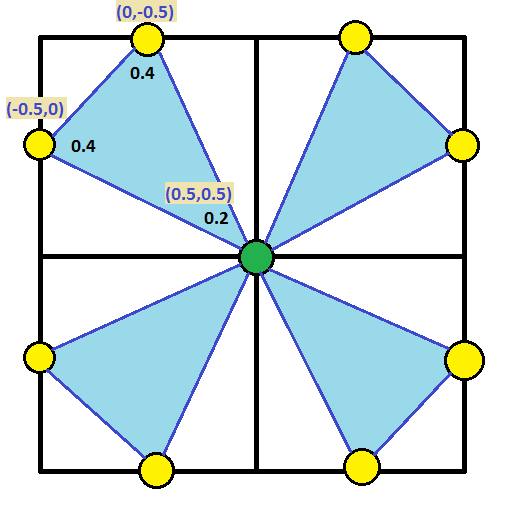
If you combine the ideas from the last two posts, you could start with the 4-rook sampling points and push them to the edge of the pixel so that the edge samples can be shared between the pixels that share the edge.

If you do that though, you’ll actually have two samples on each edge. To solve this and keep the same number of sample points per pixel, you could flip every other pixel’s sample points.

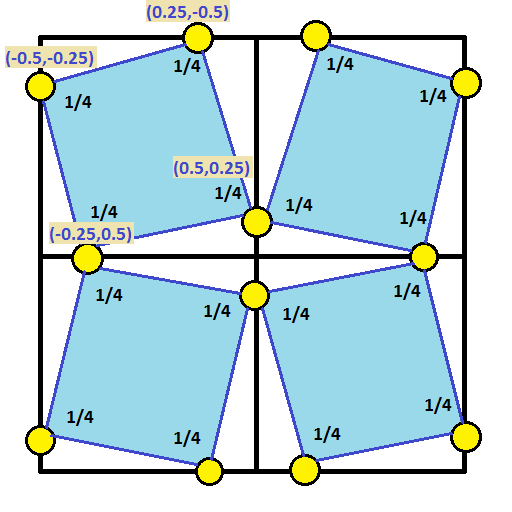
Ta-Da! That is exactly what FlipQuad is. Check out the sampling pattern below, which shows the samples for a 2×2 grid of pixels. You’d just repeat this pattern for as many pixels as you had.

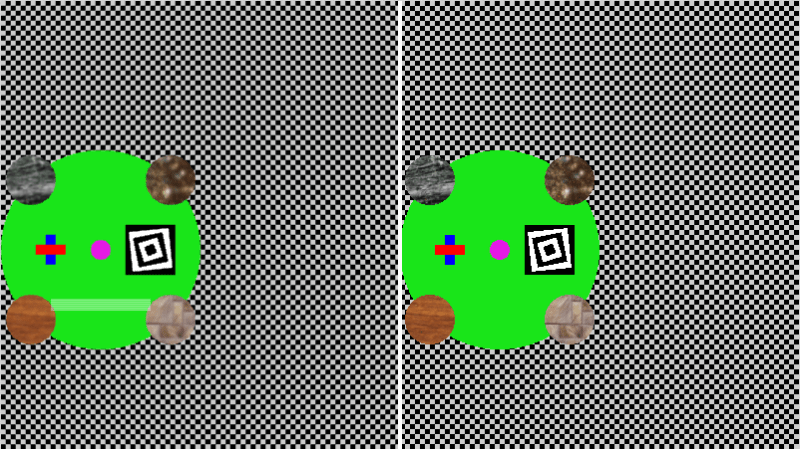
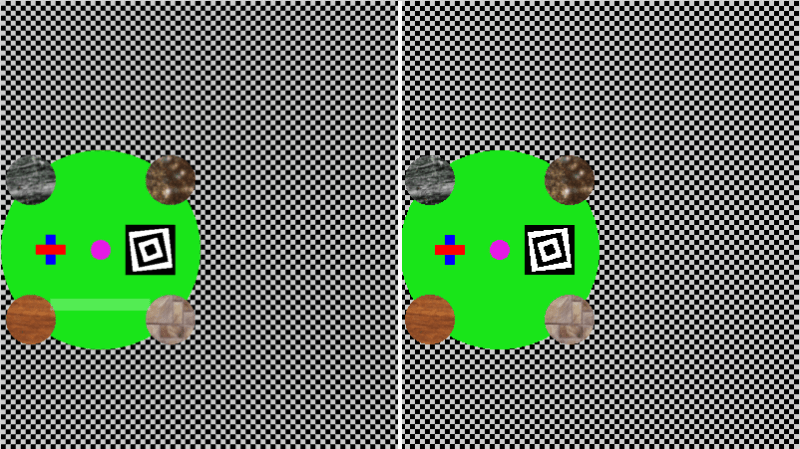
Here’s an image that shows FlipQuad in action – anti aliased on the left, regular image on the right. You can click on the image to see the shadertoy demo of it.

It works pretty well, but it is pretty blurry, especially the textures! Kind of makes sense because quincunx was blurry due to shared samples. We have ONLY shared samples in this pattern, so it’s understandable that it’s kind of blurry. There’s less unique information per pixel than in the other SSAA techniques shown so far.

This essentially is 2 samples rendered per pixel to get 4x SSAA.

ShaderToy: FlipQuad AntiAliasing

FlipTri

Flipquad worked decently, but instead of using a quad, could we use a triangle? Yes we can, check out the 2×2 pixel sampling pattern below:

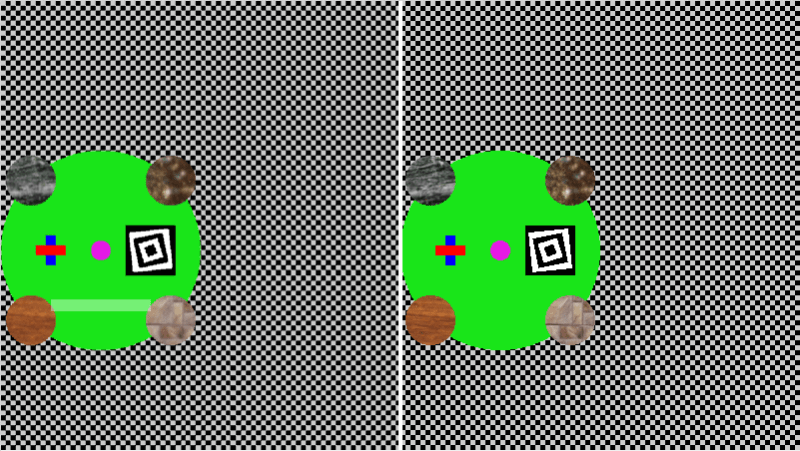
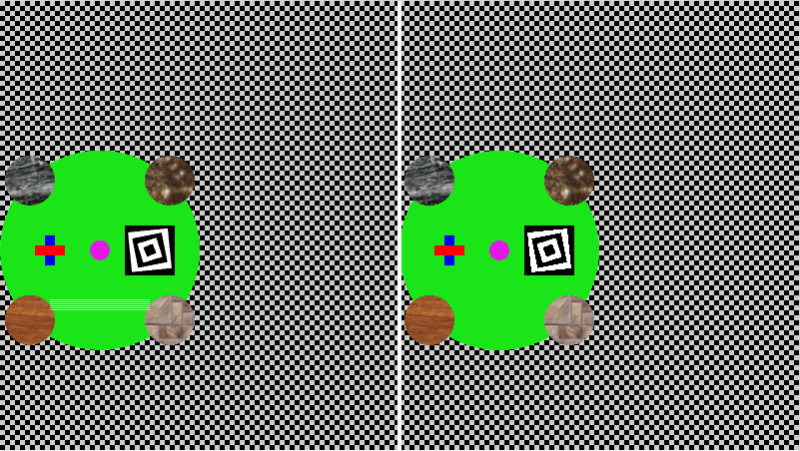
Here’s an image that shows FlipTri in action – anti aliased on the left, regular image on the right. You can click on the image to see the shadertoy demo of it.

This essentially is 1.25 samples rendered per pixel to get 3x SSAA! It really doesn’t look that different to my eyes than the flipquad method, but it uses quite a fewer number of samples!

ShaderToy: FlipTri AntiAliasing

Conclusion

So basically, there’s a bunch of different ways to do SSAA style anti aliasing, even beyond the ones I showed, but in the end you are basically just taking more samples and/or sharing samples across multiple pixels to get a better resulting image.

SSAA is also a common technique in raytracing, where they will shoot multiple rays per pixel, and combine them together in this way, sometimes for things like movies, they will cast hundreds of rays per pixel! You could also just render multiple times and do one of the methods we’ve talked about in the last couple post instead of explicitly shooting multiple rays per pixel.

At SIGGRAPH 2014, someone mentioned in the “advancements in realtime rendering” talk that they used the flipquad pattern along with temporal supersampling. That made it so the 2 samples rendered per pixel was amortized across two frames and thus became one sample per pixel, which is pretty nifty. I feel like you could extend that to flip tri’s and perhaps render less than 1 sample per pixel each frame.

A big issue with implementing these in modern graphics situations is that it’s difficult to render a sample once and share it across multiple pixels. I have a way in mind involving rendering the scene a couple times with different sized buffers and offsets, but not sure yet if it’s practical. Temporal supersampling algorithms definitely seem like they could benefit from these exotic patterns more easily.

Up next I think I’m going to try and figure out MSAA, which has similar results as SSAA, but from the sound of things, performs a bit better.

Links

FlipQuad Research Paper: FLIPQUAD: Low-Cost Multisampling
Rasterization

FlipTri Research Paper: An Extremely Inexpensive
Multisampling Scheme

A Weighted Error Metric and Optimization Method for
Antialiasing Patterns

CGT 511
(Anti)aliasing

Bart Wronski: Temporal supersampling and antialiasing

A Family of Inexpensive Sampling Schemes

4-Rook Antialiasing (RGSS)

The last post was about quincunx antialiasing which used 5 samples per pixel, but allowed you to share 4 of those samples with 4 other pixels each, making it so you only had to render 2 samples per pixel to get those 5 samples per pixel.

I also mentioned that shadertoy didn’t allow you to render to texture so in my shadertoy demo, i had to actually just do 5 samples per pixel to be able to show you the quincunx effect.

If you ever find yourself in that sort of a situation where you can’t (or don’t want) to render your scene twice, 4-Rook Antialiasing may be more what you are looking for.

4-Rook anti aliasing takes 4 samples per pixel, and does so in the pattern below with the specified blend weights. This pattern is also sometimes called rotated grid supersampling (RGSS) and is also a subset of “N-Rook” supersampling where your sample points within a pixel don’t share a vertical or horizontal line with any other sample point. The N-Rook sample patterns are good at breaking up horizontal or vertical aliasing.

Interestingly, 4-Rook AA looks less blurry than quincunx so is higher quality. Intuitively, I’d have to say that makes sense, especially since it is more expensive to do (you render 4 samples per pixel instead of 2!), and also, while quincunx technically has 5 samples per pixel, and 4-Rook only has 4, those 4 samples are all NEW information used only once, while 4 of the samples in quincunx are “old news” and just the old information repeated again.

I think of it like this… the difference between a blur and real SSAA is that in a blur, you try to improve the image with no added information, while in SSAA you try to improve the image WITH added information. Quincunx is on the spectrum between those two since it re-uses 4 samples (minimal “new information”), while 4-rook’s samples are all new information.

Note that you could implement this anti aliasing by rendering your scene 4 times, each time offset by one of the 4 offsets. You would then do a final full screen pass to average each pixel across all 4 renders. In other words: Output[x][y] = (A[X][Y] + B[X][Y] + C[X][Y] + D[X][Y])/4.

Click the image below to be taken to the shadertoy demo of 4-rook anti aliasing.

Here is the quincunx image again for reference, note how it looks blurier in comparison to the 4-Rook image above (check out the red/blue rectangles to see that best), and that the spiral squares don’t quite look as good (they look more aliased?) and that the background grid is ever so slightly darker than the 4-rook version above (or the aliased version of the grid in either picture)!

Shadertoy: 4-Rook Antialiasing (RGSS)

Quincunx Antialiasing

If you are looking for a quick and easy antialiasing implementation, quincunx could be what you are looking for.

Quincunx is part of the family of anti aliasing called supersampling antialiasing (SSAA), which all work by taking multiple samples per pixel, each sample being offset by some amount, and then adding the samples back together with various weightings to get the final antialiased pixel color.

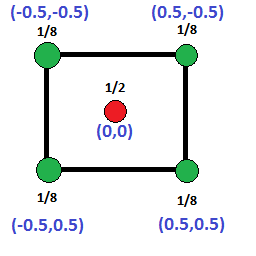
Quincunx antialiasing works by mixing five samples per pixel, in the pattern of the diagram below with the specified weights. The real interesting and useful thing about it though is that the 4 corner samples are each re-used by 4 other pixels, which makes it so that even though you take five samples per pixel, you are in effect really only rendering TWO samples per pixel to get results similar to 5x supersampling antialiasing!

Basically, the performance cost is about the same as 2x SSAA, but gives you results similar to 4x-5x SSAA.

Trivial Note: The word quincunx describes the position of those 5 dots, which is the same configuration you see for the number five on a six sided die.

Since the corners are a half pixel offset from the center pixel, the algorithm for doing quincunx sampling is as follows:

  1. Render your scene to a full size buffer (same size as your output render target), offsetting your camera in screen space by (0.5,0.5) pixels
  2. Next, render your scene to the usual render target as normal
  3. Run a full screen pixel shader post effect on your normal “output render target”. For each pixel:
    1. Multiply the pixel color channels by 0.5
    2. Add in these four offsets from the current pixel location, in the “offset” buffer (the first one rendered), multiplying the color channels by 0.125: (-1,-1), (-1,0), (0,-1), (0,0).

That’s all there is to it! Click the image below to be taken to an animated shadertoy I made which does quincunx antialiasing in a WebGL pixel shader. Shadertoy unfortunately doesn’t let you render to texture, so i have to do all 5 samples per pixel, but you can see see the effect compared to no anti aliasing at all, and the results are pretty nice!

The left half of the image is quincunx antialiased while the right side is not antialiased at all.

A few more creative supersampling AA algorithms coming next (:

Shadertoy: Quincunx Anti Aliasing

Bresenham’s Drawing Algorithms

If you were asked to name a line drawing algorithm, chances are you would say Bresenham. I recently needed to write my own software line drawing algorithm (CPU and regular ram, not GPU and VRAM) and Bresenham was the first to come to mind for me as well.

Believe it or not, Jack Bresenham actually came up with 2 famous line drawing algorithms. One is a run length algorithm, and the other is a run slice algorithm. People are most often familiar with the run length algorithm, which I mainly talk about in this post, but there’s some information about the run slice algorithm and links to other Bresenham primitive rendering algorithms below as well!

An interesting thing about both line algorithms is that they involve only integer mathematics, so there is no round off error, epsilons, numerical instability or anything like that. You use only integers and simple math (no divisions even!), and get the exact right answer out. I think that is pretty cool.

Bresenham’s Run Length Line Algorithm Summarized

To help understand the code, I want to give a brief summarization of how the algorithm works at a high level.

The first step of the Bresenham line algorithm is to see if the line is longer on the X axis or Y axis. Whichever one it is longer on is the major axis, and the shorter one is the minor axis.

Then, starting at the starting point of the line, you loop across all pixels of the major axis, doing some math to decide for each pixel whether you need to move the pixel on the minor axis yet or not. Basically you keep track of the error – or the distance the pixel is away from the true position of the line on the minor axis – and if the error is greater than or equal to 1 pixel, you move the pixel on the minor axis and subtract one pixel from the error. If the error is smaller than 1 pixel, you keep it at the same value it was for the last pixel, and keep the error value the same, so that it can accumulate some more error for the next pixel and test again.


The left line is longer on the X axis, so the major axis is the X axis. The right line is longer on the Y axis, so the major axis is the Y axis. Notice that there is one pixel for each value along the major axis of each line, but repeated pixel values along the minor axis of each line.

If you want the deeper details about the algorithm or the math behind it, check out this link:
Wikipedia: Bresenham’s line algorithm

One Octant Code

Wikipedia says that many implementations implement the algorithm for a single octant (half of a quadrant) and then use coordinate conversions (flipping the x and y’s and/or negating them) to make the same logic work for any quadrant.

In that vein, here is a simple implementation for the first octant – where the major axis is X, and both X and Y are increasing from the starting point to the ending point.

	void DrawLine (int x1, int y1, int x2, int y2, unsigned int color)
	{
		const int dx = x2 - x1;
		const int dy = y2 - y1;

		int Error = 2 * dy - dx;
		int y = y1;
		
		DrawPixel(x1, y1, color);
		for (int x = x1+1; x < x2; ++x)
		{
			if (Error > 0)
			{
				y++;
				Error += 2 * dy - 2 * dx;
			}
			else
			{
				Error += 2 * dy;
			}
			DrawPixel(x,y,color);
		}
	}

With the point of Bresenham being that it is efficient, let’s sacrifice readability a bit and get rid of those DrawPixel calls and perhaps over-micro-optimize a bit and make some consts for frequently used values.

	void DrawLine (unsigned int* pixels, int width, int x1, int y1, int x2, int y2, unsigned int color)
	{
		const int dx = x2 - x1;
		const int dy = y2 - y1;
		const int dx2 = dx * 2;
		const int dy2 = dy * 2;
		const int dy2Mindx2 = dy2 - dx2;

		int Error = dy2 - dx;

		unsigned int* pixel = &amp;pixels[y1*width+x1];
		*pixel = color;
		for (int x = x2 - x1 - 1; x > 0; --x)
		{
			if (Error > 0)
			{
				pixel += width + 1;
				Error += dy2Mindx2;
			}
			else
			{
				pixel++;
				Error += dy2;
			}
			*pixel = color;
		}
	}

Cool, now let’s make it work for any line.

Final Code

	// Generic Line Drawing
	// X and Y are flipped for Y maxor axis lines, but the pixel writes are handled correctly due to
	// minor and major axis pixel movement
	void DrawLineMajorAxis(
		unsigned int* pixel,
		int majorAxisPixelMovement,
		int minorAxisPixelMovement,
		int dx,
		int dy,
		unsigned int color
	)
	{
		// calculate some constants
		const int dx2 = dx * 2;
		const int dy2 = dy * 2;
		const int dy2Mindx2 = dy2 - dx2;

		// calculate the starting error value
		int Error = dy2 - dx;

		// draw the first pixel
		*pixel = color;

		// loop across the major axis
		while (dx--)
		{
			// move on major axis and minor axis
			if (Error > 0)
			{
				pixel += majorAxisPixelMovement + minorAxisPixelMovement;
				Error += dy2Mindx2;
			}
			// move on major axis only
			else
			{
				pixel += majorAxisPixelMovement;
				Error += dy2;
			}

			// draw the next pixel
			*pixel = color;
		}
	}

	// Specialized Line Drawing optimized for horizontal or vertical lines
	// X and Y are flipped for Y maxor axis lines, but the pixel writes are handled correctly due to
	// minor and major axis pixel movement
	void DrawLineSingleAxis(unsigned int* pixel, int majorAxisPixelMovement, int dx, unsigned int color)
	{
		// draw the first pixel
		*pixel = color;

		// loop across the major axis and draw the rest of the pixels
		while (dx--)
		{
			pixel += majorAxisPixelMovement;
			*pixel = color;
		};
	}

	// Draw an arbitrary line.  Assumes start and end point are within valid range
	// pixels is a pointer to where the pixels you want to draw to start aka (0,0)
	// pixelStride is the number of unsigned ints to get from one row of pixels to the next.
	// Usually, that is the same as the width of the image you are drawing to, but sometimes is not.
	void DrawLine(unsigned int* pixels, int pixelStride, int x1, int y1, int x2, int y2, unsigned int color)
	{
		// calculate our deltas
		int dx = x2 - x1;
		int dy = y2 - y1;

		// if the X axis is the major axis
		if (abs(dx) >= abs(dy))
		{
			// if x2 < x1, flip the points to have fewer special cases
			if (dx < 0)
			{
				dx *= -1;
				dy *= -1;
				swap(x1, x2);
				swap(y1, y2);
			}

			// get the address of the pixel at (x1,y1)
			unsigned int* startPixel = &amp;pixels[y1 * pixelStride + x1];

			// determine special cases
			if (dy > 0)
				DrawLineMajorAxis(startPixel, 1, pixelStride, dx, dy, color);
			else if (dy < 0)
				DrawLineMajorAxis(startPixel, 1, -pixelStride, dx, -dy, color);
			else
				DrawLineSingleAxis(startPixel, 1, dx, color);
		}
		// else the Y axis is the major axis
		else
		{
			// if y2 < y1, flip the points to have fewer special cases
			if (dy < 0)
			{
				dx *= -1;
				dy *= -1;
				swap(x1, x2);
				swap(y1, y2);
			}

			// get the address of the pixel at (x1,y1)
			unsigned int* startPixel = &amp;pixels[y1 * pixelStride + x1];

			// determine special cases
			if (dx > 0)
				DrawLineMajorAxis(startPixel, pixelStride, 1, dy, dx, color);
			else if (dx < 0)
				DrawLineMajorAxis(startPixel, pixelStride, -1, dy, -dx, color);
			else
				DrawLineSingleAxis(startPixel, pixelStride, dy, color);
		}
	}

Using the above functions, I wrote a little test to draw lines from the center of an image towards the edges at 100 different angles, and also a horizontal and vertical line. Here’s the results:

Run Slice Algorithm

So, like I said above, there is another Bresenham line algorithm that is a run slice algorithm.

What that means is that instead of looping across the major axis figuring out if each pixel needs to move on the minor axis as well, instead it loops across the minor axis, figuring out how many pixels it needs to write for that row or column of pixels.

One benefit of that algorithm is that it is less loop iterations since it’s looping across the minor axis pixels instead of the major axis.

Here’s an interesting read about Michael Abrash and his encounters with and the run slice algorithm:

Michael Abrash’s Graphics Programming Black Book Special Edition: The Good, the Bad, and the Run-Sliced

Other Bresenham Algorithms

This was origionally just going to be about the line algorithms, and I was going to make up another post about the circle algorithm, but I changed my mind.

While doing some research to see if there was a Bresenham bezier curve algorithm I stumbled on the page below, which shows that yes, there is! There are quite a few other algorithms as well:

Many Bresenham algorithms with very short c++ implementations

Dual Numbers & Automatic Differentiation

In the last post, I talked about imaginary numbers, complex numbers, and how to use them to rotate vectors in 2d.

In this post, I want to share another interesting type of number called a “Dual Number” that uses the symbol ε (epsilon) and has a neat trick of automatically calculating the derivative of a function while you calculate the value of the function at the same time.

Dual numbers are pretty similar to imaginary numbers but there is one important difference. With imaginary numbers, i^2 = -1, but with dual numbers, ε^2 = 0 (and ε is not 0!). That may seem like a small difference, but oddly, that opens up a whole interesting world of mathematical usefulness.

Before we dig into automatic differentiation, I want to go over the mathematical basics for how dual numbers behave.

Basic Dual Number Math

Adding dual numbers is the same as adding complex numbers; you just add the real and dual parts separately:

(3 + 4ε) + (1 + 2ε) = 4 + 6ε

Subtraction works the same way as well:

(3 + 4ε) – (1 + 2ε) = 2 + 2ε

To multiply dual numbers, you use F.O.I.L. just like you do with complex numbers:

(3 + 4ε) * (1 + 2ε) =
3 + 6ε + 4ε + 8ε^2 =
3 + 10ε + 8ε^2

However, since ε^2 is zero, the last term 8ε^2 disappears:
3 + 10ε

It’s interesting to note that with complex numbers, the i^2 became -1, so the last term changed from imaginary to real, meaning that the imaginary numbers fed back into the real numbers during multiplication. With dual numbers, that isn’t the case, the dual numbers don’t feed back into the real numbers during multiplication.

In both complex and dual numbers the real terms do affect the non real terms during multiplication.

The division operator relates to the conjugate. I have source code for it below, and some of the links at the end of the post go into the details of that and other operations.

Quick Review: Derivatives (Slope)

If you know the line formula y=mx+b, but you don’t know what a derivative is you are in luck. Remember how “m” is the slope of the line, specifying how steep it is? That is what the derivative is too, it’s just the slope.

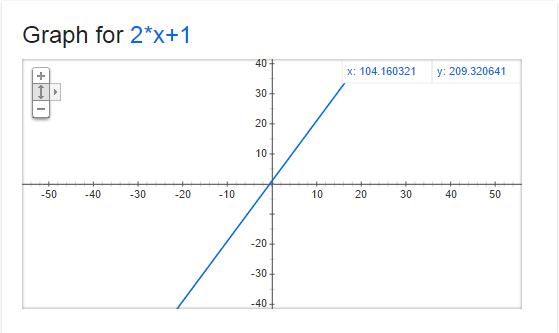
Below is a graph of y=2x+1. At every point on that line, the derivative (or slope) is 2. That means that for every step we make on the x axis to the right (positive direction), we make 2 steps up on the y axis (positive direction).
Now, check out this graph of y=x^2-0.2
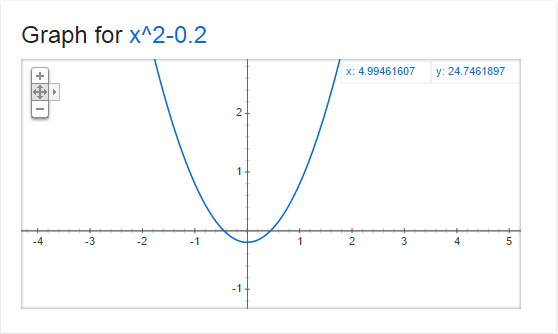
The derivative (or slope) at every point on this graph is 2x. That means that the slope changes depending on where the x coordinate is!

So, when x=0, the slope is 0. You can see that in the graph where x=0, that it is horizontal, meaning that a step on the x axis becomes no steps on the y axis (only at that point where x is 0, and only if you take an infinitely small step).

When x is 1, the slope is 2, when x is 2, the slope is 4, when x is 3, the slope is 6. Since the numbers increase as we increase x from 0, that tells us that the graph gets steeper as we go to the right, which you can see in the graph.

Alternately, when x is -1, the slope is -2, when x is -2, the slope is -4, and when x is -3, the slope is -6. This shows us that as we decrease x from 0, the graph gets steeper in the opposite direction, which you can see in the graph as well.

What is Automatic Differentiation?

Let’s say you have a function (possibly a curve) describing the path of a rocket, and you want to make the rocket point down the path that it’s traveling.

One way you might do this is to evaluate your function f(T) to get the current location of your rocket (where T is how long the rocket has been flying), and then calculate the derivative f'(T) to find the slope of the graph at that point so that you can orient the rocket in that direction.

You could calculate the value and slope of the function at time T independently easily enough if you know how to get the derivative of a function (a calculus topic), or use wolframalpha.com.

However, if you have a complex equation, or maybe if the equation is controlled by user input, or game data, it might not be so easy to figure out what the derivative is at run time.

For instance… imagine having a function that rolled random numbers to figure out what mathematical operation it should preform on a number next (if we roll a 0, add 3, if we roll a 1 multiply by 2, if we roll a 2, square the number… etc). It isn’t going to be simple to take the derivative of the same mathematical function.

Here enters automatic differentiation (or AD). AD lets you calculate the derivative WHILE you are calculating the value of the function.

That way, you can do whatever math operations you want on your number, and in the end you will have both the value of f(T) as well as the derivative f'(T).

Using ε for Automatic Differentiation

You can use dual number operations on numbers to calculate the value of f(x) while also calculating f'(x) at the same time. I’ll show you how with a simple example using addition and multiplication like we went over above.

We’ll start with the function f(x)=3x+2, and calculate f(4) and f'(4).

the first thing we do is convert our 4 into a dual number, using 1 for the dual component, since we are plugging it in for the value of x, which has a derivative of 1.

4+1ε

Next, we want to multiply that by the constant 3, using 0 for the dual component since it is just a constant (and the derivative of a constant is 0)

(4+1ε) * (3 + 0ε) =
12 + 0ε + 3ε + 0ε^2 =
12 + 3e

Lastly, we need to add the constant 2, using 0 again for the dual component since it’s just a constant.
(12 + 3ε) + (2 + 0ε) =
14 + 3ε

In our result, the real number component (14) is the value of f(4) and the dual component (3) is the derivative f'(4), which is correct if you work it out!

Let’s try f(5). First we convert 5 to a dual number, with the dual component being 1.

5 + 1ε

Next we need to multiply it by the constant 3 (which has a dual component of 0)

(5 + 1ε) * (3 + 0e) =
15 + 0ε + 3ε + 0ε^2 =
15 + 3ε

Now, we add the constant 2 (which has a dual component of 0 again since it’s just a constant)
(15 + 3ε) + (2 + 0ε) =
17 + 3ε

So, our answer says that f(5) = 17, and f'(5) = 3, which again you can verify is true!

Quadratic Example

The example above worked well but it was a linear function. What if we want to do a function like f(x) = 5x^2 + 4x + 1?

Let’s calculate f(2). We are going to first calculate the 5x^2 term, so we need to start by making a dual number for the function parameter x:
(2 + 1ε)

Next, we need to multiply it by itself to make x^2:
(2 + 1ε) * (2 + 1ε) =
4 + 2ε + 2ε + 1ε^2 =
4 + 4ε

(remember that ε^2 is 0, so the last term disappears)

next, we multiply that by the constant 5 to finish making the 5x^2 term:
(4 + 4ε) * (5 + 0ε) =
20 + 0ε + 20ε + 0ε^2 =
20 + 20ε

Now, putting that number aside for a second we need to calculate the “4x” term by multiplying the value we plugged in for x by the constant 4
(2 + 1ε) * (4 + 0ε) =
8 + 0ε + 4ε + 0ε^2 =
8 + 4ε

Next, we need to add the last 2 values together (the 5x^2 term and the 4x term):
(20 + 20ε) + (8 + 4ε) =
28 + 24ε

Lastly, we need to add in the last term, the constant 1
(28 + 24ε) + (1 + 0ε) =
29 + 24e

There is our answer! For the equation y = 5x^2 + 4x + 1, f(2) = 29 and f'(2) = 24. Check it, it’s correct (:

As one last example let’s calculate f(10) and f'(10) with the same function above y = 5x^2 + 4x + 1.

First, to start calculating the 5x^2 term, we need to make 10 into a dual number and multiply it by itself to make x^2:
(10 + 1ε) * (10 + 1ε) =
100 + 10ε + 10ε + 1ε^2 =
100 + 20ε

Next, we multiply by the constant 5 to finish making the 5x^2 term:
(100 + 20ε) * (5 + 0ε) =
500 + 0ε + 100ε + 0ε^2 =
500 + 100ε

Putting that aside, let’s calculate the 4x term by multiplying our x value by the constant 4:
(10 + 1ε) * (4 + 0ε) =
40 + 0ε + 4ε + 0ε^2 =
40 + 4ε

Lastly, let’s add our terms: 5x^2, 4x and the constant 1
(500 + 100ε) + (40 + 4ε) + (1 + 0ε) =
541 + 104ε

The answer tells us that for the equation y = 5x^2 + 4x + 1, f(10) = 541 and f'(10) = 104.

Sample Code

There are lots of other mathematical operations that you can do with dual numbers. I’ve collected as many as I was able to find and made up some sample code that uses them. The sample code is below, as well as the program output.

#include 
#include 

#define PI 3.14159265359f

// In production code, this class should probably take a template parameter for
// it's scalar type instead of hard coding to float
class CDualNumber
{
public:
	CDualNumber (float real = 0.0f, float dual = 0.0f)
		: m_real(real)
		, m_dual(dual)
	{
	}

	float Real () const { return m_real; }
	float Dual () const { return m_dual; }

private:
	float m_real;
	float m_dual;
};

//----------------------------------------------------------------------
// Math Operations
//----------------------------------------------------------------------
inline CDualNumber operator + (const CDualNumber &a, const CDualNumber &b)
{
	return CDualNumber(a.Real() + b.Real(), a.Dual() + b.Dual());
}

inline CDualNumber operator - (const CDualNumber &a, const CDualNumber &b)
{
	return CDualNumber(a.Real() - b.Real(), a.Dual() - b.Dual());
}

inline CDualNumber operator * (const CDualNumber &a, const CDualNumber &b)
{
	return CDualNumber(
		a.Real() * b.Real(),
		a.Real() * b.Dual() + a.Dual() * b.Real()
	);
}

inline CDualNumber operator / (const CDualNumber &a, const CDualNumber &b)
{
	return CDualNumber(
		a.Real() / b.Real(),
		(a.Dual() * b.Real() - a.Real() * b.Dual()) / (b.Real() * b.Real())
	);
}

inline CDualNumber sqrt (const CDualNumber &a)
{
	float sqrtReal = ::sqrt(a.Real());
	return CDualNumber(
		sqrtReal,
		0.5f * a.Dual() / sqrtReal
	);
}

inline CDualNumber pow (const CDualNumber &a, float y)
{
	return CDualNumber(
		::pow(a.Real(), y),
		y * a.Dual() * ::pow(a.Real(), y - 1.0f)
	);
}

inline CDualNumber sin (const CDualNumber &a)
{
	return CDualNumber(
		::sin(a.Real()),
		a.Dual() * ::cos(a.Real())
	);
}

inline CDualNumber cos (const CDualNumber &a)
{
	return CDualNumber(
		::cos(a.Real()),
		-a.Dual() * ::sin(a.Real())
	);
}

inline CDualNumber tan (const CDualNumber &a)
{
	return CDualNumber(
		::tan(a.Real()),
		a.Dual() / (::cos(a.Real()) * ::cos(a.Real()))
	);
}

inline CDualNumber atan (const CDualNumber &a)
{
	return CDualNumber(
		::atan(a.Real()),
		a.Dual() / (1.0f + a.Real() * a.Real())
	);
}

inline CDualNumber SmoothStep (CDualNumber x)
{
	// f(x) = 3x^2 - 2x^3
	// f'(x) = 6x - 6x^2
	return x * x * (CDualNumber(3) - CDualNumber(2) * x);
}

//----------------------------------------------------------------------
// Test Functions
//----------------------------------------------------------------------

void TestSmoothStep (float x)
{
	CDualNumber y = SmoothStep(CDualNumber(x, 1.0f));
	printf("smoothstep 3x^2-2x^3(%0.4f) = %0.4fn", x, y.Real());
	printf("smoothstep 3x^2-2x^3'(%0.4f) = %0.4fnn", x, y.Dual());
}

void TestTrig (float x)
{
	CDualNumber y = sin(CDualNumber(x, 1.0f));
	printf("sin(%0.4f) = %0.4fn", x, y.Real());
	printf("sin'(%0.4f) = %0.4fnn", x, y.Dual());

	y = cos(CDualNumber(x, 1.0f));
	printf("cos(%0.4f) = %0.4fn", x, y.Real());
	printf("cos'(%0.4f) = %0.4fnn", x, y.Dual());

	y = tan(CDualNumber(x, 1.0f));
	printf("tan(%0.4f) = %0.4fn", x, y.Real());
	printf("tan'(%0.4f) = %0.4fnn", x, y.Dual());

	y = atan(CDualNumber(x, 1.0f));
	printf("atan(%0.4f) = %0.4fn", x, y.Real());
	printf("atan'(%0.4f) = %0.4fnn", x, y.Dual());
}

void TestSimple (float x)
{
	CDualNumber y = CDualNumber(3.0f) / sqrt(CDualNumber(x, 1.0f));
	printf("3/sqrt(%0.4f) = %0.4fn", x, y.Real());
	printf("3/sqrt(%0.4f)' = %0.4fnn", x, y.Dual());

	y = pow(CDualNumber(x, 1.0f) + CDualNumber(1.0f), 1.337f);
	printf("(%0.4f+1)^1.337 = %0.4fn", x, y.Real());
	printf("(%0.4f+1)^1.337' = %0.4fnn", x, y.Dual());
}

int main (int argc, char **argv)
{
	TestSmoothStep(0.5f);
	TestSmoothStep(0.75f);
	TestTrig(PI * 0.25f);
	TestSimple(3.0f);
	return 0;
}

Here is the program output:
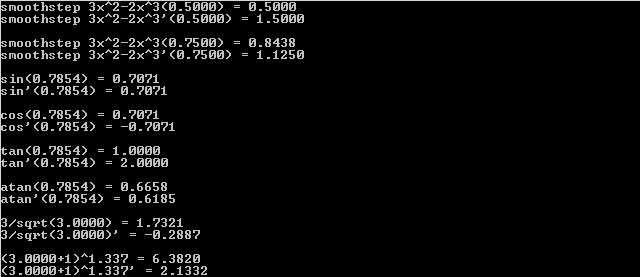
Closing Info

When you are thinking what number ε has to be so that ε^2 is 0 but ε is not 0, you may be tempted to think that it is an imaginary number, just like i (the square root of -1) that doesn’t actually exist. This is actually not how it is… I’ve seen ε described in two ways.

One way I’ve seen it described is that it’s an infinitesimal number. That sort of makes sense to me, but not in a concrete and tangible way.

The way that makes more sense to me is to describe it as a matrix like this:
[0, 1]
[0, 0]

If you multiply that matrix by itself, you will get zero(s) as a result.

In fact, an alternate way to implement the dual numbers is to treat them like a matrix like that.

I also wanted to mention that it’s possible to modify this technique to get the 2nd derivative of a function or the 3rd, or the Nth. It isn’t only limited to the 1st derivative. Check the links at the bottom of this post for more info, but essentially, if you want 1st and 2nd derivative, you need to make it so that ε^3 = 0 instead of ε^2 = 0. There is a way to do that with matrices.

Another neat thing is that you can also extend this into multiple dimensions. This is useful for situations like if you have some terrain described by mathematical functions, when you are walking the grid of terrain to make vertex information, you can get the slope / gradient / surface normal at the same time.

Lastly, I wanted to mention a different kind of number called a hyperbolic number.

The imaginary number i^2 = -1 and we can use it to do 2d rotations.

The dual number ε^2 is 0 (and ε is not 0) and we can use it to do automatic differentiation.

Hyperbolic numbers have j, and j^2 = 1 (and j is not 1). I’m not sure, but I bet they have some interesting usefulness to them too. It would be interesting to research that more sometime. If you know anything about them, please post a comment!

Links

This shadertoy is what got me started looking into dual numbers. It’s a mandelbrot viewer done by iq using dual numbers to estimate a distance from a point to the mandelbrot set (as far as I understand it anyhow, ha!). He uses that estimated distance to color the pixels.

Shadertoy: Dual Complex Numbers

I didn’t get very much into the reasons of why this works (has to do with taylor series terms disappearing if ε^2 is 0), or the rigorous math behind deriving the operators, but here are some great links I found researching this stuff and putting this blog post together.

Wikipedia: Dual Number
[Book] Dual-Number Methods in Kinematics, Statics and Dynamics By Ian Fischer
[GDC2012] Math for Game Programmers: Dual Numbers by Gino van den Bergen
Stackexchange: Implementing trig functions for dual numbers
Exact numeric nth derivatives
Automatic Differentiation with Dual numbers
Wikipedia: Automatic Differentiation
Four Ways to Calculate Sine Without Trig

Is it possible to sin without trig? That is a question that has plagued theologians for centuries. As evil as trigonometry is, modern science shows us that yes, it is possible to sin without trig. Here are some ways that I’ve come across.

1 – Slope Iteration Method


The above image uses 1024 samples from 0 to 2pi to aproximate sine iteratively using it’s slope. Red is true sin, green is the aproximation, and yellow is where they overlap.

This method comes from Game Programming Gems 8, which you can snag a copy of from amazon below if you are interested. It’s mentioned in chapter 6.1 A Practical DSP Radio Effect (which is a really cool read btw!).
Amazon: Game Programming Gems 8

This method uses calculus but is actually pretty straightforward and intuitive – and very surprising to me that it works so well!

The derivative of sin(x) is cos(x). That means, for any x you plug into sin, the slope of the function at that point is the cosine value of that same x.

In other words, sin(0) is 0, but it has a slope of cos(0) which is 1. Since slope is rise over run (change in y / change in x) that means that at sin(0), if you take an infinitely small step forward on x, you need to take the same sized step on y. That will get you to the next value of sine.

Let’s test that out!
sin(0) = 0 so we start at (0,0) on the graph.

If we try a step size of 0.1, our approximation is:
sin(0.1) = 0.1

The actual value according to google is 0.09983341664. so our error was about 0.0002. That is actually pretty close!

How about 0.25?
sin(0.25) = 0.25

The real value is 0.24740395925, so our error is about 0.003. We have about 10 times the error that we did at 0.1.

what if we try it with 0.5?
sin(0.5) = 0.5

The actual value is 0.4794255386, which leaves us with an error of about 0.02. Our error is 100 times as much as it was at 0.1. As you can see, the error increases as our step size gets larger.

If we wanted to, we could get the slope (cosine value) at the new x value and take another step. we could continue doing this to get our sine approximation, knowing that the smaller the step that we use, the more accurate our sine approximation would be.

We haven’t actually won anything at this point though, because we are just using cosine to take approximated steps through sine values. We are paying the cost of calculating cosine, so we might as well just calculate sine directly instead.

Well luckily, cosine has a similar relationship with sine; the derivative of cos(x) is -sin(x).

Now, we can use cosine values to step through sine values, and use those same sine values to step through cosine values.

Since we know that cos(0) = 1.0 and sin(0) = 0.0, we can start at an angle of 0 with those values and we can iteratively step through the values.

Here is a sample function in C++

// theta is the angle we want the sine value of.
// higher resolution means smaller step size AKA more accuracy but higher computational cost.
// I used a resolution value of 1024 in the image at the top of this section.
float SineApproximation (float theta, float resolution)
{
    // calculate the stepDelta for our angle.
    // resolution is the number of samples we calculate from 0 to 2pi radians
    const float TwoPi = 6.28318530718f;
    const float stepDelta = (TwoPi / resolution);

    // initialize our starting values
    float angle = 0.0;
    float vcos = 1.0;
    float vsin = 0.0;

    // while we are less than our desired angle
    while(angle < theta) {

        // calculate our step size on the y axis for our step size on the x axis.
        float vcosscaled = vcos * stepDelta;
        float vsinscaled = vsin * stepDelta;

        // take a step on the x axis
        angle += stepDelta;

        // take a step on the y axis
        vsin += vcosscaled;
        vcos -= vsinscaled;
    }

    // return the value we calculated
    return vsin;
}

Note that the higher the angle you use, the more the error rate accumulates. One way to help this would be to make sure that theta was between 0 and 2pi, or you could even just calculate between 0 and pi/2 and mirror / reflect the values for the other quadrants.

This function is quite a bit of work to calculate a single value of sine but it’s real power comes in the fact that it’s iterative. If you ever find yourself in a situation where you need progressive values of sine, and have some fixed angle step size through the sine values, this algorithm just needs to do a couple multiplies and adds to get to the next value of sine.

One great use of this could be in DSP / audio synthesis, for sine wave generation. Another good use could be in efficiently evaluating trigonometry based splines (a future topic I plan to make a post about!).

You can see this in action in this shadertoy or look below at the screenshots:
Shadertoy: Sin without Trig

64 Samples – Red is true sine, green is our approximation, and yellow is where they are the same

128 Samples

256 Samples

1024 Samples

2 – Taylor Series Method

Another way to calculate sine is by using an infinite Taylor series. Thanks to my friend Yuval for showing me this method.

You can get the Taylor series for sine by typing “series sin(x)” into wolfram alpha. You can see that here: Wolfram Alpha: series sin(x).

Wolfram alpha says the series is: x-x^3/6+x^5/120-x^7/5040+x^9/362880-x^11/39916800 ….

what this means is that if you plug a value in for x, you will get an approximation of sine for that x value. It’s an infinite series, but you can do as few or as many terms as you want to be able to trade off speed for accuracy.

For instance check out these graphs.

Google: graph y = x, y = sin(x)

Google: graph y = x-x^3/6, y = sin(x)

Google: graph y = x-x^3/6+x^5/120, y = sin(x)

Google: graph y = x-x^3/6+x^5/120-x^7/5040, y = sin(x)

Google: graph y = x-x^3/6+x^5/120-x^7/5040+x^9/362880, y = sin(x)

Google: graph y = x-x^3/6+x^5/120-x^7/5040+x^9/362880-x^11/39916800, y = sin(x)
(Note that I had to zoom out a bit to show where it became inaccurate)

When looking at these graphs, you’ll probably notice that very early on, the approximation is pretty good between -Pi/2 and + Pi/2. I leveraged that by only using those values (with modulus) and mirroring them to be able to get a sine value of any angle with more accuracy.

When using just x-x^3/6, there was an obvious problem at the top and bottom of the sine waves:

When i boosted the equation with another term, bringing it to x-x^3/6+x^5/120, my sine approximation was much better:

You can see this method in action in this shadertoy:
Shadertoy: Sin without Trig II

3 – Smoothstep Method

The third method may be my favorite, due to it’s sheer elegance and simplicity. Thanks to P_Malin on shadertoy.com for sharing this one with me.

There’s a function in graphics called “smoothstep” that is used to take the hard linear edge off of things, and give it a smoother, more organic feel. You can read more about it here: Wikipedia: Smoothstep.

BTW if you haven’t read the last post, I talk about how smooth step is really just a 1d bezier curve with specific control points (One Dimensional Bezier Curves). Also, smoothstep is just this function: y = (3x^2 – 2x^3).

Anyhow, if you have a triangle wave that has values from 0 to 1 on the y axis, and put it through a smoothstep, then scale it to -1 to +1 on the y axis, you get a pretty darn good sine approximation out.

Here is a step by step recipe:

Step 1 – Make a triangle wave that has values on the y axis from 0 to 1

Step 2 – Put that triangle wave through smoothstep (3x^2 – 2x^3)

Step 3 – Scale the result to having values from -1 to +1 on the axis.

That is pretty good isn’t it?

You can see this in action in this shadertoy (thanks to shadertoy’s Dave_Hoskins for some help with improving the code):
Shadertoy: Sin without Trig III

After I made that shadertoy, IQ, the creator of shadertoy who is an amazing programmer and an impressive “demoscene” guy, said that he experimented with removing the error from that technique to try to get a better sin/cos aproximation.

You can see that here: Shadertoy: Sincos approximation

Also, I recommend checking out IQ’s website. He has a lot of interesting topics on there: IQ’s Website

4 – CORDIC Mathematics

This fourth way is a method that cheaper calculators use to calculate trig functions, and other things as well.

I haven’t taken a whole lot of time to understand the details, but it looks like it’s using imaginary numbers to rotate vectors iteratively, doing a binary search across the search space to find the desired values.

The benefit of this technique is that it can be implemented with VERY little hardware support.

The number of logic gates for the implementation of a CORDIC is roughly comparable to the number required for a multiplier as both require combinations of shifts and additions.
Wikipedia: Coordinate Rotation Digital Computer

Did I miss any?

If you know of something that I’ve left out, post a comment, I’d love to hear about it!

One Dimensional Bezier Curves

I was recently looking at the formula for bezier curves:

Quadratic Bezier curve:
A * (1-T)^2 + B * 2 * (1-T) * T + C * T ^2

Cubic Bezier curve:
A*(1-T)^3+3*B*(1-T)^2*T+3*C*(1-T)*T^2+D*T^3

(more info available at Bezier Curves Part 2 (and Bezier Surfaces))

And I wondered… since you can have a Bezier curve in any dimension, what would happen if you made the control points (A,B,C,D) scalar? In other words, what would happen if you made bezier curves 1 dimensional?

Well it turns out something pretty interesting happens. If you replace T with x, you end up with f(x) functions, like the below:

Quadratic Bezier curve:
y = A * (1-x)^2 + B * 2 * (1-x) * x + C * x ^2

Cubic Bezier curve:
y = A*(1-x)^3+3*B*(1-x)^2*x+3*C*(1-x)*x^2+D*x^3

What makes that so interesting is that most math operations you may want to do on a bezier curve are a lot easier using y=f(x), instead of the parameterized formula Point = F(S,T).

For instance, try to calculate where a line segment intersects with a parameterized bezier curve, and then try it again with a quadratic equation. Or, try calculating the indefinite integral of the parameterized curve so that you can find the area underneath it (like, for Analytic Fog Density). Or, try to even find the given Y location that the curve has for a specific X value. These things are pretty difficult with a parameterized function, but a lot easier with the y=f(x) style function.

This ease of use does come at a price though. Specifically, you can’t move control points freely, you can only move them up and down and cannot move them left and right. If you are ok with that trade off, these 1 dimensional curves can be pretty powerful.

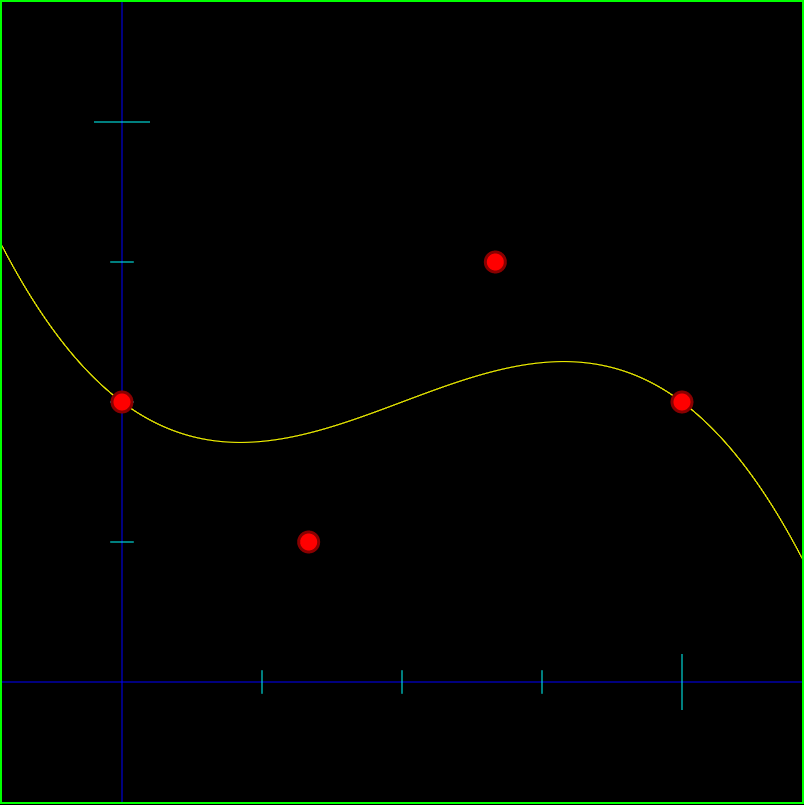
Below is an image of a 1 dimensional cubic bezier curve that has control points A = 0.5 B = 0.25 C = 0.75 D = 0.5. The function of this curve is y = 0.5 * (1-x)^3 + 0.25 * 3x(1-x)^2 + 0.75 * 3x^2(1-x) + 0.5 * x^3.

You can ask google to graph that for you to see that it is in fact the same: Google: graph y = 0.5 * (1-x)^3 + 0.25 * 3x(1-x)^2 + 0.75 * 3x^2(1-x) + 0.5 * x^3

cubicbez

Another benefit to these one dimensional bezier curves is that you could kind of use them as a “curve fitting” method. If you have some data that you wanted to approximate with a quadratic function, you could adjust the control points of a one dimensional quadratic Bezier curve to match your data set. If you need more control points to get a better aproximation of the data, you can just increase the degree of the bezier curve (check this out for more info on how to do that: Bezier Curves Part 2 (and Bezier Surfaces)).

Smoothstep as a Cubic 1d Bezier Curve

BIG THANKS to CeeJay.dk for telling me about this, this is pretty rad.

It’s kind of out of the scope of this post to talk about why smoothstep is awesome, but to give you strong evidence that it is, it’s a GLSL built in function. You may have also seen it used in the post I made about distance fields (Distance Field Textures), because one of it’s common uses is to make the edges of things look smoother. Here’s a wikipedia page on it as well if you want more info: Wikipedia: Smoothstep

Anyhow, I had no idea, but apparently the smoothstep equation is the same as if you take a 1d cubic bezier curve and make the first two control points 0, and the last two control points 1.

The equation for smoothstep is: y = 3*x^2 – 2*x^3

The equation for the bezier curve i mentioned is: y = 0*(1-x)^3+3*0*(1-x)^2*x+3*1*(1-x)*x^2+1*x^3

otherwise known as: y = 3*1*(1-x)*x^2+1*x^3

If you work it out, those are the same equations! Wolfram alpha can verify that for us even: Wolfram Alpha: does 3*x^2 – 2*x^3 = 3*1*(1-x)*x^2+1*x^3.

Kinda neat 😛

Moving Control Points on the X Axis

There’s a way you could fake moving control points on the X axis (left and right) if you really needed to. What I’m thinking is basically that you could scale X before you plug it into the equation.

For instance, if you moved the last control point to the left so that it was at 0.9 instead of 1.0, the space between the 3rd and 4th control point is now .23 instead of .33 on the x axis. You could simulate that by having some code like this:

if (x > 0.66)
  x = 0.66 + (x - 0.66) / 0.33 * 0.23

Basically, we are squishing the X values that are between 0.66 and 1.0 into 0.66 to 0.9. This is the x value we want to use, but we’d still plug the raw, unscaled x value into the function to get the y value for that x.

As another example, let’s say you moved the 3rd control point left from 0.66 to 0.5. In this situation, you would squish the X values that were between 0.33 and 0.66 into 0.33 to 0.5. HOWEVER, you would also need to EXPAND the values that were between 0.66 and 1.0 to be from 0.5 and 1.0. Since you only moved the 3rd control point left, you’d have to squish the section to the left of the control point, and expand the section to the right to make up the difference to keep the 4th control point in the same place. The code for converting X values is a little more complex, but not too bad.

What happens if you move the first control point left or right? Well, basically you have to expand or squish the first section, but you also need to add or subtract an offset for the x as well.

I’ll leave the last 2 conversions as an exercise for whoever might want to give this a shot 😛

Another complication that comes up with the above is, what if you tried to move the 3rd control point to the left, past the 2nd control point? Here are a couple ways I can think of off hand to deal with it, but there are probably other ways too, and the right way to deal with it depends on your needs.

  1. Don’t let them do it – If a control point tries to move past another control point, just prevent it from happening
  2. Switch the control points – If you move control point 3 to the left past control point 2, secretly have them start controling control point 2 as they drag it left. As far as the user is concerned, it’s doing what they want, but as far as we are concerned, the control points never actually crossed
  3. Move both – if you move control point 3 to the left past control point 2, take control point 2 along for the ride, keeping it to the left of control point 3

When allowing this fake x axis movement, it does complicate the math a bit, which might bite you depending on what you are doing with the curve. Intersecting a line segment with it for example is going to be more complex.

An alternative to this would be letting the control points move on the X axis by letting a user control a curve that controls the X axis location of the control points – hopefully this would happen behind the scenes and they would just move points in X & Y, not directly editing the curve that controls X position of control points. This is a step towards making the math simpler again, by modifying the bezier curve function, instead of requiring if statements and loops, but as far as all the possibly functions I can think of, moving one control point on the X axis is probably going to move other control points around. Also, it will probably change the shape of the graph. It might change in a reasonable way, or it might be totally unreasonable and not be a viable alternative. I’m not really sure, but maybe someday I’ll play around with it – or if you do, please post a comment back and let us know how it went for you!

Links

Here are some links to experiment with these guys and see them in action:
HTML5 Interactive 1D Quadratic Bezier Demo
HTML5 Interactive 1D Cubic Bezier Demo
Shadertoy: Interactive 1D Quadratic Bezier Demo
Shadertoy: Interactive 1D Cubic Bezier Demo