Multivariable Dual Numbers & Automatic Differentiation

In a previous post I showed how to use dual numbers to be able to get both the value and derivative of a function at the same time:
Dual Numbers & Automatic Differentiation

That post mentions that you can extend it to multivariable functions but doesn’t explain how. This post is that explanation, including simple working C++ code!

Extending this to multivariable functions is useful for ray marching, calculating analytical surface normals and also likely useful for training a neural network if you want an alternative to back propagation. I’m not sure about the efficiency comparison of this versus back propagation but I intend on looking into it (:

How Does it Work?

It turns out to be really simple to use dual numbers with multivariable functions. The end result is that you want a partial derivative for each variable in the equation, so to do that, you just have a dual number per variable, and process the entire equation for each of those dual numbers separately.

We’ll work through an example. Let’s find the partial derivatives of x and y of the function 3x^2-2y^3, at input (5,2).

We’ll start by finding the derivative of x, and then the derivative of y.

Example: df/dx

We start by making a dual number for our x value, remembering that the real part is the actual value for x, and the dual part is the derivative of x, which is 1:

5+1\epsilon

or:

5+\epsilon

We multiply that value by itself to get the x^2 value, keeping in mind that \epsilon^2 is zero:
(5+\epsilon)*(5+\epsilon)= \\ 25+10\epsilon+\epsilon^2= \\ 25+10\epsilon \\

Next we need to multiply that by 3 to get the 3x^2 term:

3*(25+10\epsilon) = 75+30\epsilon

Putting that aside for a moment, we need to make the 2y^3 term. We start by making our y value:

2+0\epsilon

or:

2

If you are wondering why it has a zero for the epsilon term, it’s because when we are calculating the partial derivative of x, y is a constant, so has a derivative of zero.

Next, we multiply this y value by itself twice to get the y^3 value:

2*2*2=8

We then multiply it by 2 to get the 2y^3 term:

8*2=16

Now that we have our two terms, we subtract the y term from the x term to get our final result:
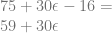
75+30\epsilon-16 = \\ 59+30\epsilon

This result says that 3x^2-2y^3 has a value of 59 at location (5,2), and that the derivative of x at that point is 30.

That checks out, let’s move on to the derivative of y!

Example: df/dy

Calculating the derivative of y is very similar to calculating the derivative of x, except that it’s the x term that has an epsilon value (derivative) of 0, instead of the y term. The y term has the epsilon value of 1 this time as well. We’ll work through it to see how it plays out.

First up, we need to make the value for x:

5+0\epsilon

or:

5

Next we square it and multiply it by 3 to get the 3x^2 term:

5*5*3=75

Next we need to make the value for y, remembering that we use an epsilon value of 1 since the derivative of y is 1 this time around.

2+\epsilon

We cube that value and multiply by 2 to get the 2y^3 term:
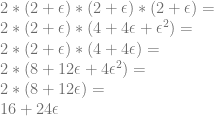
2*(2+\epsilon)*(2+\epsilon)*(2+\epsilon)= \\ 2*(2+\epsilon)*(4+4\epsilon+\epsilon^2)= \\ 2*(2+\epsilon)*(4+4\epsilon)= \\ 2*(8+12\epsilon+4\epsilon^2)= \\ 2*(8+12\epsilon)= \\ 16+24\epsilon

Now we subtract the y term from the x term to get the final result:
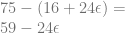
75 - (16+24\epsilon)= \\ 59-24\epsilon

This result says that 3x^2-2y^3 has a value of 59 at location (5,2), and that the derivative of y at that point is -24.

That also checks out, so we got the correct value and partial derivatives for the equation.

Reducing Redundancy

There was quite a bit of redundancy when working through the x and y derivatives wasn’t there? Increasing the number of variables will increase the amount of redundancy too, so it doesn’t scale up well.

Luckily there is a way to address this. Basically, instead of making two dual numbers which have two items, you make them share the real value (since it’s the same for both, as is the work to make it) and append the dual values for x and y to it.

Thus, instead of having:

x'=(a+b\epsilon) \\ y'=(a+b\epsilon)

You have:

(a+b\epsilon_x+c\epsilon_y)

Then, in your math or in your program, you treat it as if it’s two different dual numbers packed into one. This lets you do the work for the real number once instead of twice, but still lets you do your dual number work for each variable independently.

While it’s probably easiest to think of these as two dual numbers packed into one value, there is actually a mathematical basis for it as well, which may or may not surprise you.

Check out what happens when we multiply two of these together, keeping in mind that multiplying ANY two epsilon values together becomes zero, even if they are different epsilons:

(a+b\epsilon_x+c\epsilon_y) * (d+e\epsilon_x+f\epsilon_y)= \\ ad + ae\epsilon_x + af\epsilon_y + bd\epsilon_x + be\epsilon_x^2 + bf\epsilon_x\epsilon_y + cd\epsilon_y + ce\epsilon_x\epsilon_y + cf\epsilon_y^2= \\ ad + ae\epsilon_x + af\epsilon_y + bd\epsilon_x + cd\epsilon_y= \\ ad + (ae+bd)\epsilon_x + (af+cd)\epsilon_y

The interesting thing is that the above result gives you the same values as if you did the same work for two dual numbers individually.

Let’s see this three component dual number in action by re-doing the example again. Note that this pattern scales up to ANY number of variables!

Example: Both Derivatives (Gradient Vector)

Our goal is to calculate the value and partial derivatives of the function 3x^2-2y^3 at location (5,2).

First we make our x value:

5 + 1\epsilon_x + 0\epsilon_y

or:

5 + \epsilon_x

We square that and multiply it by 3 to get our 3x^2 term:
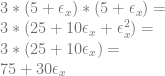
3*(5 + \epsilon_x)*(5 + \epsilon_x)= \\ 3*(25+10\epsilon_x+\epsilon_x^2)= \\ 3*(25+10\epsilon_x)= \\ 75+30\epsilon_x

Next, we make our y value:

2 + 0\epsilon_x + 1\epsilon_y

or:

2 + \epsilon_y

We cube it and multiply it by 2 to get our 2x^3 term:

16+24\epsilon_y

Lastly we subtract the y term from the x term to get our final answer:

(75+30\epsilon_x) - (16+24\epsilon_y)= \\ 59+30\epsilon_x-24\epsilon_y

The result says that 3x^2-2y^3 has a value of 59 at location (5,2), and that the derivative of x at that point is 30, and the derivative of y at that point is -24.

Neat, right?!

Example Code

Here is the example code output:

Here is the code that generated it:

#include <stdio.h>
#include <cmath>
#include <array>
#include <algorithm>
 
#define PI 3.14159265359f

#define EPSILON 0.001f  // for numeric derivatives calculation

template <size_t NUMVARIABLES>
class CDualNumber
{
public:

	// constructor to make a constant
	CDualNumber (float f = 0.0f) {
		m_real = f;
		std::fill(m_dual.begin(), m_dual.end(), 0.0f);
	}

	// constructor to make a variable value.  It sets the derivative to 1.0 for whichever variable this is a value for.
	CDualNumber (float f, size_t variableIndex) {
		m_real = f;
		std::fill(m_dual.begin(), m_dual.end(), 0.0f);
		m_dual[variableIndex] = 1.0f;
	}

	// storage for real and dual values
	float							m_real;
	std::array<float, NUMVARIABLES> m_dual;
};
 
//----------------------------------------------------------------------
// Math Operations
//----------------------------------------------------------------------
template <size_t NUMVARIABLES>
inline CDualNumber<NUMVARIABLES> operator + (const CDualNumber<NUMVARIABLES> &a, const CDualNumber<NUMVARIABLES> &b)
{
	CDualNumber<NUMVARIABLES> ret;
	ret.m_real = a.m_real + b.m_real;
	for (size_t i = 0; i < NUMVARIABLES; ++i)
		ret.m_dual[i] = a.m_dual[i] + b.m_dual[i];
	return ret;
}
 
template <size_t NUMVARIABLES>
inline CDualNumber<NUMVARIABLES> operator - (const CDualNumber<NUMVARIABLES> &a, const CDualNumber<NUMVARIABLES> &b)
{
	CDualNumber<NUMVARIABLES> ret;
	ret.m_real = a.m_real - b.m_real;
	for (size_t i = 0; i < NUMVARIABLES; ++i)
		ret.m_dual[i] = a.m_dual[i] - b.m_dual[i];
	return ret;
}

template <size_t NUMVARIABLES>
inline CDualNumber<NUMVARIABLES> operator * (const CDualNumber<NUMVARIABLES> &a, const CDualNumber<NUMVARIABLES> &b)
{
	CDualNumber<NUMVARIABLES> ret;
	ret.m_real = a.m_real * b.m_real;
	for (size_t i = 0; i < NUMVARIABLES; ++i)
		ret.m_dual[i] = a.m_real * b.m_dual[i] + a.m_dual[i] * b.m_real;
	return ret;
}

template <size_t NUMVARIABLES>
inline CDualNumber<NUMVARIABLES> operator / (const CDualNumber<NUMVARIABLES> &a, const CDualNumber<NUMVARIABLES> &b)
{
	CDualNumber<NUMVARIABLES> ret;
	ret.m_real = a.m_real / b.m_real;
	for (size_t i = 0; i < NUMVARIABLES; ++i)
		ret.m_dual[i] = (a.m_dual[i] * b.m_real - a.m_real * b.m_dual[i]) / (b.m_real * b.m_real);
	return ret;
}

template <size_t NUMVARIABLES>
inline CDualNumber<NUMVARIABLES> sqrt (const CDualNumber<NUMVARIABLES> &a)
{
	CDualNumber<NUMVARIABLES> ret;
	float sqrtReal = sqrt(a.m_real);
	ret.m_real = sqrtReal;
	for (size_t i = 0; i < NUMVARIABLES; ++i)
		ret.m_dual[i] = 0.5f * a.m_dual[i] / sqrtReal;
	return ret;
}

template <size_t NUMVARIABLES>
inline CDualNumber<NUMVARIABLES> pow (const CDualNumber<NUMVARIABLES> &a, float y)
{
	CDualNumber<NUMVARIABLES> ret;
	ret.m_real = pow(a.m_real, y);
	for (size_t i = 0; i < NUMVARIABLES; ++i)
		ret.m_dual[i] = y * a.m_dual[i] * pow(a.m_real, y - 1.0f);
	return ret;
}

template <size_t NUMVARIABLES>
inline CDualNumber<NUMVARIABLES> sin (const CDualNumber<NUMVARIABLES> &a)
{
	CDualNumber<NUMVARIABLES> ret;
	ret.m_real = sin(a.m_real);
	for (size_t i = 0; i < NUMVARIABLES; ++i)
		ret.m_dual[i] = a.m_dual[i] * cos(a.m_real);
	return ret;
}

template <size_t NUMVARIABLES>
inline CDualNumber<NUMVARIABLES> cos (const CDualNumber<NUMVARIABLES> &a)
{
	CDualNumber<NUMVARIABLES> ret;
	ret.m_real = cos(a.m_real);
	for (size_t i = 0; i < NUMVARIABLES; ++i)
		ret.m_dual[i] = -a.m_dual[i] * sin(a.m_real);
	return ret;
}

template <size_t NUMVARIABLES>
inline CDualNumber<NUMVARIABLES> tan (const CDualNumber<NUMVARIABLES> &a)
{
	CDualNumber<NUMVARIABLES> ret;
	ret.m_real = tan(a.m_real);
	for (size_t i = 0; i < NUMVARIABLES; ++i)
		ret.m_dual[i] = a.m_dual[i] / (cos(a.m_real) * cos(a.m_real));
	return ret;
}

template <size_t NUMVARIABLES>
inline CDualNumber<NUMVARIABLES> atan (const CDualNumber<NUMVARIABLES> &a)
{
	CDualNumber<NUMVARIABLES> ret;
	ret.m_real = tan(a.m_real);
	for (size_t i = 0; i < NUMVARIABLES; ++i)
		ret.m_dual[i] = a.m_dual[i] / (1.0f + a.m_real * a.m_real);
	return ret;
}

// templated so it can work for both a CDualNumber<1> and a float
template <typename T>
inline T SmoothStep (const T& x)
{
	return x * x * (T(3.0f) - T(2.0f) * x);
}
 
//----------------------------------------------------------------------
// Test Functions
//----------------------------------------------------------------------
 
void TestSmoothStep (float input)
{
	// create a dual number as the value of x
	CDualNumber<1> x(input, 0);

	// calculate value and derivative using dual numbers
	CDualNumber<1> y = SmoothStep(x);

	// calculate numeric derivative using central differences
	float derivNumeric = (SmoothStep(input + EPSILON) - SmoothStep(input - EPSILON)) / (2.0f * EPSILON);

	// calculate actual derivative
	float derivActual = 6.0f * input - 6.0f * input * input;

	// show value and derivatives
	printf("(smoothstep) y=3x^2-2x^3  (x=%0.4f)n", input);
	printf("  y = %0.4fn", y.m_real);
	printf("  dual# dy/dx = %0.4fn", y.m_dual[0]);
	printf("  actual dy/dx = %0.4fn", derivActual);
	printf("  numeric dy/dx = %0.4fnn", derivNumeric);
}

void TestTrig (float input)
{
	// create a dual number as the value of x
	CDualNumber<1> x(input, 0);

	// sin
	{
		// calculate value and derivative using dual numbers
		CDualNumber<1> y = sin(x);

		// calculate numeric derivative using central differences
		float derivNumeric = (sin(input + EPSILON) - sin(input - EPSILON)) / (2.0f * EPSILON);

		// calculate actual derivative
		float derivActual = cos(input);

		// show value and derivatives
		printf("sin(%0.4f) = %0.4fn", input, y.m_real);
		printf("  dual# dy/dx = %0.4fn", y.m_dual[0]);
		printf("  actual dy/dx = %0.4fn", derivActual);
		printf("  numeric dy/dx = %0.4fnn", derivNumeric);
	}

	// cos
	{
		// calculate value and derivative using dual numbers
		CDualNumber<1> y = cos(x);

		// calculate numeric derivative using central differences
		float derivNumeric = (cos(input + EPSILON) - cos(input - EPSILON)) / (2.0f * EPSILON);

		// calculate actual derivative
		float derivActual = -sin(input);

		// show value and derivatives
		printf("cos(%0.4f) = %0.4fn", input, y.m_real);
		printf("  dual# dy/dx = %0.4fn", y.m_dual[0]);
		printf("  actual dy/dx = %0.4fn", derivActual);
		printf("  numeric dy/dx = %0.4fnn", derivNumeric);
	}

	// tan
	{
		// calculate value and derivative using dual numbers
		CDualNumber<1> y = tan(x);

		// calculate numeric derivative using central differences
		float derivNumeric = (tan(input + EPSILON) - tan(input - EPSILON)) / (2.0f * EPSILON);

		// calculate actual derivative
		float derivActual = 1.0f / (cos(input)*cos(input));

		// show value and derivatives
		printf("tan(%0.4f) = %0.4fn", input, y.m_real);
		printf("  dual# dy/dx = %0.4fn", y.m_dual[0]);
		printf("  actual dy/dx = %0.4fn", derivActual);
		printf("  numeric dy/dx = %0.4fnn", derivNumeric);
	}

	// atan
	{
		// calculate value and derivative using dual numbers
		CDualNumber<1> y = atan(x);

		// calculate numeric derivative using central differences
		float derivNumeric = (atan(input + EPSILON) - atan(input - EPSILON)) / (2.0f * EPSILON);

		// calculate actual derivative
		float derivActual = 1.0f / (1.0f + input * input);

		// show value and derivatives
		printf("atan(%0.4f) = %0.4fn", input, y.m_real);
		printf("  dual# dy/dx = %0.4fn", y.m_dual[0]);
		printf("  actual dy/dx = %0.4fn", derivActual);
		printf("  numeric dy/dx = %0.4fnn", derivNumeric);
	}
}

void TestSimple (float input)
{
	// create a dual number as the value of x
	CDualNumber<1> x(input, 0);

	// sqrt
	{
		// calculate value and derivative using dual numbers
		CDualNumber<1> y = CDualNumber<1>(3.0f) / sqrt(x);

		// calculate numeric derivative using central differences
		float derivNumeric = ((3.0f / sqrt(input + EPSILON)) - (3.0f / sqrt(input - EPSILON))) / (2.0f * EPSILON);

		// calculate actual derivative
		float derivActual = -3.0f / (2.0f * pow(input, 3.0f / 2.0f));

		// show value and derivatives
		printf("3/sqrt(%0.4f) = %0.4fn", input, y.m_real);
		printf("  dual# dy/dx = %0.4fn", y.m_dual[0]);
		printf("  actual dy/dx = %0.4fn", derivActual);
		printf("  numeric dy/dx = %0.4fnn", derivNumeric);
	}

	// pow
	{
		// calculate value and derivative using dual numbers
		CDualNumber<1> y = pow(x + CDualNumber<1>(1.0f), 1.337f);

		// calculate numeric derivative using central differences
		float derivNumeric = ((pow(input + 1.0f + EPSILON, 1.337f)) - (pow(input + 1.0f - EPSILON, 1.337f))) / (2.0f * EPSILON);

		// calculate actual derivative
		float derivActual = 1.337f * pow(input + 1.0f, 0.337f);

		// show value and derivatives
		printf("(%0.4f+1)^1.337 = %0.4fn", input, y.m_real);
		printf("  dual# dy/dx = %0.4fn", y.m_dual[0]);
		printf("  actual dy/dx = %0.4fn", derivActual);
		printf("  numeric dy/dx = %0.4fnn", derivNumeric);
	}
}

void Test2D (float inputx, float inputy)
{
	// create dual numbers as the value of x and y
	CDualNumber<2> x(inputx, 0);
	CDualNumber<2> y(inputy, 1);

	// z = 3x^2 - 2y^3
	{
		// calculate value and partial derivatives using dual numbers
		CDualNumber<2> z = CDualNumber<2>(3.0f) * x * x - CDualNumber<2>(2.0f) * y * y * y;

		// calculate numeric partial derivatives using central differences
		auto f = [] (float x, float y) {
			return 3.0f * x * x - 2.0f * y * y * y;
		};
		float derivNumericX = (f(inputx + EPSILON, inputy) - f(inputx - EPSILON, inputy)) / (2.0f * EPSILON);
		float derivNumericY = (f(inputx, inputy + EPSILON) - f(inputx, inputy - EPSILON)) / (2.0f * EPSILON);

		// calculate actual partial derivatives
		float derivActualX = 6.0f * inputx;
		float derivActualY = -6.0f * inputy * inputy;

		// show value and derivatives
		printf("z=3x^2-2y^3 (x = %0.4f, y = %0.4f)n", inputx, inputy);
		printf("  z = %0.4fn", z.m_real);
		printf("  dual# dz/dx = %0.4fn", z.m_dual[0]);
		printf("  dual# dz/dy = %0.4fn", z.m_dual[1]);
		printf("  actual dz/dx = %0.4fn", derivActualX);
		printf("  actual dz/dy = %0.4fn", derivActualY);
		printf("  numeric dz/dx = %0.4fn", derivNumericX);
		printf("  numeric dz/dy = %0.4fnn", derivNumericY);
	}
}

void Test3D (float inputx, float inputy, float inputz)
{
	// create dual numbers as the value of x and y
	CDualNumber<3> x(inputx, 0);
	CDualNumber<3> y(inputy, 1);
	CDualNumber<3> z(inputz, 2);

	// w = sin(x*cos(2*y)) / tan(z)
	{
		// calculate value and partial derivatives using dual numbers
		CDualNumber<3> w = sin(x * cos(CDualNumber<3>(2.0f)*y)) / tan(z);

		// calculate numeric partial derivatives using central differences
		auto f = [] (float x, float y, float z) {
			return sin(x*cos(2.0f*y)) / tan(z);
		};
		float derivNumericX = (f(inputx + EPSILON, inputy, inputz) - f(inputx - EPSILON, inputy, inputz)) / (2.0f * EPSILON);
		float derivNumericY = (f(inputx, inputy + EPSILON, inputz) - f(inputx, inputy - EPSILON, inputz)) / (2.0f * EPSILON);
		float derivNumericZ = (f(inputx, inputy, inputz + EPSILON) - f(inputx, inputy, inputz - EPSILON)) / (2.0f * EPSILON);

		// calculate actual partial derivatives
		float derivActualX = cos(inputx*cos(2.0f*inputy))*cos(2.0f * inputy) / tan(inputz);
		float derivActualY = cos(inputx*cos(2.0f*inputy)) *-2.0f*inputx*sin(2.0f*inputy) / tan(inputz);
		float derivActualZ = sin(inputx * cos(2.0f * inputy)) / -(sin(inputz) * sin(inputz));

		// show value and derivatives
		printf("w=sin(x*cos(2*y))/tan(z) (x = %0.4f, y = %0.4f, z = %0.4f)n", inputx, inputy, inputz);
		printf("  w = %0.4fn", w.m_real);
		printf("  dual# dw/dx = %0.4fn", w.m_dual[0]);
		printf("  dual# dw/dy = %0.4fn", w.m_dual[1]);
		printf("  dual# dw/dz = %0.4fn", w.m_dual[2]);
		printf("  actual dw/dx = %0.4fn", derivActualX);
		printf("  actual dw/dy = %0.4fn", derivActualY);
		printf("  actual dw/dz = %0.4fn", derivActualZ);
		printf("  numeric dw/dx = %0.4fn", derivNumericX);
		printf("  numeric dw/dy = %0.4fn", derivNumericY);
		printf("  numeric dw/dz = %0.4fnn", derivNumericZ);
	}
}

int main (int argc, char **argv)
{
	TestSmoothStep(0.5f);
	TestSmoothStep(0.75f);
	TestTrig(PI * 0.25f);
	TestSimple(3.0f);
	Test2D(1.5f, 3.28f);
	Test3D(7.12f, 8.93f, 12.01f);
    return 0;
}

Closing

One of the neatest things about dual numbers is that they give precise results. They are not approximations and they are not numerical methods, unlike the central differences method that I compared them to in the example program (More info on numerical derivatives here: Finite Differences). Using dual numbers gives you exact derivatives, within the limitations of (eg) floating point math.

It turns out that backpropagation (the method that is commonly used to train neural networks) is just steepest gradient descent. You can read about that here: Backpropogation is Just Steepest Descent with Automatic Differentiation

That makes me wonder how dual numbers would do in run time speed compared to back propagation as well as numerical methods for getting the gradient to adjust a neural network during training.

If I had to guess, I’d say that dual numbers may be slightly slower than backpropagation, but not as slow as numerical methods which are going to be much, much slower. We’ll see though. It may be much easier to implement neural network learning using dual numbers compared to backpropagation, so may be worth an exploration and write up, even if only to make neural networks a little bit more accessible to people.

Comments, corrections, etc? Let me know in the comments below, or contact me on twitter at @Atrix256

Raytracing Reflection, Refraction, Fresnel, Total Internal Reflection, and Beer’s Law

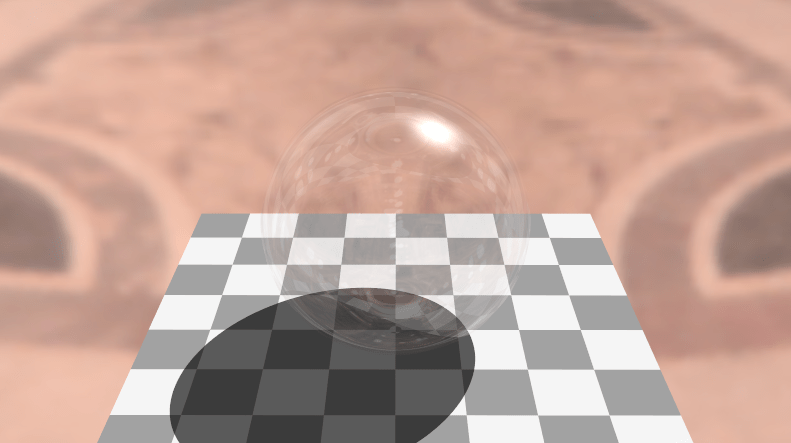
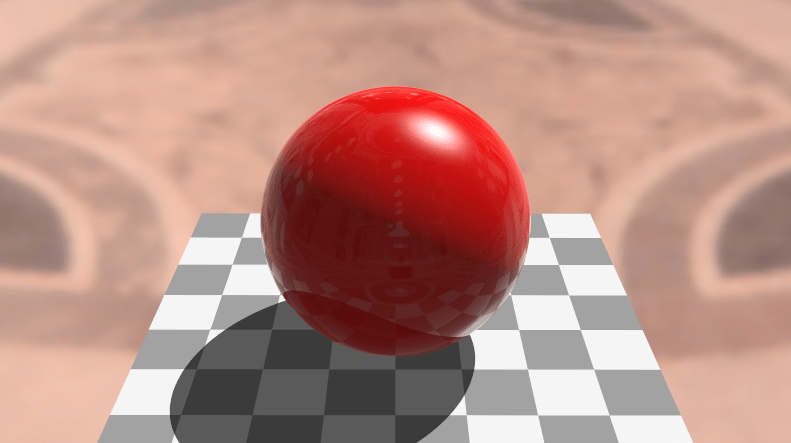
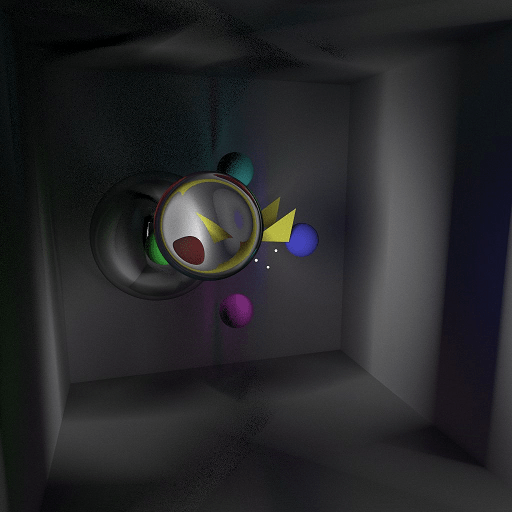
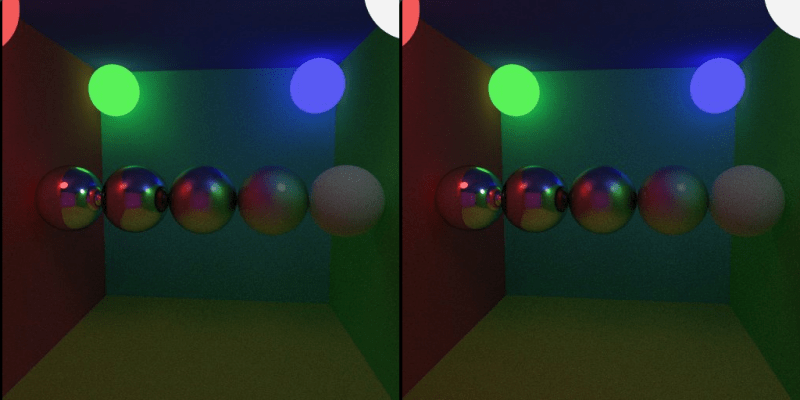
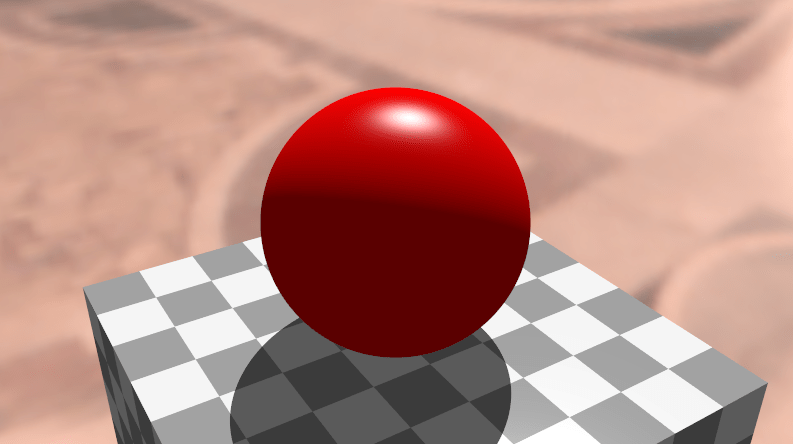
This post talks about how to render images like the below in real time using ray tracing. Some realism in the images come from reflection and refraction, but the real icing on the cake comes from Fresnel, total internal reflection and Beer’s law. We’ll look at the contributions of these features individually and talk about how to properly combine them for the greatest and most realistic results (:

The renderings come from a shadertoy that accompanies this post: Shadertoy: Reflect Refract TIR Fresnel RayT

My motivation for learning more about this stuff is that I’m starting to make a marble madness inspired game, and I’m planning to do hybrid rendering between rasterization and ray based techniques.

This post will focus more on how to make these features work for you in ray tracing, and less about the reasons for why they work the way they do. This post is more about practical implementations, and less about rigorous explanations.

If you have any questions, comments, corrections or additions, feel free to leave in the comments section at the bottom, or feel free to hit me up on twitter at @Atrix256.

This post is assumes you know how to do basic raytracing with ambient, diffuse and specular lighting, like the image below, which we are going to start with:

Reflection

The first thing to talk about is reflection. More specifically we are going to be talking about SPECULAR reflection.

Specular is defined by the dictionary to mean “of, relating to, or having the properties of a mirror.”, so what we normally think of as reflection (like from a mirror) is in fact specular reflection.

There is non specular reflection, aka diffuse reflection, which just means that light is reflected off of a surface in a non mirror like way. This is accomplished with diffuse lighting where commonly we dot product the normal of a surface with the direction from the surface to the light to know how much to light that point on the surface.

If specular reflection is how mirrors reflect, and diffuse reflection is how regular diffuse surfaces work, then you might wonder what specular lighting is all about.

A specular highlight is actually just a cheap approximation to doing a mirror like specular reflection of a light source, so it is a cheap kind of specular reflection.

Let’s talk about how to do real mirror like specular reflection in a ray tracer.

When light hits a surface, some amount of the light will be reflected, and some amount of the light will be transmitted into the object. Transmitted light is used for the diffuse shading.

As you might imagine, the amount of light reflected plus the amount of light transmitted must equal the total amount of light that hit the surface. (note that some transmitted energy may be absorbed and given off as heat, or the object may be glowing, so may give off more light than received but let’s ignore that stuff for now.)

A common way to deal with this is to define a reflectivity of a surface as the amount of light it reflects in percent and use 100% minus that amount as the transmitted amount.

You might say that 2% of light that hits a surface reflects. That means that 98% of the light that hits a surface is transmitted and used for the diffuse shading.

When shading a point on the surface, you would calculate both the reflected color at that point on the surface, and the diffuse shaded color at that point, but you multiply the reflected color by 0.02 and the diffuse shaded color by 0.98 and add them together. Doing this gives a result like the below:

The higher the reflectivity percent, the more reflection you get, and the less diffuse shading you get. Turning down reflectivity has the opposite effect.

How do you calculate the reflected color of a point on a surface though?

You simply calculate the ray that reflected off of the surface, and calculate the color of what that ray hit.

To calculate a reflected ray, you need to know the direction that the ray was traveling when it hit the surface (The incident direction), you need to know the location that the ray hit the surface (the surface location), and you need to know the normal of the surface at the intersection point.

If you have those things you can calculate the reflected ray direction as this:

ReflectRayLocation = SurfaceLocation \\ ReflectRayDirection = IncidentDirection - 2 * SurfaceNormal * DotProduct(IncidentDirection, SurfaceNormal)

Note that in hlsl and glsl there is a function called “reflect” which takes the incident direction, and the surface normal, and returns you the reflected direction.

Doing the above is mathematically correct, but if you then try to raytrace from that ray, you may hit the same object you are reflecting off. One way to fight that problem is to push the ray positin a small amount away from the surface to make sure it misses it. You can do that for example like this:

ReflectRayLocation = ReflectRayLocation + ReflectRayDirection * 0.01

There are other ways to make sure you don’t hit the same object again, but pushing the ray away from the object a small amount really does work pretty nicely in practice.

Refraction

I mentioned in the last section that whatever light wasn’t reflected when it hit a surface was transmitted. I also said that the transmitted light was used for diffuse shading.

In reality, it’s passed through the “bidirectional scattering distribution function” aka BSDF. You may have heard the term “bidirectional reflection distribution function” aka BRDF. A BRDF only deals with the hemisphere (half a sphere) that surrounds the surface normal. The BSDF on the other hand deals with the full sphere surrounding a surface normal so BRDF is a subset of what is possible with the BSDF.

Because the BSDF deals with an entire sphere, that means that it can handle reflection (specular and non specular) like the BRDF can, but it can also deal with transparency and refraction, where some of the light travels THROUGH an object.

In a path tracer where everything is physically accurate and mathematically precise, we would be interested in dealing with a BSDF and integrating over the sphere, but since we are working with a ray tracer, our physical accuracy needs are a lot lower – we only want a result that looks plausible.

What we are going to do for our transparency is calculate a direction that the ray is going to travel through the object, ray trace that ray to get a color, and use the transmitted light (the portion of light that isn’t reflected) as a multiplier of that color, that we add to the reflected amount of light.

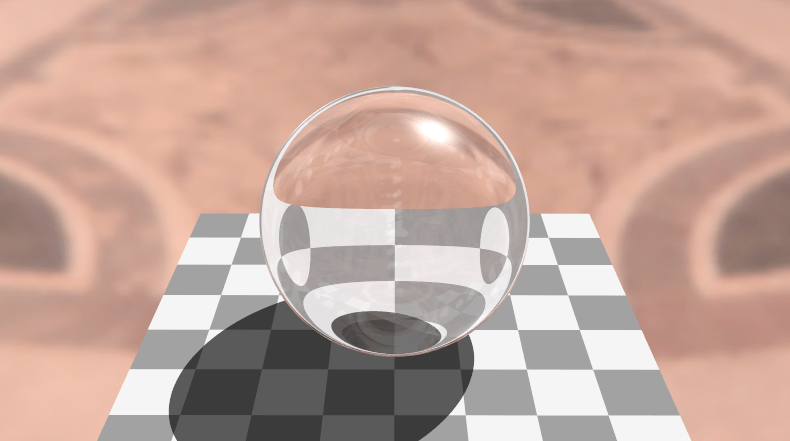
If we have an object with 10% reflectivity, and 90% transmittance, but use that transmitted light for transparency, we’ll have a rendering like below:

Now that we have transparency, let’s talk about refraction. Refraction is a physical phenomenon where light bends (“changes speed” i guess but that sounds a bit suspicious for light), as it hits a boundary between two different surfaces.

Every material has a refractive index, and in fact, may have different refractive indices per light frequency. For our purposes, we’ll assume surfaces have the same refractive index for every frequency of light. There’s a list of refractive indices for a lot of different materials here: Index of refraction

How a ray bends when it refracts depends on the ration of the refractive index that it’s leaving to the refractive index that it’s entering. AKA outside/inside.

HLSL and GLSL have a function called refract which take the incident vector, the surface normal vector, and that ration of refractive indices, and return the refracted ray.

When you do a raytrace down the refracted ray, you will have the same problem as when tracing the reflected ray, that you may hit the same surface you just hit again erroneously. To help that, you once again just move the ray slightly away from the surface.

RefractRayLocation = RefractRayLocation + RefractRayDirection * 0.01

Here is a rendering where the sphere has 10% reflectivity, 90% transmittance, an air refractive index of 1.0, and a refractive index of 1.125 for the sphere. You can see how the light bends as it goes through the object and looks pretty neat!

Fresnel

There is an interesting property in our world: If you look at something straight on, it’s the least reflective it will be. If you turn it nearly 90 degrees where it’s nearly edge on, it will be the most reflective it can be. Many surfaces will become almost perfectly reflective when you view them almost edge on. Go try it out with a wall in your house or a glass or other things.

Weird huh? That’s called Fresnel, and is something we can also make use of in ray tracing to get a more realistic image.

Instead of just always using the reflectivity amount of the surface, we use the Fresnel equation to figure out how much reflectivity an object should have based on the view angle versus the surface normal, so that when it’s more edge on it becomes more reflective. At minimum the reflectivity will be the reflectivity of the surface, and at maximum the reflectivity will be 100%.

The amount we transmit for either refraction or diffuse will be 100% minus however much percentage is reflective.

Here is the image showing normal reflection again:

Here is the image with Fresnel:

It looks quite a bit better with fresnel doesn’t it?!

Here’s a GLSL function of Schlick’s Fresnel approximation function. Notice that it takes the surface normal and incident vector, as well as the refractive index being left (n1) and the refractive index being entered (n2):

float FresnelReflectAmount (float n1, float n2, vec3 normal, vec3 incident)
{
        // Schlick aproximation
        float r0 = (n1-n2) / (n1+n2);
        r0 *= r0;
        float cosX = -dot(normal, incident);
        if (n1 > n2)
        {
            float n = n1/n2;
            float sinT2 = n*n*(1.0-cosX*cosX);
            // Total internal reflection
            if (sinT2 > 1.0)
                return 1.0;
            cosX = sqrt(1.0-sinT2);
        }
        float x = 1.0-cosX;
        float ret = r0+(1.0-r0)*x*x*x*x*x;

        // adjust reflect multiplier for object reflectivity
        ret = (OBJECT_REFLECTIVITY + (1.0-OBJECT_REFLECTIVITY) * ret);
        return ret;
}

Our tale of reflection is complete, so let’s go back to refraction / transparency and finish up the last two items.

Total Internal Reflection

The way that the Fresnel equation works, it’s possible that when moving from a material with a higher index of refraction to a lower one, that the amount of refraction can actually drop to zero percent. In this case, the light doesn’t exit the higher refractive index object and instead ONLY reflects back into the object, because the reflective amount becomes 100%.

When this happens, it’s called “Total Internal Reflection” for hopefully obvious reasons (:

There isn’t a whole lot to say about this, because you can see that this is even accounted for in the GLSL Fresnel function from the last section.

However, if you are ever under water in a swimming pool and look up to see the water surface looking like a mirror, that is total internal reflection in action.

You can also see it in the render below, where you can see reflections on the inside of the walls of the object, especially on the bottom (floor) of the object:

Beer’s Law

Beer’s law is the last item to talk about, and relates to transparent surfaces. Beer’s law deals with light being absorbed over distance as it travels through a material.

Beer’s law is why a thin piece of jello is mostly colorless, but a thicker piece of jello has a much richer and deeper color.

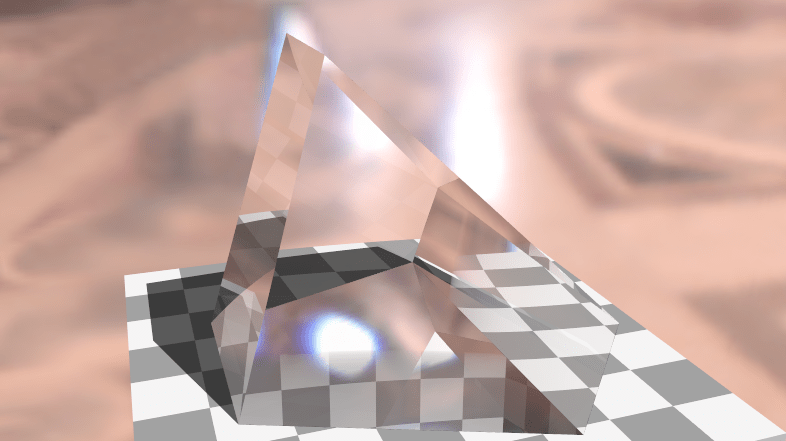
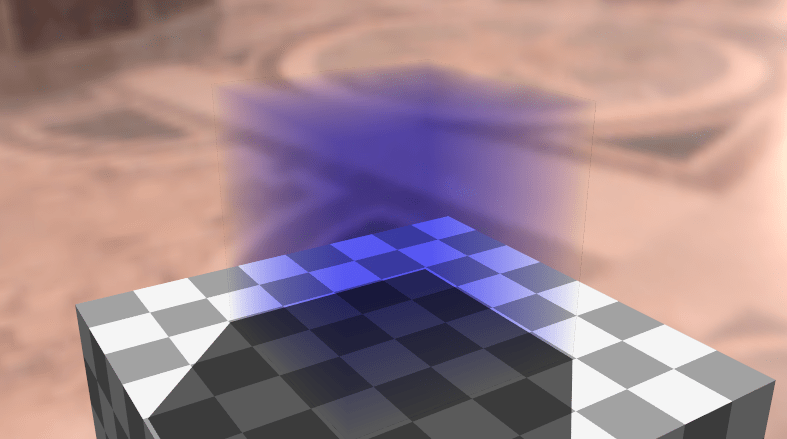
Here’s a cube with beer’s law absorbing red and green light over distance. You should notice that where the light travels less distance through the cube that it’s not as blue, because not as much red and green light has been absorbed:

To apply beer’s law, you first figure out how long a ray has traveled through the absorbing material (by tracing the ray inside the object to see where it hits the back side). You then do this calculation:

vec3 color = RayTrace(rayPos, rayDir);
vec3 absorb = exp(-OBJECT_ABSORB * absorbDistance);
color *= absorb;

OBJECT_ABSORB is an RGB value that describes how much of each color channel absorbs over distance. For example, a value of (8.0, 2.0, 0.1) would make red get absorbed the fastest, then green, then blue, so would result in a blueish, slightly green color object.

Putting it All Together

Now that we have the individual components worked out let’s talk about how to put it together.

Firstly, when a ray hits any surface, you need to use the Fresnel equation to get the multiplier for the reflected and transmitted light.

Next you calculate the reflected and transmitted light by recursively raytracing. The transmitted light is either used for the diffuse shading, the transparency/refracted ray, or some combination of those two (technically, it’s all up to the BSDF we are approximating).

Then, you multiply the reflected light by the reflected amount from the Fresnel equation, and the transmitted amount by 100%-reflectionAmount and add the results together.

(Quick side note, if you have emissive color on the surface aka the object glows, you would also add that in here).

Since raytracing is recursive, you would do this each time a ray intersected with an object. In other words, each intersection causes the ray to split into two rays.

As you can imagine, this can make the rendering quite complex, especially on the GPU where you can’t even do real recursion.

One way to help limit the recursiveness a bit is when you are calculating your reflection and transmittance amounts, you can choose a threshold like say 1% where if the reflection is under 1% it clamps it to 0%, and if it’s greater than 99% it clamps it at 100%. You can then choose not to recurse down a specific ray if the ray’s multiplier is 0. The end result will be that reflections or transmittance rays that don’t contribute much to the end result won’t be followed at all.

If you are willing to sacrifice some visual quality to not have to split your ray into two at each object intersection, you could also figure out if reflection or transmittance has the higher multiplier, and make the ray only follow one of the paths. If you were doing this in a path tracer, you could choose which one to follow randomly, using the multiplier as a weight for the random selection.

The problem in both of these two optimizations is that the multiplier is only half of the information though so may incorrectly choose the less meaningful contribution. The other half of the information is the color of the ray if you followed it. The reason for this is that you might have a low multiplier for a really bright spot (caustics have this problem commonly!), or vice versa you may have a high multiplier for a dull featureless spot. With path tracing, if you take enough samples, it all washes out in the averages, and with ray tracing, maybe you accept that it will do the wrong thing sometimes, to stay a real time algorithm, but it’s important to know how this type of choice can fail for you. (Side note, this sort of stuff is what importance sampling in path tracing is all about – trying to make rays follow more meaningful paths to get better results quicker).

When doing real time raytracing you also often have to decide how many times you want to allow a ray to bounce around. In the shadertoy that goes with this post, that parameter is MAX_RAY_BOUNCES and I have it set to 10.

Interestingly, setting it to 1 has no visible impact on the sphere at all, which is a nice improvement. For the box, a value of 3 seems to be the maximum it needs. 3 also seems to be the magic number for the geometric gem type shape.

So, 10 is overkill, but i left it at that in case people play with parameters and change them to values which would require more bounces.

Lastly I wanted to mention that in the scene that I rendered, I did a small “trick” to make it so I didn’t need to do full recursive splitting of rays at each intersection. I did this by making it so the main object in the center of the scene was the only object that had reflection.

This way, I only need to split the ray into two if i hit the main object. Furthermore, when I’m splitting the ray at the main object, the ray that gets the color for the outside world (versus the inside of the object) is a single non recursive ray cast since it can’t hit anything reflective. The result is that at each intersection of the sphere, i do a simple non recursive ray cast for the ray that is going outside of the main object, then i continue the iterative ray on the inside of the object until i run out of bounces.

Doing this causes a recursive process to become an iterative one, which is much friendlier on the gpu.

Below is the final render again from the shadertoy. The parameters are:

  • The refractive index of the air is 1.00029
  • The refractive index inside the objects are 1.125
  • Reflectivity is 1%
  • The absorption for beers law is (8.0, 8.0, 3.0)

Links

Shadertoy: Reflect Refract TIR Fresnel RayT
Reflections and Refractions in Ray Tracing
Path Tracing – Getting Started With Diffuse and Emissive

Incremental Least Squares Surface and Hyper-Volume Fitting

The last post showed how to fit a y=f(x) equation to a set of 2d data points, using least squares fitting. It allowed you to do this getting only one data point at a time, and still come up with the same answer as if you had all the data points at once, so it was an incremental, or “online” algorithm.

This post generalizes that process to equations of any dimension such as z=f(x,y), w=f(x,y,z) or greater.

Below is an image of a surface that is degree (2,2). This is a screenshot taken from the interactive webgl2 demo I made for this post: Least Squares Surface Fitting

How Do You Do It?

The two main players from the last post were the ATA matrix and the ATY vector. These two could be incrementally updated as new data points came in, which would allow you to do an incremental (or “online”) least squares fit of a curve.

When working with surfaces and volumes, you have the same things basically. Both the ATA matrix and the ATY vector still exist, but they contain slightly different information – which I’ll explain lower down. However, the ATY vector is renamed, since in the case of a surface it should be called ATZ, and for a volume it should be called ATW. I call it ATV to generalize it, where v stands for value, and represents the last component in a data point, which is the output value we are trying to fit given the input values. The input values are the rest of the components of the data point.

At the end, you once again need to solve the equation A^TA*c=A^Tv to calculate the coefficients (named c) of the equation.

It’s all pretty similar to fitting a curve, but the details change a bit. Let’s work through an example to see how it differs.

Example: Bilinear Surface Fitting

Let’s fit 4 data points to a bilinear surface, otherwise known as a surface that is linear on each axis, or a surface of degree(1,1):
(0,0,5)
(0,1,3)
(1,0,8)
(1,1,2)

Since we are fitting those data points with a bilinear surface, we are looking for a function that takes in x,y values and gives as output the z coordinate. We want a surface that gives us the closest answer possible (minimizing the sum of the squared difference for each input data point) for the data points we do have, so that we can give it other data points and get z values as output that approximate what we expect to see for that input.

A linear equation looks like this, with coefficients A and B:
y=Ax+B

Since we want a bilinear equation this time around, this is the equation we are going to end up with, after solving for the coefficients A,B,C,D:
y=Axy+Bx+Cy+D

The first step is to make the A matrix. In the last post, this matrix was made up of powers of the x coordinates. In this post, they are actually going to be made up of the permutation of powers of the x and y coordinates.

Last time the matrix looked like this:
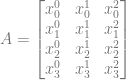
A =  \begin{bmatrix} x_0^0 & x_0^1 & x_0^2 \\ x_1^0 & x_1^1 & x_1^2 \\ x_2^0 & x_2^1 & x_2^2 \\ x_3^0 & x_3^1 & x_3^2 \\ \end{bmatrix}

This time, the matrix is going to look like this:
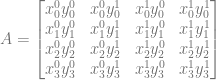
A =  \begin{bmatrix} x_0^0y_0^0 & x_0^0y_0^1 & x_0^1y_0^0 & x_0^1y_0^1 \\ x_1^0y_1^0 & x_1^0y_1^1 & x_1^1y_1^0 & x_1^1y_1^1 \\ x_2^0y_2^0 & x_2^0y_2^1 & x_2^1y_2^0 & x_2^1y_2^1 \\ x_3^0y_3^0 & x_3^0y_3^1 & x_3^1y_3^0 & x_3^1y_3^1 \\ \end{bmatrix}

Simplifying that matrix a bit, it looks like this:
A =  \begin{bmatrix} 1 & y_0 & x_0 & x_0y_0 \\ 1 & y_1 & x_1 & x_1y_1 \\ 1 & y_2 & x_2 & x_2y_2 \\ 1 & y_3 & x_3 & x_3y_3 \\ \end{bmatrix}

To simplify it even further, there is one row in the A matrix per data point, where the row looks like this:
\begin{bmatrix} 1 & y & x & xy \\ \end{bmatrix}

You can see that every permutation of the powers of x and y for each data point is present in the matrix.

The A matrix for our data points is this:
A =  \begin{bmatrix} 1 & 0 & 0 & 0 \\ 1 & 1 & 0 & 0 \\ 1 & 0 & 1 & 0 \\ 1 & 1 & 1 & 1 \\ \end{bmatrix}

Next we need to calculate the ATA matrix by multiplying the transpose of that matrix, by that matrix.

A^TA =  \begin{bmatrix} 1 & 1 & 1 & 1 \\ 0 & 1 & 0 & 1 \\ 0 & 0 & 1 & 1 \\ 0 & 0 & 0 & 1 \\ \end{bmatrix} * \begin{bmatrix} 1 & 0 & 0 & 0 \\ 1 & 1 & 0 & 0 \\ 1 & 0 & 1 & 0 \\ 1 & 1 & 1 & 1 \\ \end{bmatrix} = \begin{bmatrix} 4 & 2 & 2 & 1 \\ 2 & 2 & 1 & 1 \\ 2 & 1 & 2 & 1 \\ 1 & 1 & 1 & 1 \\ \end{bmatrix}

Taking the inverse of that matrix we get this:

(A^TA)^{-1} =  \begin{bmatrix} 1 & -1 & -1 & 1 \\ -1 & 2 & 1 & -2 \\ -1 & 1 & 2 & -2 \\ 1 & -2 & -2 & 4 \\ \end{bmatrix}

Next we need to calculate the ATV vector (formerly known as ATY). We calculate that by multiplying the transpose of the A matrix by the Z values:

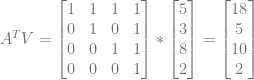
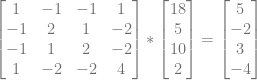
A^TV =  \begin{bmatrix} 1 & 1 & 1 & 1 \\ 0 & 1 & 0 & 1 \\ 0 & 0 & 1 & 1 \\ 0 & 0 & 0 & 1 \\ \end{bmatrix} * \begin{bmatrix} 5 \\ 3 \\ 8 \\ 2 \\ \end{bmatrix} = \begin{bmatrix} 18 \\ 5 \\ 10 \\ 2 \\ \end{bmatrix}

Lastly we multiply the inversed ATA matrix by the ATV vector to get our coefficients.

\begin{bmatrix} 1 & -1 & -1 & 1 \\ -1 & 2 & 1 & -2 \\ -1 & 1 & 2 & -2 \\ 1 & -2 & -2 & 4 \\ \end{bmatrix} * \begin{bmatrix} 18 \\ 5 \\ 10 \\ 2 \\ \end{bmatrix} = \begin{bmatrix} 5 \\ -2 \\ 3 \\ -4 \\ \end{bmatrix}

In the last post, the coefficients we got out were in x power order, so the first (top) was for the x^0 term, the next was for the x^1 term etc.

This time around, the coefficients are in the same order as the permutations of the powers of x and y:
\begin{bmatrix} 1 & y & x & xy \\ \end{bmatrix}

That makes our final equation this:
z = -4xy+3x-2y+5

If you plug in the (x,y) values from the data set we fit, you’ll see that you get the corresponding z values as output. We perfectly fit the data set!

The process isn’t too different from last post and not too difficult either right?

Let’s see if we can generalize and formalize things a bit.

Some Observations

Firstly you may be wondering how we come up with the correct permutation of powers of our inputs. It actually doesn’t matter so long as you are consistent. You can have your A matrix rows have the powers in any order, so long as all orders are present, and you use the same order in all operations.

Regarding storage sizes needed, the storage of surfaces and (hyper) volumes are a bit different and generally larger than curves.

To see how, let’s look at the powers of the ATA matrix of a bilinear surface, using the ordering of powers that we used in the example:

\begin{bmatrix} x^0y^0 & x^0y^1 & x^1y^0 & x^1y^1 \\ x^0y^1 & x^0y^2 & x^1y^1 & x^1y^2 \\ x^1y^0 & x^1y^1 & x^2y^0 & x^2y^1 \\ x^1y^1 & x^1y^2 & x^2y^1 & x^2y^2 \\ \end{bmatrix}

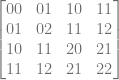
Let’s rewrite it as just the powers:

\begin{bmatrix} 00 & 01 & 10 & 11 \\ 01 & 02 & 11 & 12 \\ 10 & 11 & 20 & 21 \\ 11 & 12 & 21 & 22 \\ \end{bmatrix}

And the permutation we used as just powers to help us find the pattern in the powers of x and y in the ATA matrix:
\begin{bmatrix} 00 & 01 & 10 & 11 \\ \end{bmatrix}

Can you find the pattern of the powers used at the different spots in the ATA matrix?

I had to stare at it for a while before I figured it out but it’s this: For the i,j location in the ATA matrix, the powers of x and y are the powers of x and y in the i permutation added to the powers of x and y in the j permutation.

For example, A^TA_{0,2} has xy powers of 10. Permutation 0 has powers of 0,0 and permutation 2 has powers of 1,0, so we add those together to get powers 1,0.

Another example, A^TA_{2,3} has xy powers of 21. Permutation 2 has powers of 1,0 and permutation 3 has powers 1,1. Adding those together we get 2,1 which is correct.


That’s a bit more complex than last post, not too much more difficult to construct the ATA matrix directly – and also construct it incrementally as new data points come in!

How many unique values are there in the ATA matrix though? We need to know this to know how much storage we need.

In the last post, we needed (degree+1)*2–1 values to store the unique ATA matrix values. That can also be written as degree*2+1.

It turns out that when generalizing this to surfaces and volumes, that we need to take the product of that for each axis.

For instance, a surface has ((degreeX*2)+1)*((degreeY*2)+1) unique values. A volume has ((degreeX*2)+1)*((degreeY*2)+1)*((degreeZ*2)+1) unique values.

The pattern continues for higher dimensions, as well as lower, since you can see how in the curve case, it’s the same formula as it was before.

For the same ATA matrix size, a surface has more unique values than a curve does.

As far as what those values actually are, they are the full permutations of the powers of a surface (or hyper volume) that is one degree higher on each axis. For a bilinear surface, that means the 9 permutations of x and y for powers 0,1 and 2:
x^0y^0,x^0y^1,x^0y^2,x^1y^0,x^1y^1,x^1y^2,x^2y^0,x^2y^1,x^2y^2
Or simplified:
1,y,y^2,x,xy,xy^2,x^2,x^2y,x^2y^2

What about the ATV vector?

For the bilinear case, The ATV vector is the sums of the permutations of x,y multiplied by z, for every data point. In other words, you add this to ATV for each data point:
\begin{bmatrix} z & yz & xz & xyz \\ \end{bmatrix}

How much storage space do we need in general for the ATV vector then? it’s the product of (degree+1) for each axis.

For instance, a surface has (degreeX+1)*(degreeY+1) values in ATV, and a volume has (degreeX+1)*(degreeY+1)*(degreeZ+1).

You may also be wondering how many data points are required minimum to fit a curve, surface or hypervolume to a data set. The answer is that you need as many data points as there are terms in the polynomial. We are trying to solve for the polynomial coefficients, so there are as many unknowns as there are polynomial terms.

How many polynomial terms are there? There are as many terms as there are permutations of the axes powers involved. In other words, the size of ATV is also the minimum number of points you need to fit a curve, surface, or hypervolume to a data set.

Measuring Quality of a Fit

You are probably wondering if there’s a way to calculate how good of a fit you have for a given data set. It turns out that there are a few ways to calculate a value for this.

The value I use in the code below and in the demos is called R^2 or residue squared.

First you calculate the average (mean) output value from the input data set.

Then you calculate SSTot which is the sum of the square of the mean subtracted from each input point’s output value. Pseudo code:

SSTot = 0;
for (point p in points)
  SSTot += (p.out - mean)^2;

You then calculate SSRes which is the sum of the square of the fitted function evaluated at a point, subtracted from each input points’ output value. Pseudo code:

SSRes= 0;
for (point p in points)
  SSRes += (p.out - f(p.in))^2;

The final value for R^2 is 1-SSRes/SSTot.

The value is nice because it’s unitless, and since SSRes and SSTot is a sum of squares, SSRes/SSTot is basically the value that the fitting algorithm minimizes. The value is subtracted from 1 so that it’s a fit quality metric. A value of 0 is a bad fit, and a value of 1 is a good fit and generally it will be between those values.

If you want to read more about this, check out this link: Coefficient of Determination

Example Code

Here is a run from the sample code:

And here is the source code:

#include <stdio.h>
#include <array>

#define FILTER_ZERO_COEFFICIENTS true // if false, will show terms which have a coefficient of 0

//====================================================================
template<size_t N>
using TVector = std::array<float, N>;

template<size_t M, size_t N>
using TMatrix = std::array<TVector<N>, M>;

//====================================================================
// Specify a degree per axis.
// 1 = linear, 2 = quadratic, etc
template <size_t... DEGREES>
class COnlineLeastSquaresFitter
{
public:
    COnlineLeastSquaresFitter ()
    {
        // initialize our sums to zero
        std::fill(m_SummedPowers.begin(), m_SummedPowers.end(), 0.0f);
        std::fill(m_SummedPowersTimesValues.begin(), m_SummedPowersTimesValues.end(), 0.0f);
    }

	// Calculate how many summed powers we need.
	// Product of degree*2+1 for each axis.
	template <class T>
	constexpr static size_t NumSummedPowers(T degree)
	{
		return degree * 2 + 1;
	}
	template <class T, class... DEGREES>
	constexpr static size_t NumSummedPowers(T first, DEGREES... degrees)
	{
		return NumSummedPowers(first) * NumSummedPowers(degrees...);
	}

	// Calculate how many coefficients we have for our equation.
	// Product of degree+1 for each axis.
	template <class T>
	constexpr static size_t NumCoefficients(T degree)
	{
		return (degree + 1);
	}
	template <class T, class... DEGREES>
	constexpr static size_t NumCoefficients(T first, DEGREES... degrees)
	{
		return NumCoefficients(first) * NumCoefficients(degrees...);
	}

	// Helper function to get degree of specific axis
	static size_t Degree (size_t axisIndex)
	{
		static const std::array<size_t, c_dimension-1> c_degrees = { DEGREES... };
		return c_degrees[axisIndex];
	}
	
	// static const values
	static const size_t c_dimension = sizeof...(DEGREES) + 1; 
	static const size_t c_numCoefficients = NumCoefficients(DEGREES...);
	static const size_t c_numSummedPowers = NumSummedPowers(DEGREES...);

	// Typedefs
	typedef TVector<c_numCoefficients> TCoefficients;
	typedef TVector<c_dimension> TDataPoint;

	// Function for converting from an index to a specific power permutation
	static void IndexToPowers (size_t index, std::array<size_t, c_dimension-1>& powers, size_t maxDegreeMultiply, size_t maxDegreeAdd)
	{
		for (int i = c_dimension-2; i >= 0; --i)
		{
			size_t degree = Degree(i) * maxDegreeMultiply + maxDegreeAdd;
			powers[i] = index % degree;
			index = index / degree;
		}
	}

	// Function for converting from a specific power permuation back into an index
	static size_t PowersToIndex (std::array<size_t, c_dimension - 1>& powers, size_t maxDegreeMultiply, size_t maxDegreeAdd)
	{
		size_t ret = 0;
		for (int i = 0; i < c_dimension - 1; ++i)
		{
			ret *= Degree(i) * maxDegreeMultiply + maxDegreeAdd;
			ret += powers[i];
		}
		return ret;
	}

	// Add a datapoint to our fitting
    void AddDataPoint (const TDataPoint& dataPoint)
    {
		// Note: It'd be a good idea to memoize the powers and calculate them through repeated
		// multiplication, instead of calculating them on demand each time, using std::pow.

        // add the summed powers of the input values
		std::array<size_t, c_dimension-1> powers;
        for (size_t i = 0; i < m_SummedPowers.size(); ++i)
        {
			IndexToPowers(i, powers, 2, 1);
			float valueAdd = 1.0;
			for (size_t j = 0; j < c_dimension - 1; ++j)
				valueAdd *= (float)std::pow(dataPoint[j], powers[j]);
			m_SummedPowers[i] += valueAdd;
        }

        // add the summed powers of the input value, multiplied by the output value
        for (size_t i = 0; i < m_SummedPowersTimesValues.size(); ++i)
        {
			IndexToPowers(i, powers, 1, 1);
			float valueAdd = dataPoint[c_dimension - 1];
			for (size_t j = 0; j < c_dimension-1; ++j)
				valueAdd *= (float)std::pow(dataPoint[j], powers[j]);
			m_SummedPowersTimesValues[i] += valueAdd;
        }
    }

	// Get the coefficients of the equation fit to the points
    bool CalculateCoefficients (TCoefficients& coefficients) const
    {
		// make the ATA matrix
		std::array<size_t, c_dimension - 1> powersi;
		std::array<size_t, c_dimension - 1> powersj;
		std::array<size_t, c_dimension - 1> summedPowers;
		TMatrix<c_numCoefficients, c_numCoefficients> ATA;
		for (size_t j = 0; j < c_numCoefficients; ++j)
		{
			IndexToPowers(j, powersj, 1, 1);

			for (size_t i = 0; i < c_numCoefficients; ++i)
			{
				IndexToPowers(i, powersi, 1, 1);

				for (size_t k = 0; k < c_dimension - 1; ++k)
					summedPowers[k] = powersi[k] + powersj[k];

				size_t summedPowersIndex = PowersToIndex(summedPowers, 2, 1);
				ATA[j][i] = m_SummedPowers[summedPowersIndex];
			}
		}

		// solve: ATA * coefficients = m_SummedPowers
		// for the coefficients vector, using Gaussian elimination.
		coefficients = m_SummedPowersTimesValues;
		for (size_t i = 0; i < c_numCoefficients; ++i)
		{
			for (size_t j = 0; j < c_numCoefficients; ++j)
			{
				if (ATA[i][i] == 0.0f)
					return false;

				float c = ((i == j) - ATA[j][i]) / ATA[i][i];
				coefficients[j] += c*coefficients[i];
				for (size_t k = 0; k < c_numCoefficients; ++k)
					ATA[j][k] += c*ATA[i][k];
			}
		}

		// Note: this is the old, "bad" way to solve the equation using matrix inversion.
		// It's a worse choice for larger matrices, and surfaces and volumes use larger matrices than curves in general.
		/*
		// Inverse the ATA matrix
		TMatrix<c_numCoefficients, c_numCoefficients> ATAInverse;
		if (!InvertMatrix(ATA, ATAInverse))
			return false;

		// calculate the coefficients
		for (size_t i = 0; i < c_numCoefficients; ++i)
			coefficients[i] = DotProduct(ATAInverse[i], m_SummedPowersTimesValues);
		*/

		return true;
    }

private:
	//Storage Requirements:
	// Summed Powers = Product of degree*2+1 for each axis.
	// Summed Powers Times Values = Product of degree+1 for each axis.
    TVector<c_numSummedPowers>		m_SummedPowers;
	TVector<c_numCoefficients>		m_SummedPowersTimesValues;
};

//====================================================================
char AxisIndexToLetter (size_t axisIndex)
{
	// x,y,z,w,v,u,t,....
	if (axisIndex < 3)
		return 'x' + char(axisIndex);
	else
		return 'x' + 2 - char(axisIndex);
}

//====================================================================
template <class T, size_t M, size_t N>
float EvaluateFunction (const T& fitter, const TVector<M>& dataPoint, const TVector<N>& coefficients)
{
	float ret = 0.0f;
	for (size_t i = 0; i < coefficients.size(); ++i)
	{
		// start with the coefficient
		float term = coefficients[i];

		// then the powers of the input variables
		std::array<size_t, T::c_dimension - 1> powers;
		fitter.IndexToPowers(i, powers, 1, 1);
		for (size_t j = 0; j < powers.size(); ++j)
			term *= (float)std::pow(dataPoint[j], powers[j]);

		// add this term to our return value
		ret += term;
	}
	return ret;
}

//====================================================================
template <size_t... DEGREES>
void DoTest (const std::initializer_list<TVector<sizeof...(DEGREES)+1>>& data)
{
	// say what we are are going to do
	printf("Fitting a function of degree (");
	for (size_t i = 0; i < COnlineLeastSquaresFitter<DEGREES...>::c_dimension - 1; ++i)
	{
		if (i > 0)
			printf(",");
		printf("%zi", COnlineLeastSquaresFitter<DEGREES...>::Degree(i));
	}
	printf(") to %zi data points: n", data.size());

	// show input data points
	for (const COnlineLeastSquaresFitter<DEGREES...>::TDataPoint& dataPoint : data)
	{
		printf("  (");
		for (size_t i = 0; i < dataPoint.size(); ++i)
		{
			if (i > 0)
				printf(", ");
			printf("%0.2f", dataPoint[i]);
		}
		printf(")n");
	}

	// fit data
	COnlineLeastSquaresFitter<DEGREES...> fitter;
    for (const COnlineLeastSquaresFitter<DEGREES...>::TDataPoint& dataPoint : data)
        fitter.AddDataPoint(dataPoint);

	// calculate coefficients if we can
	COnlineLeastSquaresFitter<DEGREES...>::TCoefficients coefficients;
	bool success = fitter.CalculateCoefficients(coefficients);
	if (!success)
	{
		printf("Could not calculate coefficients!nn");
		return;
	}

	// print the polynomial
	bool firstTerm = true;
	printf("%c = ", AxisIndexToLetter(sizeof...(DEGREES)));
    bool showedATerm = false;
	for (int i = (int)coefficients.size() - 1; i >= 0; --i)
	{
		// don't show zero terms
		if (FILTER_ZERO_COEFFICIENTS && std::abs(coefficients[i]) < 0.00001f)
			continue;

        showedATerm = true;

		// show an add or subtract between terms
		float coefficient = coefficients[i];
		if (firstTerm)
			firstTerm = false;
		else if (coefficient >= 0.0f)
			printf(" + ");
		else
		{
			coefficient *= -1.0f;
			printf(" - ");
		}

		printf("%0.2f", coefficient);

		std::array<size_t, COnlineLeastSquaresFitter<DEGREES...>::c_dimension - 1> powers;
		fitter.IndexToPowers(i, powers, 1, 1);

		for (size_t j = 0; j < powers.size(); ++j)
		{
			if (powers[j] > 0)
				printf("%c", AxisIndexToLetter(j));
			if (powers[j] > 1)
				printf("^%zi", powers[j]);
		}
	}
    if (!showedATerm)
        printf("0");
	printf("n");

	// Calculate and show R^2 value.
	float rSquared = 1.0f;
	if (data.size() > 0)
	{
		float mean = 0.0f;
		for (const COnlineLeastSquaresFitter<DEGREES...>::TDataPoint& dataPoint : data)
			mean += dataPoint[sizeof...(DEGREES)];
		mean /= data.size();
		float SSTot = 0.0f;
		float SSRes = 0.0f;
		for (const COnlineLeastSquaresFitter<DEGREES...>::TDataPoint& dataPoint : data)
		{
			float value = dataPoint[sizeof...(DEGREES)] - mean;
			SSTot += value*value;

			value = dataPoint[sizeof...(DEGREES)] - EvaluateFunction(fitter, dataPoint, coefficients);
			SSRes += value*value;
		}
		if (SSTot != 0.0f)
			rSquared = 1.0f - SSRes / SSTot;
	}
	printf("R^2 = %0.4fnn", rSquared);
}

//====================================================================
int main (int argc, char **argv)
{
	// bilinear - 4 data points
	DoTest<1, 1>(
		{
			TVector<3>{ 0.0f, 0.0f, 5.0f },
			TVector<3>{ 0.0f, 1.0f, 3.0f },
			TVector<3>{ 1.0f, 0.0f, 8.0f },
			TVector<3>{ 1.0f, 1.0f, 2.0f },
		}
	);

	// biquadratic - 9 data points
	DoTest<2, 2>(
		{
			TVector<3>{ 0.0f, 0.0f, 8.0f },
			TVector<3>{ 0.0f, 1.0f, 4.0f },
			TVector<3>{ 0.0f, 2.0f, 6.0f },
			TVector<3>{ 1.0f, 0.0f, 5.0f },
			TVector<3>{ 1.0f, 1.0f, 2.0f },
			TVector<3>{ 1.0f, 2.0f, 1.0f },
			TVector<3>{ 2.0f, 0.0f, 7.0f },
			TVector<3>{ 2.0f, 1.0f, 9.0f },
			TVector<3>{ 2.0f, 2.5f, 12.0f },
		}
	);

	// trilinear - 8 data points
	DoTest<1, 1, 1>(
		{
			TVector<4>{ 0.0f, 0.0f, 0.0f, 8.0f },
			TVector<4>{ 0.0f, 0.0f, 1.0f, 4.0f },
			TVector<4>{ 0.0f, 1.0f, 0.0f, 6.0f },
			TVector<4>{ 0.0f, 1.0f, 1.0f, 5.0f },
			TVector<4>{ 1.0f, 0.0f, 0.0f, 2.0f },
			TVector<4>{ 1.0f, 0.0f, 1.0f, 1.0f },
			TVector<4>{ 1.0f, 1.0f, 0.0f, 7.0f },
			TVector<4>{ 1.0f, 1.0f, 1.0f, 9.0f },
		}
	);

	// trilinear - 9 data points
	DoTest<1, 1, 1>(
		{
			TVector<4>{ 0.0f, 0.0f, 0.0f, 8.0f },
			TVector<4>{ 0.0f, 0.0f, 1.0f, 4.0f },
			TVector<4>{ 0.0f, 1.0f, 0.0f, 6.0f },
			TVector<4>{ 0.0f, 1.0f, 1.0f, 5.0f },
			TVector<4>{ 1.0f, 0.0f, 0.0f, 2.0f },
			TVector<4>{ 1.0f, 0.0f, 1.0f, 1.0f },
			TVector<4>{ 1.0f, 1.0f, 0.0f, 7.0f },
			TVector<4>{ 1.0f, 1.0f, 1.0f, 9.0f },
			TVector<4>{ 0.5f, 0.5f, 0.5f, 12.0f },
		}
	);

	// Linear - 2 data points
    DoTest<1>(
        {
            TVector<2>{ 1.0f, 2.0f },
            TVector<2>{ 2.0f, 4.0f },
        }
    );

	// Quadratic - 4 data points
    DoTest<2>(
        {
            TVector<2>{ 1.0f, 5.0f },
			TVector<2>{ 2.0f, 16.0f },
			TVector<2>{ 3.0f, 31.0f },
			TVector<2>{ 4.0f, 16.0f },
        }
    );

	// Cubic - 4 data points
    DoTest<3>(
        {
            TVector<2>{ 1.0f, 5.0f },
            TVector<2>{ 2.0f, 16.0f },
			TVector<2>{ 3.0f, 31.0f },
			TVector<2>{ 4.0f, 16.0f },
        }
    );

    system("pause");
    return 0;
}

Closing

The next logical step here for me would be to figure out how to break the equation for a surface or hypervolume up into multiple equations, like you’d have with a tensor product surface/hypervolume equation. It would also be interesting to see how to convert from these multidimensional polynomials to multidimensional Bernstein basis functions, which are otherwise known as Bezier rectangles (and Bezier hypercubes i guess).

The last post inverted the ATA matrix and multiplied by ATY to get the coefficients. Thanks to some feedback on reddit, I found out that is NOT how you want to solve this sort of equation. I ended up going with Gaussian elimination for this post which is more numerically robust while also being less computation to calculate. There are other options out there too that may be even better choices. I’ve found out that in general, if you are inverting a matrix in code, or even just using an inverted matrix that has already been given to you, you are probably doing it wrong. You can read more about that here: John D. Cook: Don’t invert that matrix.

I didn’t go over what to do if you don’t have enough data points because if you find yourself in that situation, you can either decrease the degree of one of the axes, or you could remove and axis completely if you wanted to. It’s situational and ambiguous what parameter to decrease when you don’t have enough data points to fit a specific curve or hypervolume, but it’s still possible to decay the fit to a lower degree or dimension if you hit this situation, because you will already have all the values you need in the ATA matrix values and the ATV vector. I leave that to you to decide how to handle it in your own usage cases. Something interesting to note is that ATA[0][0] is STILL the count of how many data points you have, so you can use this value to know how much you need to decay your fit to be able to handle the data set.

In the WebGL2 demo I mention, I use a finite difference method to calculate the normals of the surface, however since the surface is described by a polynomial, it’d be trivial to calculate the coefficients for the equations that described the partial derivatives of the surface for each axis and use those instead.

I also wanted to mention that in the case of surfaces and hypervolumes it’s still possible to get an imperfect fit to your data set, even though you may give the exact minimum required number of control points. The reason for this is that not all axes are necesarily created equal. If you have a surface of degree (1,2) it’s linear on the x axis, but quadratic on the y axis, and requires a minimum of 6 data points to be able to fit a data set. As you can imagine, it’s possible to give data points such that the data points ARE NOT LINEAR on the x axis. When this happens, the surface will not be a perfect fit.

Lastly, you may be wondering how to fit data sets where there is more than one output value, like an equation of the form (z,w)=f(x,y).

I’m not aware of any ways to least square fit that as a whole, but apparently a common practice is to fit one equation to z and another to w and treat them independently. There is a math stack exchange question about that here: Math Stack Exchange: Least square fitting multiple values

Here is the webgl demo that goes with this post again:
Least Squares Surface Fitting

Thanks for reading, and please speak up if you have anything to add or correct, or a comment to make!

Incremental Least Squares Curve Fitting

This Post In Short:

  • Fit a curve of degree N to a data set, getting data points 1 at a time.
  • Storage Required: 3*N+2 values.
  • Update Complexity: roughly 3*N+2 additions and multiplies.
  • Finalize Complexity: Solving Ax=b where A is an (N+1)x(N+1) matrix and b is a known vector. (Sample code inverts A matrix and multiplies by b, Gaussian elimination is better though).
  • Simple C++ code and HTML5 demo at bottom!

I was recently reading a post from a buddy on OIT or “Order Independent Transparency” which is an open problem in graphics:
Fourier series based OIT and why it won’t work

In the article he talks about trying to approximate a function per pixel and shows the details of some methods he tried. One of the difficulties with the problem is that during a render you can get any number of triangles affecting a specific pixel, but you need a fixed and bounded size amount of storage per pixel for those variable numbers of data points.

That made me wonder: Is there an algorithm that can approximate a data set with a function, getting only one data point at a time, and end up with a decent approximation?

It turns out that there is one, at least one that I am happy with: Incremental Least Squares Curve Fitting.

While this perhaps doesn’t address all the problems that need addressing for OIT specifically, I think this is a great technique for programming in general, and I’m betting it still has it’s uses in graphics, for other times when you want to approximate a data set per pixel.

We’ll work through a math oriented way to do it, and then we’ll convert it into an equivalent and simpler programmer friendly version.

At the bottom of the post is some simple C++ that implements everything we talk about and the image below is a screenshot of an an interactive HTML5 demo I made: Least Squares Curve Fitting

Mathy Version

I found out about this technique by asking on math stack exchange and got a great (if not mathematically dense!) answer:
Math Stack Exchange: Creating a function incrementally

I have to admit, I’m not so great with matrices outside of the typical graphics/gamedev usage cases of transormation and related, so it took me a few days to work through it and understand it all. If reading that answer made your eyes go blurry, give my explanation a shot. I’m hoping I gave step by step details enough such that you too can understand what the heck he was talking about. If not, let me know where you got lost and I can explain better and update the post.

The first thing we need to do is figure out what degree of a function we want to approximate our data with. For our example we’ll pick a degree 2 function, also known as a quadratic function. That means that when we are done we will get out a function of the form below:

y=ax^2+bx+c

We will give data points to the equation and it will calculate the values of a,b and c that approximate our function by minimizing the sum of the squared distance from each point to the curve.

We’ll deal with regular least squared fitting before moving onto incremental, so here’s the data set we’ll be fitting our quadratic curve to:

(1,5),(2,16),(3,31),(4,50)

The x values in my data set start at 1 and count up by 1, but that is not a requirement. You can use whatever x and y values you want to fit a curve to.

Next we need to calculate the matrix A, where A_{jk} = x_j^k and the matrix has NumDataPoints rows and Degree+1 columns. It looks like the below for a quadratic curve fitting 4 data points:

A =  \begin{bmatrix} x_0^0 & x_0^1 & x_0^2 \\ x_1^0 & x_1^1 & x_1^2 \\ x_2^0 & x_2^1 & x_2^2 \\ x_3^0 & x_3^1 & x_3^2 \\ \end{bmatrix}

When we plug in our specific x values we get this:

A =  \begin{bmatrix} 1^0 & 1^1 & 1^2 \\ 2^0 & 2^1 & 2^2 \\ 3^0 & 3^1 & 3^2 \\ 4^0 & 4^1 & 4^2 \\ \end{bmatrix}

Calculating it out we get this:

A =  \begin{bmatrix} 1 & 1 & 1 \\ 1 & 2 & 4 \\ 1 & 3 & 9 \\ 1 & 4 & 16 \\ \end{bmatrix}

Next we need to calculate the matrix A^TA, which we do below by multiplying the transpose of A by A:
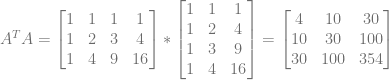
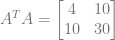
A^TA =  \begin{bmatrix} 1 & 1 & 1 & 1 \\ 1 & 2 & 3 & 4 \\ 1 & 4 & 9 & 16 \\ \end{bmatrix} * \begin{bmatrix} 1 & 1 & 1 \\ 1 & 2 & 4 \\ 1 & 3 & 9 \\ 1 & 4 & 16 \\ \end{bmatrix} = \begin{bmatrix} 4 & 10 & 30 \\ 10 & 30 & 100 \\ 30 & 100 & 354 \\ \end{bmatrix}

Next we need to find the inverse of that matrix to get (A^TA)^{-1}. The inverse is:

(A^TA)^{-1} =  \begin{bmatrix} 31/4 & -27/4 & 5/4 \\ -27/4 & 129/20 & -5/4 \\ 5/4 & -5/4 & 1/4 \\ \end{bmatrix}

The next thing we need to calculate is A^TY, which is the transpose of A multiplied by all of the Y values of our data:
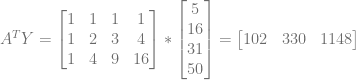

A^TY =  \begin{bmatrix} 1 & 1 & 1 & 1 \\ 1 & 2 & 3 & 4 \\ 1 & 4 & 9 & 16 \\ \end{bmatrix} * \begin{bmatrix} 5 \\ 16 \\ 31 \\ 50 \\ \end{bmatrix} = \begin{bmatrix} 102 & 330 & 1148 \\ \end{bmatrix}

And finally, to calculate the coefficients of our quadratic function, we need to calculate (A^TA)^{-1}*A^TY:

(A^TA)^{-1}*A^TY = \begin{bmatrix} 31/4 & -27/4 & 5/4 \\ -27/4 & 129/20 & -5/4 \\ 5/4 & -5/4 & 1/4 \\ \end{bmatrix} * \begin{bmatrix} 102 \\ 330 \\ 1148 \\ \end{bmatrix} = \begin{bmatrix} -2 & 5 & 2 \\ \end{bmatrix}

Those coefficients are listed in power order of x, so the first value -2 is the coefficient for x^0, 5 is the coefficient for x^1 and 2 is the coefficient for x^2. That gives us the equation:

y=2x^2+5x-2

If you plug in the x values from our data set, you’ll find that this curve perfectly fits all 4 data points.

It won’t always be (and usually won’t be) that a resulting curve matches the input set for all values. It just so happened that this time it does. The only guarantee you’ll get when fitting a curve to the data points is that the squared distance of the point to the curve (distance on the Y axis only, so vertical distance), is minimized for all data points.

Now that we’ve worked through the math, let’s make some observations and make it more programmer friendly.

Making it Programmer Friendly

Let’s look at the A^TA matrix again:

\begin{bmatrix} 4 & 10 & 30 \\ 10 & 30 & 100 \\ 30 & 100 & 354 \\ \end{bmatrix}

One thing you probably noticed right away is that it’s symmetric across the diagonal. Another thing you may have noticed is that there are only 5 unique values in that matrix.

As it turns out, those 5 values are just the sum of the x values, when those x values are raised to increasing powers.

  • If you take all x values of our data set, raise them to the 0th power and sum the results, you get 4.
  • If you take all x values of our data set, raise them to the 1st power and sum the results, you get 10.
  • If you take all x values of our data set, raise them to the 2nd power and sum the results, you get 30.
  • If you take all x values of our data set, raise them to the 3rd power and sum the results, you get 100.
  • If you take all x values of our data set, raise them to the 4th power and sum the results, you get 354.

Further more, the power of the x values in each part of the matrix is the zero based x axis index plus the zero based y axis index. Check out what i mean below, which shows which power the x values are taken to before being summed for each location in the matrix:

\begin{bmatrix} 0 & 1 & 2 \\ 1 & 2 & 3 \\ 2 & 3 & 4 \\ \end{bmatrix}

That is interesting for two reasons…

  1. This tells us that we only really need to store the 5 unique values, and that we can reconstruct the full matrix later when it’s time to calculate the coefficients.
  2. It also tells us that if we’ve fit a curve to some data points, but then want to add a new data point, that we can just raise the x value of our new data point to the different powers and add it into these 5 values we already have stored. In other words, the A^TA matrix can be incrementally adjusted as new data comes in.

This generalizes beyond quadratic functions too luckily. If you are fitting your data points with a degree N curve, the A^TA matrix will have N+1 rows, and N+1 columns, but will only have (N+1)*2-1 unique values stored in it. Those values will be the sum of the x values taken from the 0th power up to the (N+1)*2-2th power.

As a concrete example, a cubic fit will have an A^TA array that is 4×4, which will only have 7 unique values stored in it. Those values will be the x values raised to the 0th power and summed, all the way up to the x values raised to the 6th power and summed.

So, the A^TA matrix has a fixed storage amount of (degree+1)*2 – 1 values, and it can be incrementally updated.

That is great, but there is another value we need to look at too, which is the A^TY vector. Let’s see that again:

\begin{bmatrix} 102 & 330 & 1148 \\ \end{bmatrix}

There are some patterns to this vector too luckily. You may have noticed that the first entry is the sum of the Y values from our data set. It’s actually the sum of the y values multiplied by the x values raised to the 0th power.

The next number is the sum of the y values multiplied by the x values raised to the 1st power, and so on.

To generalize it, each entry in that vector is the sum of taking the x from each data point, raising it to the power that is the index in the vector, and multiplying it by the y value.

  • Taking each data point’s x value, raising it to the 0th power, multiplying by the y value, and summing the results gives you 102.
  • Taking each data point’s x value, raising it to the 1st power, multiplying by the y value, and summing the results gives you 330.
  • Taking each data point’s x value, raising it to the 2nd power, multiplying by the y value, and summing the results gives you 1148.

So, this vector is incrementally updatable too. When you get a new data point, for each entry in the vector, you take the x value to the specific power, multiply by y, and add that result to the entry in the vector.

This generalizes for other curve types as well. If you are fitting your data points with a degree N curve, the A^TY vector will have N+1 entries, corresponding to the powers: 0,1,…N.

As a concrete example, a cubic fit will have an A^TY vector of size 4, corresponding to the powers: 0,1,2,3.

Combining the storage needs of the values needed for the A^TA matrix, as well as the values needed for the A^TY vector, the amount of storage we need for a degree N curve fit is 3*N+2 values.

Algorithm Summarized

Here is a summary of the algorithm:

  1. First decide on the degree of the fit you want. Call it N.
  2. Ensure you have storage space for 3*N+2 values and initialize them all to zero. These represent the (N+1)*2-1 values needed for the A^TA matrix values, as well as the N+1 values needed for the A^TY vector.
  3. For each data point you get, you will need to update both the A^TA matrix values, as well as the A^TY vector valuess. (Note that there are not the same number of values in ATA and ATY!)
    • for(i in ATA) ATA[i] += x^i
    • for(i in ATY) ATY[i] += x^i*y
  4. When it’s time to calculate the coefficients of your polynomial, convert the ATA values back into the A^TA matrix, invert it and multiply that by the A^TY value.

Pretty simple right?

Not Having Enough Points

When working through the mathier version of this algorithm, you may have noticed that if we were trying to fit using a degree N curve, that we needed N+1 data points at minimum for the math to even be able to happen.

So, you might ask, what happens in the real world, such as in a pixel shader, where we decide to do a cubic fit, but end up only getting 1 data point, instead of the 4 minimum that we need?

Well, first off, if you use the programmer friendly method of incrementally updating ATA and ATY, you’ll end up with an uninvertible matrix (0 determinant), but that doesn’t really help us any besides telling us when we don’t have enough data.

There is something pretty awesome hiding here though. Let’s look at the ATA matrix and ATY values from our quadratic example again.

A^TA =  \begin{bmatrix} 4 & 10 & 30 \\ 10 & 30 & 100 \\ 30 & 100 & 354 \\ \end{bmatrix}

A^TY =  \begin{bmatrix} 102 & 330 & 1148 \\ \end{bmatrix}

The above values are for a quadratic fit. What if we wanted a linear fit instead? Well… the upper left 2×2 matrix in ATA is the ATA matrix for the linear fit! Also, the first two values in the ATY vector is the ATY vector if we were doing a linear fit.

A^TA =  \begin{bmatrix} 4 & 10 \\ 10 & 30 \\ \end{bmatrix}

A^TY =  \begin{bmatrix} 102 & 330 \\ \end{bmatrix}

You can verify that the linear fit above is correct if you want, but let’s take it down another degree, down to approximating the fit with a point. They become scalars instead of matrices and vectors:

A^TA = 4 \\ A^TY = 102

If we take the inverse of ATA and multiply it by ATY, we get:

1/4 * 102 = 25.5

if you average the Y values of our input data, you’ll find that it is indeed 25.5, so we have verified that it does give us a degree 0 fit.

This is neat and all, but how can we KNOW if we’ve collected enough data or not? Do we just try to invert our ATA matrix, and if it fails, try one degree lower, repeatedly, until we succeed or fail at a degree 0 approximation? Do we maybe instead store a counter to keep track of how many points we have seen?

Luckily no, and maybe you have already put it together. The first value in the ATA array actually TELLS you how many points you have been given. You can use that to decide what degree you are going to have to actually fit the data set to when it’s time to calculate your coefficients, to avoid the uninvertible matrix and still get your data fit.

Interesting Tid Bits

Something pretty awesome about this algorithm is that it can work in a multithreaded fashion very easily. One way would be to break apart the work into multiple job threads, have them calculate ATA and ATY independently, and then sum them all together on the main thread. Another way to do it would be to let all threads share the same ATA and ATY storage, but to use an atomic add operation to update them.

Going the atomic add route, I think this could be a relatively GPU friendly algorithm. You could use actual atomic operations in your shader code, or you could use alpha blending to add your result in.

Even though we saw it in the last section, I’ll mention it again. If you do a degree 0 curve fit to data points (aka fitting a point to the data), this algorithm is mathematically equivalent to just taking the average y value. The ATA values will have a single value which is the sum of the x values to the 0th degree, so will be the count of how many x items there are. The ATY values will also have only a single value, which will be the sum of the x^0*y values, so will be the sum of the y values. Taking the inverse of our 1×1 ATA matrix will give us one divided by how many items there are, so when we multiply that by the ATA vector which only has one item, it will be the same as if we divided our Y value sum by how many data points we had. So, in a way, this algorithm seems to be some sort of generalization of averaging, which is weird to me.

Another cool thing: if you have the minimum number of data points for your degree (aka degree+1 data points) or fewer, you can actually use the ATA and ATY values to get back your ORIGINAL data points – both the X and the Y values! I’ll leave it as an exercise for you, but if you look at it, you will always have more equations than you do unknowns.

If reconstructing the original data points is important to you, you could also have this algorithm operate in two modes.

Basically, always use the ATA[0] storage space to count the number of data points you’ve been given, since that is it’s entire purpose. You can then use the rest of the storage space as RAW data storage for your 2d input values. As soon as adding another value would cause you to overflow your storage, you could process your data points into the correct format of storing just ATA and ATY values, so that from then on, it was an approximation, instead of explicit point storage.

When decoding those values, you would use the ATA[0] storage space to know whether the rest of the storage contained ATA and ATY values, or if they contained data points. If they contained data points, you would also know how many there were, and where they were in the storage space, using the same logic to read data points out as you used to put them back in – basically like saying that the first data point goes immediately after ATA[0], the second data point after that, etc.

The last neat thing, let’s say that you are in a pixel shader as an exmaple, and that you wanted to approximate 2 different values for each pixel, but let’s say that the X value was always the same for these data sets – maybe you are approximating two different values over depth of the pixel for instance so X of both data points is the depth, but the Y values of the data points are different.

If you find yourself in a situation like this, you don’t actually need to pay the full cost of storage to have a second approximation curve.

Since the ATA values are all based on powers of the x values only, the ATA values would be the same for both of these data sets. You only need to pay the cost of the ATY values for the second curve.

This means that fitting a curve costs an initial 3*degree+2 in storage, but each additional curve only costs degree+1 in storage.

Also, since the ATA storage for a curve of degree N also contains the same values used for a curve of degree N-1, N-2, etc, you don’t have to use the same degree when approximating multiple values using the same storage. Your ATA just has to be large enough to hold the largest degree curve, and then you can have ATY values that are sized to the degree of the curve you want to use to approximate each data set.

This way, if you have limited storage, you could perhaps cubically fit one data set, and then linearly fit another data set where accuracy isn’t as important.

For that example, you would pay 11 values of storage for the cubic fit, and then only 2 more values of storage to have a linear fit of some other data.

Example Code

There is some example code below that implements the ideas from this post.

The code is meant to be clear and readable firstly, with being a reasonably decent implementation second. If you are using this in a place where you want high precision and/or high speeds, there are likely both macro and micro optimizations and code changes to be made. The biggest of these is probably how the matrix is inverted.

You can read more on the reddit discussion: Reddit: Incremental Least Squares Curve Fitting

Here’s a run of the example code:

Here is the example code:

#include <stdio.h>
#include <array>

//====================================================================
template<size_t N>
using TVector = std::array<float, N>;

template<size_t M, size_t N>
using TMatrix = std::array<TVector<N>, M>;

template<size_t N>
using TSquareMatrix = TMatrix<N,N>;

typedef TVector<2> TDataPoint; 

//====================================================================
template <size_t N>
float DotProduct (const TVector<N>& A, const TVector<N>& B)
{
    float ret = 0.0f;
    for (size_t i = 0; i < N; ++i)
        ret += A[i] * B[i];
    return ret;
}

//====================================================================
template <size_t M, size_t N>
void TransposeMatrix (const TMatrix<M, N>& in, TMatrix<N, M>& result)
{
    for (size_t j = 0; j < M; ++j)
        for (size_t k = 0; k < N; ++k)
            result[k][j] = in[j][k];
}

//====================================================================
template <size_t M, size_t N>
void MinorMatrix (const TMatrix<M, N>& in, TMatrix<M-1, N-1>& out, size_t excludeI, size_t excludeJ)
{
    size_t destI = 0;
    for (size_t i = 0; i < N; ++i)
    {
        if (i != excludeI)
        {
            size_t destJ = 0;
            for (size_t j = 0; j < N; ++j)
            {
                if (j != excludeJ)
                {
                    out[destI][destJ] = in[i][j];
                    ++destJ;
                }
            }
            ++destI;
        }
    }
}

//====================================================================
template <size_t M, size_t N>
float Determinant (const TMatrix<M,N>& in)
{
    float determinant = 0.0f;
	TMatrix<M - 1, N - 1> minor;
    for (size_t j = 0; j < N; ++j)
    {
        MinorMatrix(in, minor, 0, j);

        float minorDeterminant = Determinant(minor);
        if (j % 2 == 1)
            minorDeterminant *= -1.0f;

        determinant += in[0][j] * minorDeterminant;
    }
    return determinant;
}

//====================================================================
template <>
float Determinant<1> (const TMatrix<1,1>& in)
{
	return in[0][0];
}

//====================================================================
template <size_t N>
bool InvertMatrix (const TSquareMatrix<N>& in, TSquareMatrix<N>& out)
{
    // calculate the cofactor matrix and determinant
    float determinant = 0.0f;
    TSquareMatrix<N> cofactors;
    TSquareMatrix<N-1> minor;
    for (size_t i = 0; i < N; ++i)
    {
        for (size_t j = 0; j < N; ++j)
        {
            MinorMatrix(in, minor, i, j);

            cofactors[i][j] = Determinant(minor);
            if ((i + j) % 2 == 1)
                cofactors[i][j] *= -1.0f;

            if (i == 0)
                determinant += in[i][j] * cofactors[i][j];
        }
    }

    // matrix cant be inverted if determinant is zero
    if (determinant == 0.0f)
        return false;

    // calculate the adjoint matrix into the out matrix
    TransposeMatrix(cofactors, out);

    // divide by determinant
    float oneOverDeterminant = 1.0f / determinant;
    for (size_t i = 0; i < N; ++i)
        for (size_t j = 0; j < N; ++j)
            out[i][j] *= oneOverDeterminant;
    return true;
}

//====================================================================
template <>
bool InvertMatrix<2> (const TSquareMatrix<2>& in, TSquareMatrix<2>& out)
{
    float determinant = Determinant(in);
    if (determinant == 0.0f)
        return false;

    float oneOverDeterminant = 1.0f / determinant;
    out[0][0] =  in[1][1] * oneOverDeterminant;
    out[0][1] = -in[0][1] * oneOverDeterminant;
    out[1][0] = -in[1][0] * oneOverDeterminant;
    out[1][1] =  in[0][0] * oneOverDeterminant;
    return true;
}

//====================================================================
template <size_t DEGREE>  // 1 = linear, 2 = quadratic, etc
class COnlineLeastSquaresFitter
{
public:
    COnlineLeastSquaresFitter ()
    {
        // initialize our sums to zero
        std::fill(m_SummedPowersX.begin(), m_SummedPowersX.end(), 0.0f);
        std::fill(m_SummedPowersXTimesY.begin(), m_SummedPowersXTimesY.end(), 0.0f);
    }

    void AddDataPoint (const TDataPoint& dataPoint)
    {
        // add the summed powers of the x value
        float xpow = 1.0f;
        for (size_t i = 0; i < m_SummedPowersX.size(); ++i)
        {
            m_SummedPowersX[i] += xpow;
            xpow *= dataPoint[0];
        }

        // add the summed powers of the x value, multiplied by the y value
        xpow = 1.0f;
        for (size_t i = 0; i < m_SummedPowersXTimesY.size(); ++i)
        {
            m_SummedPowersXTimesY[i] += xpow * dataPoint[1];
            xpow *= dataPoint[0];
        }
    }

    bool CalculateCoefficients (TVector<DEGREE+1>& coefficients) const
    {
        // initialize all coefficients to zero
        std::fill(coefficients.begin(), coefficients.end(), 0.0f);

        // calculate the coefficients
        return CalculateCoefficientsInternal<DEGREE>(coefficients);
    }

private:

    template <size_t EFFECTIVEDEGREE>
    bool CalculateCoefficientsInternal (TVector<DEGREE + 1>& coefficients) const
    {
        // if we don't have enough data points for this degree, try one degree less
        if (m_SummedPowersX[0] <= EFFECTIVEDEGREE)
            return CalculateCoefficientsInternal<EFFECTIVEDEGREE - 1>(coefficients);

        // Make the ATA matrix
        TMatrix<EFFECTIVEDEGREE + 1, EFFECTIVEDEGREE + 1> ATA;
        for (size_t i = 0; i < EFFECTIVEDEGREE + 1; ++i)
            for (size_t j = 0; j < EFFECTIVEDEGREE + 1; ++j)
                ATA[i][j] = m_SummedPowersX[i + j];

        // calculate inverse of ATA matrix
        TMatrix<EFFECTIVEDEGREE + 1, EFFECTIVEDEGREE + 1> ATAInverse;
        if (!InvertMatrix(ATA, ATAInverse))
            return false;

        // calculate the coefficients for this degree. The higher ones are already zeroed out.
        TVector<EFFECTIVEDEGREE + 1> summedPowersXTimesY;
        std::copy(m_SummedPowersXTimesY.begin(), m_SummedPowersXTimesY.begin() + EFFECTIVEDEGREE + 1, summedPowersXTimesY.begin());
        for (size_t i = 0; i < EFFECTIVEDEGREE + 1; ++i)
            coefficients[i] = DotProduct(ATAInverse[i], summedPowersXTimesY);
        return true;
    }

    // Base case when no points are given, or if you are fitting a degree 0 curve to the data set.
    template <>
    bool CalculateCoefficientsInternal<0> (TVector<DEGREE + 1>& coefficients) const
    {
        if (m_SummedPowersX[0] > 0.0f)
            coefficients[0] = m_SummedPowersXTimesY[0] / m_SummedPowersX[0];
        return true;
    }

    // Total storage space (# of floats) needed is 3 * DEGREE + 2
    // Where y is number of values that need to be stored and x is the degree of the polynomial
    TVector<(DEGREE + 1) * 2 - 1>   m_SummedPowersX;
    TVector<DEGREE + 1>             m_SummedPowersXTimesY;
};

//====================================================================
template <size_t DEGREE>
void DoTest(const std::initializer_list<TDataPoint>& data)
{
	printf("Fitting a curve of degree %zi to %zi data points:n", DEGREE, data.size());

    COnlineLeastSquaresFitter<DEGREE> fitter;

	// show data
    for (const TDataPoint& dataPoint : data)
		printf("  (%0.2f, %0.2f)n", dataPoint[0], dataPoint[1]);

	// fit data
    for (const TDataPoint& dataPoint : data)
        fitter.AddDataPoint(dataPoint);

	// calculate coefficients if we can
	TVector<DEGREE+1> coefficients;
	bool success = fitter.CalculateCoefficients(coefficients);
	if (!success)
	{
		printf("ATA Matrix could not be inverted!n");
		return;
	}

	// print the polynomial
	bool firstTerm = true;
	printf("y = ");
    bool showedATerm = false;
	for (int i = (int)coefficients.size() - 1; i >= 0; --i)
	{
		// don't show zero terms
		if (std::abs(coefficients[i]) < 0.00001f)
			continue;

        showedATerm = true;

		// show an add or subtract between terms
		float coefficient = coefficients[i];
		if (firstTerm)
			firstTerm = false;
		else if (coefficient >= 0.0f)
			printf(" + ");
		else
		{
			coefficient *= -1.0f;
			printf(" - ");
		}

		printf("%0.2f", coefficient);

		if (i > 0)
			printf("x");

		if (i > 1)
			printf("^%i", i);
	}
    if (!showedATerm)
        printf("0");
	printf("nn");
}

//====================================================================
int main (int argc, char **argv)
{
	// Point - 1 data points
    DoTest<0>(
        {
            TDataPoint{ 1.0f, 2.0f },
        }
    );

	// Point - 2 data points
    DoTest<0>(
        {
            TDataPoint{ 1.0f, 2.0f },
            TDataPoint{ 2.0f, 4.0f },
        }
    );

	// Linear - 2 data points
    DoTest<1>(
        {
            TDataPoint{ 1.0f, 2.0f },
            TDataPoint{ 2.0f, 4.0f },
        }
    );

	// Linear - 3 colinear data points
    DoTest<1>(
        {
            TDataPoint{ 1.0f, 2.0f },
            TDataPoint{ 2.0f, 4.0f },
            TDataPoint{ 3.0f, 6.0f },
        }
    );

	// Linear - 3 non colinear data points
    DoTest<1>(
        {
            TDataPoint{ 1.0f, 2.0f },
            TDataPoint{ 2.0f, 4.0f },
            TDataPoint{ 3.0f, 5.0f },
        }
    );

	// Quadratic - 3 colinear data points
    DoTest<2>(
        {
            TDataPoint{ 1.0f, 2.0f },
            TDataPoint{ 2.0f, 4.0f },
            TDataPoint{ 3.0f, 6.0f },
        }
    );

	// Quadratic - 3 data points
    DoTest<2>(
        {
            TDataPoint{ 1.0f, 5.0f },
            TDataPoint{ 2.0f, 16.0f },
            TDataPoint{ 3.0f, 31.0f },
        }
    );

	// Cubic - 4 data points
    DoTest<3>(
        {
            TDataPoint{ 1.0f, 5.0f },
            TDataPoint{ 2.0f, 16.0f },
            TDataPoint{ 3.0f, 31.0f },
            TDataPoint{ 4.0f, 16.0f },
        }
    );

	// Cubic - 2 data points
    DoTest<3>(
        {
            TDataPoint{ 1.0f, 7.0f },
            TDataPoint{ 3.0f, 17.0f },
        }
    );

	// Cubic - 1 data point
    DoTest<3>(
        {
            TDataPoint{ 1.0f, 7.0f },
        }
    );

	// Cubic - 0 data points
    DoTest<3>(
        {
        }
    );

    system("pause");
    return 0;
}

Feedback

There’s some interesting feedback on twitter.

Links

Here’s an interactive demo to let you get a feel for how least squares curve fitting behaves:
Least Squares Curve Fitting

Wolfram Mathworld: Least Squares Fitting
Wikipedia: Least Squares Fitting
Inverting a 2×2 Matrix
Inverting Larger Matrices

A good online polynomial curve fitting calculator

By the way, the term for an algorithm which works incrementally by taking only some of the data at a time is called an “online algorithm”. If you are ever in search of an online algorithm to do X (whatever X may be), using this term can be very helpful when searching for such an algorithm, or when asking people if such an algorithm exists (like on stack exchange). Unfortunately, online is a bit overloaded in the modern world, so it can also give false hits (;
Wikipedia: Online algorithm

Evaluating Points on Analytical Surfaces and in Analytical Volumes Using the GPU Texture Sampler

This is an extension of a paper I wrote which shows how to use the linear texture sampling capabilities of the GPU to calculate points on Bezier curves. You store the control points in the texture, then sample along the texture’s diagonal to get points on the curve:
GPU Texture Sampler Bezier Curve Evaluation

This extension shows how to use the technique to evaluate points on surfaces and inside of volumes, where those surfaces and volumes are defined either by Bezier curves or polynomials (Tensor products of polynomials to be more specific).

As an example of what this post will allow you to do:

  • By taking a single sample of a 3d RGBA volume texture, you’ll be able to get a bicubic interpolated value (a bicubic surface).
  • Alternately, taking a single sample of a 3d RGBA volume texture will allow you to get a linear interpolation between two biquadratic surfaces (a linear/biquadratic volume).
  • This post also covers how to extend this to higher degree surfaces and volumes.

Here are two images generated by the WebGL2 demos I made for this post which utilize this technique for rendering surfaces, fog volumes, and solid volumes. (link to the demos at bottom of post!)

All textures are size 2 on each axis which makes it a cache friendly technique (you can grow the texture sizes for piecewise curves/surfaces/volumes though). It leverages the hardware interpolation which makes it a relatively computationally inexpensive technique, and it supports all polynomials within the limitations of floating point math, so is also very flexible and expressive. You could even extend this to rational polynomial surfaces and volumes which among other things would allow perfect representations of conic sections.

The animated Bezier curve images in this post came from wikipedia. Go have a look and drop them a few bucks if you find wikipedia useful!
Wikipedia: Bézier curve

Curves

If you’ve read my curve paper and understand the basics you can skip this section and go onto the section “Before Going Into Surfaces”.

Let’s talk about how to store curves of various degrees in textures and evaluate points on them using the GPU Texture sampler. We’ll need this info when we are working with surfaces and volumes because a higher degree curve is dual to a section of lower degree surface or an even lower degree volume.

The three ways we’ll be talking about controlling the order of curves are:

  1. Texture Dimensionality – 1d texture vs 2d texture vs 3d texture vs 4d texture.
  2. Number of Color Channels – How many color channels are used? R? RG? RGB? RGBA?
  3. Multiple Texture Samples – Doing multiple texture reads.

Texture Dimensionality

By texture dimensionality I mean how many dimensions the texture has. In all cases, the size of the texture is going to be 2 on each axis.

Starting with a 1d texture, we have a single texture coordinate (u) to sample along. As we change the u value from 0 to 1, we are just linearly interpolating between the two values. A 1d texture that has 2 pixels in it can store a degree 1 curve, also known as a linear Bezier curve. With linear texture sampling, the GPU hardware will do this linear interpolation for you.

The equation for linear interpolation between two values A and B which are at t=0 and t=1 respectively is:
A*(1-t) + B*t

Here’s the 1d texture:

Here’s a linear curve:

Going to a 2d texture it gets more interesting. We now have two texture coordinates to sample along (u,v). Using linear sampling, the hardware will do bilinear interpolation (linear interpolation across each axis) to get the value at a specific (u,v) texture coordinate.

Here is the equation for bilinear interpolation between 4 values A,B,C,D which are at texture coordinates (0,0), (1,0), (0,1), (1,1) respectively, being sampled at (u,v):

(A*(1-u) + B*u)*(1-v) + (C*(1-u) + D*u) * v

That equation interpolates from A to B by u (x axis), and from C to D by u (x axis), and then interpolates from the first result to the second by v (y axis). Note that it doesn’t actually matter which axis is interpolated by first. An equivelant equation would be one that interpolates from A to B by v (y axis) and from B to C by v (y axis) and then between those results by u (x axis).

With that equation, something interesting starts to happen if you use the same value (t) for u and v, expand and simplify, and end up at this equation:

A*(1-t)^2 + (B+C)*(1-t)t + Dt^2

That equation is very close to the quadratic Bezier formula, which is below:

A*(1-t)^2 + B*2(1-t)t + Ct^2

To get to that equation, we just make B and C the same value (B), and rename D to C since that letter is unused. This tells us how we need to set up our 2d texture such that when we sample along the diagonal, we get the correct point on our quadratic Bezier curve:

Here’s a quadratic Bezier curve in action. You can see how it is a linear interpolation between two linear interpolations, just like taking a bilinearly interpolated sample on our texture is.

Taking this to a 3d texture, we now have three texture coordinates to sample along (u,v,w). Again, with linear sampling turned on, the hardware will do trilinear interpolation to get the value at a specific (u,v,w) texture coordinate.

If we follow the same process as the 2d texture, we will wind up with the equation for a cubic Bezier curve:

A*(1-t)^3 + B*3(1-t)^2t + C*3(1-t)t^2 + Dt^3

Here’s how the texture is laid out:

Here’s a cubic Bezier curve in action, where you can see 3 levels of linear interpolations, just like how trilinear interpolation works:

While I have never used a 4d texture it appears that directx supports them and there looks to be an OpenGL extension to support them as well.

If we took this to a 4d texture, we would end up with the equation for a quartic curve. If you have trouble visualizing what a 4d texture even looks like, you aren’t alone. You have four texture coordinates to sample along (u,v,w,t). When you sample it, there are two 3d volume textures that are sampled at (u,v,w), resulting in two values as a result. These values are then interpolated by t to give you the final value. A fourth dimensional texture lookup is just an interpolation between 2 three dimensional texture lookups. That is true of all dimensional texture lookups in fact. An N dimensional texture lookup is just the linear interpolation between two N-1 dimensional texture lookups. For example, a three dimensional texture lookup is just an interpolation between 2 two dimensional texture lookups. This “hierchical interpolation” is the link I noticed between texture interpolation and the De Casteljau algorithm, since that is also a hierchical interpolation algorithm, just with fewer values interpolated between.

Here’s how the 4d texture is laid out:

Here’s the quartic Bezier equation, which is what you get the answer to if you sample a 4d texture at (t,t,t,t):

A*(1-t)^4 + B*4(1-t)^3t + C*6(1-t)^2t^2 + D*4(1-t)t^3 + Et^4

Here’s a quartic Bezier curve in action, showing 4 levels of linear interpolation, just like how quadrilinear interpolation works with 4d textures:

So, the bottom line of this section is that if we sample along the diagonal of an N dimensional texture which has one color channel, we will get points on a degree N curve.

Number of Color Channels

Another way we can control the degree of a curve stored in a texture is by the number of color channels that are stored in the texture.

In the section above we showed a 1d texture that stored a linear curve. it had only one color channel:

Let’s add another color channel. A,B will be stored in the red channel, and B,C will be stored in the green channel:

When we read that texture at location (t), we will get the following values:

  1. R: The linear interpolation between A and B at time t.
  2. G: The linear interpolation between B and C at time t.

Now, if we just lerp between R and G in our shader, for time t, we will get the point at time t, on the cubic Bezier curve defined by control points A,B,C.

Pretty cool right?

What happens if we add another color channel, blue?

Well, when we sample the texture at time t, we get the following values:

  1. R: The linear interpolation between A and B at time t.
  2. G: The linear interpolation between B and C at time t.
  3. B: The linear interpolation between C and D at time t.

We can combine these values using the quadratic Bezier curve formula, as if these were each a control point:

R*(1-t)^2 + G*2(1-t)t + Bt^2

The result we get is a point on the CUBIC curve defined by the four control points A,B,C,D.

In the previous section, it took a 3d volume texture to calculate a cubic curve. In this section we were able to do it with a 1d RGB texture, but it came at the cost of of having to do some calculation in the shader code after sampling the texture to combine the color channels and get the final result.

How exactly does adding a color channel affect the degree though? Each color channel added increases the degree by 1.

You can see this is true by seeing in the last section how a 3 dimensional texture can evaluate a cubic, and a 4 dimensional texture can evalaute a quartic, but the 4th dimensional texture was just two 3 dimensional textures. Adding a second color channel just doubles the size of your data (and adding two tripples, and adding three quadruples), so having a 3d volume texture that has two color channels is the same as having a 4d volume texture with a single color channel. In both cases, you are just interpolating between two 3d texture samples.

So, for every color channel we add, we add a degree.

Multiple Texture Samples

Multiple texture samples is the last way to control curve degree that we are going to talk about.

Taking extra texture samples is a lot like adding color channels.

If you have a 1d RGB texture, you get a result of 3 lerps – R,G,B – which you can use to calculate a cubic curve point (order 3). If you take a second sample, you get R0,G0,B0,R1,G1,B1 which is a result of 6 lerps, which gives you a point on a sextic curve (order 6).

If you have a 2d RGBA texture, you get the result of 4 quadratic interpolations – R,G,B,A – which gives you an order 5 curve point. Taking another texture read gives you 8 quadratic interpolation results, which you can put together to make an order 9 curve point. Taking a third texture read would get you up to order 13.

Just like adding color channels, taking extra texture samples requires you to combine the multiple results in your shader, which increases computational cost.

Besides that, you are also doing more texture reads, which can be another source of performance loss. The textures are small (up to 2x2x2x2) so are texture cache friendly, but if you have multiple textures, it could start to add up I’m sure.

IMO this option should be avoided in favor of the others, when possible.

Before Going Into Surfaces

Before we start on surfaces, I want to mention a few things.

Even though we’ve been talking about Bezier curves specifically, a previous post explained how to convert any polynomial from power basis form into Bernstein basis form (aka you can turn any polynomial into a Bezier curve that is exactly equivelant). So, this generalizes to polynomials, and even rational polynomials if you do division in your shader code, but I’ll point you towards that post for more information on that: Evaluating Polynomials with the GPU Texture Sampler.

You can also extend the above for piecewise curves easily enough. You just set up a different curve (or surface or volume, as we describe below) for different ranges of your parameter space values. From time 0 to 1, you may use one texture, and from time 1 to 2, you may use another. Better yet, you would store both curves in a single texture, and just make the texture be a little larger, instead of having two separate textures.

Also, many other types of curves – B-splines, nurbs – can be broken down exactly into piecewise Bezier curves (rational, if the source curve is rational). Check these links for more info:
Algorithms for B-Spline Curves
Wikipedia: De Boor’s Algorithm.

Surfaces

Finally onto surfaces!

I’m going to show how to extend the curve calculation technique to calculating points on Bezier rectangles. A Bezier rectangle is a rectangular surface which has one or more bezier curves across the X axis and one or more bezier curves across the Y axis. The degree of the curve on each axis doesn’t need to match so it could be quadratic on one axis and cubic on the other as an example.

To actually evaluate a point on the surface at location (u,v), you evaluate a point on each x axis curve for time u, and then you use those resulting values as control points in another curve that you evaluate at time v.

Just like linear interpolation, it doesn’t matter which axis you evaluate first for a Bezier rectangle surface so you could switch the order of the axis evaluation if you want to.

The image above shows a bicubic surface, the blue lines show the x axis cubic bezier curves, while the yellow lines show the y axis cubic bezier curves. Those lines are called “isolines” or “isocurves”. The 16 control points are shown in magenta.

Another name for a Bezier rectangle is a tensor product surface. This is a more generalized term as it isn’t limited to Bezier curves.

Note: there is another type of Bezier surface called a Bezier Triangle but I haven’t worked much with them so can’t say if any of these techniques work with them or not. It would be interesting to explore how these techniques apply to Bezier triangles, if at all.

Hopefully it should come as no surprise that a 2d texture using regular bilinear interpolation is in fact a Bezier rectangle which is linear on the x axis and linear on the y axis. It has a degree of (1,1) and is stored in a 2d texture (2×2 pixels), where the four control points are just stored in the four pixels. You just sample the texture at (u,v) to get that point on the surface. Pretty simple stuff.

Order (1,1) Bezier Rectangle:

Something interesting to note is that while the isolines (edges) of the rectangle are linear, the surface itself is curved. In fact, we know that the diagonal of this surface is in fact a quadratic Bezier curve because we calculate curves by sampling along the diagonal! (if the middle corners are different, it’s the same as if they were both replaced with the average of their values).

There are other ways to store this Degree (1,1) surface in a texture besides how i described. You could also have a 1 dimensional texture with two color channels, where you sample it along the u axis, and then interpolate your R and G values, using the v axis value. This would come at the cost of doing a lerp in the shader code, instead of having the texture sampler hardware do it for you.

Now that the simplest case is out of the way, how about the next simplest? What if we want a surface where we linearly interpolate between two quadratic curves? That is, what if we want to make a degree (2,1) Bezier rectangle?

Order (2,1) Bezier Rectangle:

Well if you think about it geometrically, we can store a quadratic curve in a 2d texture (2×2) with a single color channel. To linearly interpolate between two of those, we need two of those to interpolate between. So, we need a 3d texture, since that is just an interpolation between two 2d textures.

When we sample that texture, we use the coordinates (u,u,v). That will make it quadratic in u, but linear in v.

Stepping up the complexity again, what if we wanted to make a biquadratic surface – aka degree (2,2)?

Order (2,2) Bezier Rectangle:

Well, to make a quadratic curve we need 3 control points, so for a biquadratic surface we need 3 quadratic curves to quadratically interpolate between.

One way to do this would be with a 4d texture, sampling along (u,u,v,v) to make it quadratic in both u and v.

But, because 4d textures are kind of exotic and may not be supported, we can achieve this by instead having a 3d texture with two color channels: R,G.

When we sample that texture, we sample at (u,u,v) to get two values: R,G. Next we linearly interpolate from R to G using v. This makes us quadratic in both u and v.

There are other ways to encode this surface as well, but i’ll leave that to you to think about if you want to (:

Lastly, what if we wanted a bicubic surface? A cubic curve has 4 control points, so we need 4 cubic curves to cubically interpolate between to make our final surface.

Order (3,3) Bezier Rectangle:

Thinking back to the first section, a 3d texture can evaluate a cubic curve. Since we need four cubic curves, let’s just use all four color channels RGBA. We would sample our texture at (u,u,u) to get four cubic curves in RGBA and then would use the cubic Bezier formula to combine those four values using v into our final result.

Surfaces Generalized

Generalizing surface calculations a bit, there are basically two steps.

First is you need to figure out what your requirements for the x axis is as far as texture storage for the desired degree you want. From there, you figure out what degree you want on your y axis, and that degree is what you multiply the x axis texture storage requirements for.

It can be a little bit like tetris trying to figure out how to fit various degree surfaces into various texture sizes and layouts, but it gets easier with a little practice.

It’s also important to remember that the x axis being the first axis is by convention only. It could easily be the y axis that defines the texture storage requirements, and is multiplied by the degree of the x axis.

Volumes

Volumes aren’t a whole lot more complex than surfaces, but they are a lot hungrier for texture space and linear interpolations!

Extending the generalization of surfaces, you once again figure out requirements for the x axis, multiply those by the degree of the y axis, and then multiply that result by the degree of the z axis.

The simplest case for volumes is the trilinear case, aka the Degree (1,1,1) Bezier rectangle.

Order (1,1,1) Bezier Cube:

It’s a bit difficult to understand what’s going on in that picture by seeing the data as just fog density, so the demos let you specify a surface threshold such that if the fog is denser than that amount, it shows it as a surface. Here is the same trilinear Bezier volume with a surface threshold.

Order (1,1,1) Bezier Cube:

You just store your 8 values in the 8 corners of the 2x2x2 texture cube, and sample at (u,v,w) to get your trilinear result.

The next simplest case is that you want to quadratically interpolate between two linear surfaces – a Degree (1,1,2) Bezier rectangle.

Order (1,1,2) Bezier Cube:

To do this, you need 3 bilinear surfaces to interpolate between.

One way to do this would be to have a 2d Texture with R,G,B color channels. Sample the texture at (u,v), then quadratically interpolate R,G,B using w.

Another way to do this would be to have a 3d texture with R and G channels. When sampling, you sample the 3d texture at (u,v,w) to get your R and G results. You then linearly interpolate from R to G by w to get the final value.

Yet another way to do this would be to use a 4d texture if you have support for it, and sample along (u,v,w,w) to get your curve point using only hardware interpolation.

The next simplest volume type is a linear interpolation between two biquadratic surfaces – a Degree (2,2,1) Bezier rectangle.

Order (2,2,1) Bezier Cube:

From the surfaces section, we saw we could store a biquadratic surface in a 3d texture using two color channels R,G. After sampling at (u,u,v) you interpolate from R to G by v.

To make a volume that linearly interpolates between two biquadratic surfaces, we need two biquadratic surfaces, so need to double the storage we had before.

We can use a 3d texture with 4 color channels to make this happen by storing the first biquadratic in R,G and the second in B,A, sampling this texture at (u,u,v). Next, we interpolate between R and G by v, and also interpolate between B and A by v. Lastly, we linearly interpolate between those two results using w.

The next higher surface would be a triquadratic volume, which is degree (2,2,2). Since you can store a biquadratic surface in a 3d 2x2x2 texture with two color channels, and a triquadratic volume needs 3 of those, we need a 3d texture 6 color channels. Since that doesn’t exist, we could do something like store 2 of the quadratic surfaces in a 2x2x2 RGBA texture, and the other quadratic surface in a 2x2x2 RG texture. We would take two texture samples and combine the 6 results into our final value.

Tricubic is actually pretty simple to conceptualize luckily. We know that we can store a bicubic surface in a 3d 2x2x2 RGBA texture. We also know that we would need 4 of those if we want to make a tricubic volume. So, we could do 4 texture reads (one for each of our bicubic surfaces) and then combine those 4 samples across w to get our final volume value.

Closing

Hopefully you were able to follow along and see that this stuff is potentially pretty powerful.

Some profiling needs to be done to better understand the performance characteristics of using the texture sampler in this way, versus other methods of curve, surface and volume calculation. I have heard that even when your texture samples are in the texture cache, that it can still take like ~100 cycles to get the information back on a texture read. That means that this is probably not going to be as fast as using shader instructions to calculate the points on the curve. However, if you are compute bound and can offload some work to the texture sampler, or if you are already using a texture to store 1d/2d/3d data (or beyond) that you can aproximate with this technique, that you will have a net win.

One thing I really like about this is that it makes use of non programmable hardware to do useful work. It feels like if you were compute bound, that you could offload some work to the texture sampler if you had some polynomials to evaluate (or surfaces/volumes to sample), and get some perf back.

I also think this could possibly be an interesting way to make concise representations (and evaluation) of non polygonal models. I imagine it would have to be piecewise to make things that look like real world objects, but you do have quite a bit of control with Bezier curves, surfaces and volumes, especially if you use rational ones by doing a divide in your shader.

Here’s a few specifica areas I think this technique could help out with:

  • Higher order texture interpolation with fewer samples – You’d have to preprocess textures and would spend more memory on them, but it may be worth while in some situations for higher quality results with a single texture read.
  • 2D signed distance field rendering – SDF textures are great for making pseudo vector art. They do break down in some cases and at some magnification levels though. It would be interesting to see if using this technique could improve things either with higher order interpolation, or maybe by encoding (signed) distances differently. Possibly also just useful for describing 2d vector art in a polynomial form?
  • 3d signed distance field rendering – Ray marching can make use of signed distance fields to render 3d objects. It can also make use of functions which can only give you inside or outside status based on a point. It would be interesting to explore encoding and decoding both of these types of functions within textures using this technique, to sample shapes during ray marching.

If you are interested in the above, or curious to learn more, here are some good links!

2D Catmull-Rom in 4 samples
Distance Field Textures
Inigo Quilez: raymarching distance fields

If you have any questions, corrections, feedback, ideas for extensions, etc please let me know! You can leave a comment below, or contact me on twitter at @Atrix256.

Feedback / Ideas

@anders_breakin had some ideas that could possibly pan out:

  1. The derivative of a Bezier curve is another Bezier curve (Derivatives of a Bézier Curve). You could encode the derivative curve(s) in a texture and use that to get the normal instead of using the central differences method. That might give higher quality normals, but should also decrease the number of texture reads needed to get the normal.
  2. If you want more accuracy, you may subdivide the curve into more numerous piecewise curves. The texture interpolator only has 8 bits of decimal precision (X.8 fixed point) when interpolating, but if you give it less of the curve/surface/volume to interpolate over at a time, it seems like that would result in more effective precision.

@Vector_GL suggested reading the values in the vertex shader and using the results in the pixel shader. I think something like this could work where you read the control points in the VS, and pass them to the PS, which would then be able to ray march the tensor product surface by evaluating it without texture reads. So long as you have fewer VS instances than PS instances (the triangles are not subpixel!) that this could be an interesting thing to try. It doesn’t take advantage of the texture interpolator, but maybe there would be a way to combine the techniques. If not, this still seems very pragmatic.

I was thinking maybe this could be done via “rasterization” by drawing a bunch of unit cubes and having the PS do the ray marching. With some careful planning, you could probably use Z-testing on this too, to quickly cull hidden pixels without having to ray march them.

Demos

Here are the WebGL2 demos:
Analytical Surfaces Evaluated by the GPU Texture Sampler
Analytical Volume Evaluated by the GPU Texture Sampler

Failed Experiment: The GPU Texture Sampler is Turing Complete But That Fact is Pretty Useless

While it’s true that the GPU texture sampler can evaluate digital logic circuits, it turns out there’s a much better and simpler way to evaluate logic with textures. That better and simpler way isn’t even that useful unfortunately!

This post will show the path I took from the initially intriguing possibilities to the more mundane final answer. You may be able to see mistakes in my reasoning along the way, or be able to get to the punch line sooner (:

This was meant to be an extension to a paper I wrote talking about how you can evaluate Bezier curves by storing only the control points in a texture and then sampling along the texture diagonal:
GPU Texture Sampler Bezier Curve Evaluation

The ideas from this post started with a tweet from @marcosalvi:

Because the last post showed how to evaluate arbitrary polynomials using the texture sampler, and digital circuits can be described as as polynomials in Algebraic Normal Form (ANF), that means we can use the texture sampler to evaluate digital logic circuits. Let’s check it out!

First up, we need to be able to convert logic into ANF. Oddly enough, I already have a post about how to do that, with working C++ source code, so go check it out: Turning a Truth Table Into A digital Circuit (ANF).

As an example, let’s work with a circuit that takes 3 input bits, and adds them together to make a 2 bit result. We’ll need one ANF expression per output bit. O_0 will be the 1’s place output bit (least significant bit), and O_1 will be the 2’s place output bit (most significant bit). Our 3 input bits will be u,v,w.


O_0 = u \oplus v \oplus w
O_1 = uv \oplus vw \oplus uw

If we want to use our polynomial evaluation technique, we need equations that are univariate (one variable) instead of multivariate (multiple variables). We can try just using a single variable x in place of u,v and w. Remember that in ANF, you work with polynomials mod 2 (aka \mathbb{Z}_2), and that XOR (\oplus) is addition while AND is multiplication. This gives the formulas below:


O_0 = x + x + x = 3x
O_1 = xx + xx + xx = 3x^2

The next thing we need to use the technique is to know the Bezier control points that make a Bezier curve that is equivalent to this polynomial. Since we have 3 input variables into our digital circuit, if they were all 3 multiplied together (ANDed together), we would have a cubic equation, so we need to convert those polynomials to cubic Bernstein basis polynomials. We can use the technique from the last post to get the control points of that equivalent curve.

O_0  \begin{array}{c|c|c|c|c} 0 & 0 / 1 = 0 & 1 & 2 & 3 \\ 3 & 3 / 3 = 1 & 1 & 1 &   \\ 0 & 0 / 3 = 0 & 0 &   &   \\ 0 & 0 / 1 = 0 &   &   &   \\ \end{array}

O_1  \begin{array}{c|c|c|c|c} 0 & 0 / 1 = 0 & 0 & 1 & 3 \\ 0 & 0 / 3 = 0 & 1 & 2 &   \\ 3 & 3 / 3 = 1 & 1 &   &   \\ 0 & 0 / 1 = 0 &   &   &   \\ \end{array}

Now that we have our control points, we can set up our textures to evaluate our two cubic Bezier curves (one for O_0, one for O_1). We’ll need to use 3d textures and we’ll need to set up the control points like the below, so that when we sample along the diagonal of the texture we get the points on our curves.

The picture below shows where each control point goes, to set up a cubic Bezier texture. The blue dot is the origin (0,0,0) and the red dot is the extreme value of the cube (1,1,1). The grey line represents the diagonal that we sample along.

Coincidentally, our control points for the O_0 curve are actually 0,1,2,3 so that cube above is what our 3d texture needs to look like for the O_0 curve.

Below is what the O_1 curve’s 3d texture looks like. Note that in reality, we could store these both in a single 3d texture, just use say the red color channel for O_0 and the green color channel for O_1.

Now that we have our textures set up let’s try it out. Let’s make a table where we have our three input bits, and we use those as texture coordinates in our 3d textures (the texture cubes above) to see what values we get. (Quick note – things are slightly simplified here vs reality. The pixel’s actual value is at a half pixel offset from the texture coordinates, so we’d be sampling between (0.5,0.5,0.5) and (1.5,1.5,1.5) instead of from (0,0,0) to (1,1,1), but we can ignore that detail for now to make this stuff clearer.)

\begin{array}{|c|c|c|c|c|} \hline u & v & w & O_1 & O_0 \\ \hline 0 & 0 & 0 & 0 & 0 \\ 0 & 0 & 1 & 0 & 1 \\ 0 & 1 & 0 & 0 & 1 \\ 0 & 1 & 1 & 1 & 2 \\ 1 & 0 & 0 & 0 & 1 \\ 1 & 0 & 1 & 1 & 2 \\ 1 & 1 & 0 & 1 & 2 \\ 1 & 1 & 1 & 3 & 3 \\ \hline \end{array}

Now, let’s modulus the result by 2 since ANF expects to work mod 2 (\mathbb{Z}_2 to be more precise), and put the decimal value of the result next to it.

\begin{array}{|c|c|c|c|c|c|} \hline u & v & w & O_1 \% 2 & O_0 \% 2 & Result \\ \hline 0 & 0 & 0 & 0 & 0 & 0 \\ 0 & 0 & 1 & 0 & 1 & 1 \\ 0 & 1 & 0 & 0 & 1 & 1 \\ 0 & 1 & 1 & 1 & 0 & 2 \\ 1 & 0 & 0 & 0 & 1 & 1 \\ 1 & 0 & 1 & 1 & 0 & 2 \\ 1 & 1 & 0 & 1 & 0 & 2 \\ 1 & 1 & 1 & 1 & 1 & 3 \\ \hline \end{array}

It worked! The result value is the count of the input bits set to 1.

Unfortunately we have a problem. When we converted the multivariate equation into a univariate equation, we just replaced u,v,w with x. This is only valid if the function is symmetric – if u,v,w can be interchanged with each other and not affect the result of the function. This bit adding digital circuit we made happened to have that property, but most digital circuits do not have that property – most of the time, not all input bits are treated equal. If we made a circuit that added two 2-bit numbers and have a 3-bit result for instance, the high bits of the input numbers have a very different meaning than the low bits and this technique falls apart. (Quick note – we are actually doing the reverse of the polynomial blossoming thing i mentioned in the last post. Blossoming is the act of taking a univariate function and breaking it into a multivariate function that is linear in each variable. The term is called symmetric multiaffine equation if you want to find out more about that.)

This turns out not to be a deal breaker though because it turns out we didn’t have to do a lot of the work that we did to get these volume textures. It turns out we don’t need to calculate the Bezier curve control points, and we don’t even need to make an ANF expression of the digital circuit we want to evaluate.

Let’s recap what we are trying to do. We have 3 input values which are either 0 or 1, we have a 3d texture which is 2x2x2, and we are ultimately using those 3 input values as texture coordinates (u,v,w) to do a lookup into a texture to get a single bit value out.

Here’s a big aha moment. We are just making a binary 3d lookup table, so can take our truth table of whatever it is we are trying to do, and then directly make the final 3d textures described above.

Not only does it work for the example we gave, with a lot less effort and math, it also works for the broken case I mentioned of the function not being symmetric, and not all input bits being equal.

Something else to note is that because we are only sampling at 0 or 1, we don’t need linear texture interpolation at all and can use nearest neighbor (point) sampling on our textures for increased performance. Also because the texture data is just a binary 0 or 1, we could use 1 bit textures.

The second aha moment comes up when you realize that all we are doing is taking some number of binary input bits, using those as texture coordinates, and then looking up a value in a texture.

You can actually use a 1D texture for this!

You take your input bits and form an integer, then look up the value at that pixel location. You build your texture lookup table using this same mapping.

So… it turns out this technique led to a dead end. It was just extra complexity to do nothing special.

Before it all fell apart, I was also thinking this might be a good avenue for doing homomorphic encryption on the GPU, but I don’t believe this aids that at all. (Super Simple Symmetric Leveled Homomorphic Encryption Implementation)

But Wait – Analog Valued Logic?

One thought I had while all this was unraveling was that maybe this was still useful, because if you put an analog value in (not a 0 or 1, but say 0.3), that maybe this could be used as a sort of “Fuzzy Logic” type logic evaluation.

Unfortunately, it looks like that doesn’t work either!

You can see how it breaks down and some more info here:
Computer Science Stack Exchange: Using analog values with Algebraic Normal Form?

Oh Well

Sometimes when exploring new frontiers (even if they are just new to us) we hit dead ends, our ideas fail etc. It happens. It’s part of the learning process, and also is useful sometimes to know what doesn’t work and why, instead of just always knowing what DOES work.

Anyways… posts on using the texture sampler for calculating points on data surfaces and data volumes are coming next (:

To give a brief taste of how that is going to play out:

  • Doing a single texture read of a 3d RGBA texture can give you a triquadratic interpolated value.
  • Alternately, doing a single texture read of a 3d RGBA texture can give you a bicubic interpolated value.

Thanks for reading!

Evaluating Polynomials with the GPU Texture Sampler

This is an extension of a paper I wrote which shows how to use the linear texture sampling capabilities of the GPU to calculate points on Bezier curves. You store the control points in the texture, then sample along the texture’s diagonal to get points on the curve:
GPU Texture Sampler Bezier Curve Evaluation

I’ve been thinking about the items in the “future work” section and found some interesting things regarding polynomials, logic gates, surfaces and volumes. This is the first post, which deals with evaluating polynomials.

Evaluating Polynomials

One of the main points of my paper was that N-linear interpolation (linear, bilinear, trilinear, etc) can be used to evaluate the De Casteljau algorithm since both things are just linear interpolations of linear interpolations. (Details on bilinear interpolation here: Bilinear Filtering & Bilinear Interpolation).

This meant that it was also able to calculate Bernstein Polynomials (aka the algebraic form of Bezier curves), since Bernstein polynomials are equivalent to the De Casteljau algorithm.

I started looking around to see what would happen if you messed around with the De Casteljau algorithm a bit, like interpolate at one level by
t^2 or t*0.5+0.5 or by a constant or by another variable completely. My hope was that I’d be able to make the technique more generic and open it up to a larger family of equations, so people weren’t limited to just Bernstein polynomials.

That opened up a pretty deep rabbit hole on polynomial blossoming and something called Symmetric Multiaffine Functions. There are some great links in the answer here:
Math Stack Exchange: Modifying and Generalizing the De Casteljau Algorithm

In the end, it turned out to be pretty simple though. It turns out that any polynomial can be converted back and forth from “Power Basis” (which looks like Ax^2+Bx+C) to “Bernstein Basis” (which looks like A(1-t)^2+B(1-t)t+Ct^2) so long as they are the same degree.

This isn’t the result I was expecting but it is a nice result because it’s simple. I think there is more to be explored by sampling off the diagonal, and using different t values at different stages of interpolation, but this result is worth sharing.

By the way, you could also use curve fitting to try and approximate a higher degree function with a lower degree one, but for this post, I’m only going to be talking about exact conversion from Bernstein polynomials to Power polynomials.

Since we can convert power basis polynomials to Bernstein polynomials, and the technique already works for Bernstein polynomials, that means that if we have some random polynomial, say y=2x^3+4x+2, that we can make this technique work for that too. The technique got a little closer to arbitrary equation evaluation. Neat!

Converting Power Basis to Bernstein Basis

I found the details of the conversion process at Polynomial Evaluation and Basis Conversion which was linked to by Math Stack Exchange: Convert polynomial curve to Bezier Curve control points.

This is best explained working through examples, so let’s start by converting a quadratic polynomial from power basis to Bernstein basis.

Quadratic Function

y=2x^2+8x+3

The first thing we do is write the coefficients vertically, starting with the x^0 coefficient, then the x^1 coefficient and continuing on to the highest value x^n:

\begin{array}{c} 3 \\ 8 \\ 2 \\ \end{array}

Next, we need to divide by the Binomial Coefficients (aka the row of Pascal’s Triangle which has the same number of items as we have coefficients). In this case we need to divide by: 1,2,1.

\begin{array}{c|c} 3 & 3 / 1 = 3 \\  8 & 8 / 2 = 4 \\ 2 & 2 / 1 = 2 \\ \end{array}

Now we generate a difference table backwards. it’s hard to explain what that is in words, but if you notice, each value is the sum of the value to the left of it, and the one below that.

\begin{array}{c|c|c|c} 3 & 3 / 1 = 3 & 7 & 13 \\  8 & 8 / 2 = 4 & 6 & \\ 2 & 2 / 1 = 2 &   & \\ \end{array}

We are all done. The control points for the Bezier curve are on the top row (ignoring the left most column). They are 3,7,13 which makes it so we have the following two equations being equal. The first is in power basis, the second is in Bernstein basis.

y=2x^2+8x+3
y=3(1-x)^2+14(1-x)x+13x^2

Note: don’t forget that Bezier curves multiply the control points by the appropriate row in Pascal’s triangle. That’s where the 14 comes from in the middle term of the Bernstein polynomial. We are multiplying the control points 3,7,13 by the row in Pascal’s triangle 1,2,1 to get the final coefficients of 3,14,13.

Let’s have Wolfram Alpha help us verify that they are equal.

Wolfram Alpha: graph y=2x^2+8x+3, y=3*(1-x)^2+14x*(1-x)+13x^2, from 0 to 1

Yep, they are equal! If you notice the legend of the graph, wolfram actually converted the Bernstein form back to power basis, and you can see that they are exactly equivalent.

You can also write the Bernstein form like the below, which i prefer, using t instead of x and also setting s=1-t.

y=3s^2+14st+13t^2

Cubic Function

A cubic function is not that much harder than a quadratic function. After this, you should see the pattern and be able to convert any degree easily.

y=5x^3+9x-4

Again, the first thing we do is write the coefficients vertically, starting with the constant term. Note that we don’t have an x^2 term, so it’s coefficient is 0.

\begin{array}{c} -4 \\  9 \\  0 \\  5 \\ \end{array}

We next divide by the Pascal’s triangle row 1,3,3,1.

\begin{array}{c|c} -4 & -4 / 1 = -4 \\  9 &  9 / 3 =  3 \\  0 &  0 / 3 =  0 \\  5 &  5 / 1 =  5 \\ \end{array}

Now, make the difference table going backwards again:

\begin{array}{c|c|c|c|c} -4 & -4 / 1 = -4 & -1 & 2 & 10 \\  9 &  9 / 3 =  3 &  3 & 8 & \\  0 &  0 / 3 =  0 &  5 &   & \\  5 &  5 / 1 =  5 &    &   & \\ \end{array}

Our Bezier control points are along the top: -4,-1,2,10. Keeping in mind that the coefficients for a cubic bezier curve are multiplied by 1,3,3,1 we can make the Bernstein form and put it next to our original formula:

y=5x^3+9x-4
y=-4(1-x)^3-3(1-x)^2x+6(1-x)x^2+10x^3

Let’s check in wolfram alpha again:
Wolfram Alpha: graph y=5x^3+9x-4, y=-4(1-x)^3-3x(1-x)^2+6x^2(1-x)+10x^3, from 0 to 1

And here it is in the cleaner form:

y=-4s^3-3s^2t+6st^2+10t^3

Some Notes On Calculating Polynomials with the Texture Sampler

You may notice that in the comparison graphs i only plotted the graphs from 0 to 1 on the x axis (aka the t axis). The equations are actually equivalent outside of that range as well, but the technique from my paper only works from the 0 to 1 range because it relies on built in hardware pixel interpolation. This may sound like a big limitation, but if you know the minimum and maximum value of x that you want to plug into your equation at runtime, you can convert your x into a percent between those values, get the resulting polynomial, convert it to Bernstein form, set up the texture, and then at runtime convert your input parameter into that percent when you do the lookup. In other words, you squeeze the parts of the function you care about into the 0 to 1 range.

Another issue you will probably hit is that standard RGBA8 textures have only 8 bits per channel and can only store values between 0 and 1. Since the texture is supposed to be storing your control points, that is bad news.

One way to get around this is to find the largest coefficient value and divide the others by this value. This will put the coefficients into the 0 to 1 range, which will be able to be stored in your texture. After sampling the texture, you multiply the result by that scaling value to get the correct answer.

Scaling won’t help having both negative and positive coefficients though. To handle negative coefficients, you could map the 0-1 space to be from -1 to 1, similar to how we often do it with normal maps and other signed data stored in textures. After doing the lookup you’d have to unmap it too of course.

You could also solve negative values and scaling problems by squishing the y axis into the 0 to 1 space by subtracting the minimum and dividing by the maximum minus the minimum, similarly to how we squished the x range into 0 to 1.

If you instead move to an RGBAF32 texture, you’ll have a full 32 bit float per color channel and won’t have problems with either large values or negative values. You will still have to deal with x only going from 0 to 1 though.

I also want to mention that the hardware texture interpolation works in a X.8 fixed point format. There are more details in my paper, but that means that you’ll get some jagged looking artifacts on your curve instead of a smoothly varying value. If that is a problem for you in practice, my paper talks about a few ways to mitigate that issue.

Before moving on, I wanted to mention that it’s easy to support rational polynomials using this method as well. A rational polynomial is when you divide one polynomial by another polynomial, and relates to rational Bezier curves, where you divide one curve by another curve (aka you give weights to control points). Rational curves are more powerful and in fact you can perfectly represent sine and cosine with a quadratic rational polynomial. More info on that in my paper.

To calculate rational polynomials, you just encode the numerator polynomial in one color channel, and the denominator polynomial in another color channel. After you sample the texture and get the result of your calculation, you divide the numerator value by the denominator value. It costs one division in your shader code, but that’s pretty cheap for the power it gives you!

Regarding the texture size requirements to store a polynomial of a specific degree…

Every dimension of the texture, and every color channel in that texture, adds a degree.

However, to get the benefit of the degree increase from the color channel, you need to do a little more math in the shader – check my paper for more details!

So, if you wanted to store a quadratic polynomial in a texture, you would need either a 2d texture with 1 color channel, or you could do it with a 1d texture that had 2 color channels.

If you wanted to store a cubic polynomial in a texture, you could use a 3d texture with 1 color channel, or a 2d texture with two color channels (there would be some waste here) or a 1d texture with three color channels.

For a polynomial that had a maximum degree term of 6, you could use a 3d volume texture that had 3 color channels: RGB.

If you need to evaluate a very high degree polynomial, you can actually take multiple texture samples and combine them.

For instance, if you had a 2d texture with a single color channel, you could do a single texture read to get a quadratic.

If you did two texture reads, you would have two quadratics.

If you linearly interpolated between those two quadratics, you would end up with a cubic.

That isn’t a very high degree curve but is easier to grasp how they combine.

Taking this up to RGBA 3d volume textures, a single texture read will get you a curve of degree 6. If you do another read, it will take it to degree 7. Another read gets you to 8, another to 9, etc.

With support for 4d textures, an RGBA texture read would give you a degree 7 curve. Another read would boost it to 8, another to 9, another to 10, etc.

Regarding the specific sizes of the textures, in all cases the texture size is “2” on each dimension because we are always just linearly interpolating within a hyper cube of pixel values. You can increase the size of the texture for piecewise curves, check out the paper for more details on that and other options.

Closing

Hopefully you found this useful or interesting!

There may not have been much new information in here for the more math inclined people, but I still think it’s worth while to explicitly show how the technique works for both Bernstein polynomials as well as the more common power basis polynomials.

I still think it would be interesting to look at what happens when you sample off of the diagonal, and also what happens if you use different values at different stages of the interpolation. As an example, instead of just looking up a texture at (t,t) for the (u,v) value to get a quadratic curve point, what if we look up by (t,t^2)? At first blush, it seems like by doing that we may be able to boost a curve to a higher degree, maybe at the cost of some reduced flexibility for the specific equations we can evaluate?

Next up I’ll be writing up some more extensions to the paper involving logic gates, surfaces, and volumes.

Have any feedback, questions or interesting ideas? Let me know!

Path Tracing – Getting Started With Diffuse and Emissive

The images below were path traced using 100,000 samples per pixel, using the sample code provided in this post.

Path tracing is a specific type of ray tracing that aims to make photo realistic images by solving something called the rendering equation. Path tracing relies heavily on a method called Monte Carlo integration to get an approximate solution. In fact, it’s often called “Monte Carlo Path Tracing”, but I’ll refer to it as just “Path Tracing”.

In solving the rendering equation, path tracing automatically gets many graphical “features” which are cutting edge research topics of real time graphics, such as soft shadows, global illumination, color bleeding and ambient occlusion.

Unfortunately, path tracing can take a very long time to render – like minutes, hours, or days even, depending on scene complexity, image quality desired and specific algorithms used. Despite that, learning path tracing can still be very useful for people doing real time rendering, as it can give you a “ground truth” to compare your real time approximating algorithms to, and can also help you understand the underlying physical processes involved, to help you make better real time approximations. Sometimes even, data is created offline using path tracing, and is “baked out” so that it can be a quick and simple lookup during runtime.

There is a lot of really good information out there about path tracing, walking you through the rendering equations, monte carlo integration, and the dozen or so relevant statistical topics required to do monte carlo integration.

While understanding that stuff is important if you really want to get the most out of path tracing, this series of blog posts is meant to be more informal, explaining more what to do, and less deeply about why to do it.

When and if you are looking for resources that go deeper into the why, I highly recommend starting with these!

Source Code

You can find the source code that goes along with this post here:

Github: Atrix256/RandomCode/PTBlogPost1/

You can also download a zip of the source code here:

PTBlogPost1.zip

The Rendering Equation

The rendering equation might look a bit scary at first but stay with me, it is actually a lot simpler than it looks.

L_o( \omega_o)= L_e(\omega_o)+\int_{\Omega}{f(\omega_i, \omega_o)L_i(\omega_i)(\omega_i \cdot n)\mathrm{d}\omega_i}

Here’s a simplified version:

LightOut(ViewDirection) = EmissiveLight(ViewDirection) + ReflectedLight(ViewDirection,AllDirections)

In other words, the light you see when looking at an object is made up of how much it glows in your direction (like how a lightbulb or a hot coal in a fireplace glows), and also how much light is reflected in your direction, from light that is hitting that point on the object from all other directions.

It’s pretty easy to know how much an object is glowing in a particular direction. In the sample code, I just let a surface specify how much it glows (an emissive color) and use that for the object’s glow at any point on the surface, at any viewing angle.

The rest of the equation is where it gets harder. The rest of the equation is this:

\int_{\Omega}{f(\omega_i, \omega_o)L_i(\omega_i)(\omega_i \cdot n)\mathrm{d}\omega_i}

The integral (the \int_{\Omega} at the front and the \mathrm{d}\omega_i at the back) just means that we are going to take the result of everything between those two symbols, and add them up for every point in a hemisphere, multiplying each value by the fractional size of the point’s area for the hemisphere. The hemisphere we are talking about is the positive hemisphere surrounding the normal of the surface we are looking at.

One of the reasons things get harder at this point is that there are an infinite number of points on the hemisphere.

Let’s ignore the integral for a second and talk about the rest of the equation. In other words, lets consider only one of the points on the hemisphere for now.

  • f(\omega_i, \omega_o) – This is the “Bidirectional reflectance distribution function”, otherwise known as the BRDF. It describes how much light is reflected towards the view direction, of the light coming in from the point on the hemisphere we are considering.
  • L_i(\omega_i) – This is how much light is coming in from the point on the hemisphere we are considering.
  • (\omega_i \cdot n) – This is the cosine of the angle between the point on the hemisphere we are considering and the surface normal, gotten via a dot product. What this term means is that as the light direction gets more perpendicular to the normal, light is reflected less and less. This is based on the actual behavior of light and you can read more about it here if you want to: Wikipedia: Lambert’s Cosine Law. Here is another great link about it lambertian.pdf. (Thanks for the link Jay!)
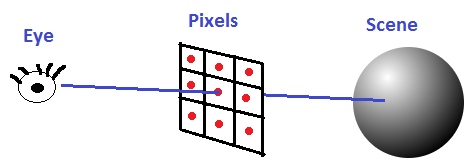
So what this means is that for a specific point on the hemisphere, we find out how much light is coming in from that direction, multiply it by how much the BRDF says light should be reflected towards the view direction from that direction, and then apply Lambert’s cosine law to make light dimmer as the light direction gets more perpendicular with the surface normal (more parallel with the surface).

Hopefully that makes enough sense.

Bringing the integral back into the mix, we have to sum up the results of that process for each of the infinite points on the hemisphere, multiplying each value by the fractional size of the point’s area for the hemisphere. When we’ve done that, we have our answer, and have our final pixel color.

This is where Monte Carlo integration comes in. Since we can’t really sum the infinite points, multiplied by their area (which is infinitely small), we are instead going to take a lot of random samples of the hemisphere and average them together. The more samples we take, the closer we get to the actual correct value. Not too hard right?

Now that we have the problem of the infinite points on the hemisphere solved, we actually have a second infinity to deal with.

The light incoming from a specific direction (a point on the hemisphere) is just the amount of light leaving a different object from that direction. So, to find out how much light is coming in from that direction, you have to find what object is in that direction, and calculate how much light is leaving that direction for that object. The problem is, the amount of light leaving that direction for that object is in fact calculated using the rendering equation, so it in turn is based on light leaving a different object and so on. It continues like this, possibly infinitely, and even possibly in loops, where light bounces between objects over and over (like putting two mirrors facing eachother). We have possibly infinite recursion!

The way this is dealt with in path tracers is to just limit the maximum amount of bounces that are considered. Higher numbers of bounces gives diminishing returns in general, so usually it’s just the first couple of bounces that really make a difference. For instance, the images at the top of this post were made using 5 bounces.

The Algorithm

Now that we know how the rendering equation works, and what we need to do to solve it, let’s write up the algorithm that we perform for each pixel on the screen.

  1. First, we calculate the camera ray for the pixel.
  2. If the camera ray doesn’t hit an object, the pixel is black.
  3. If the camera ray does hit an object, the pixel’s color is determined by how much light that object is emitting and reflecting down the camera ray.
  4. To figure out how much light that is, we choose a random direction in the hemisphere of that object’s normal and recurse.
  5. At each stage of the recursion, we return: EmittedLight + 2 * RecursiveLight * Dot(Normal, RandomHemisphereAngle) * SurfaceDiffuseColor.
  6. If we ever reach the maximum number of bounces, we return black for the RecursiveLight value.

We do the above multiple times per pixel and average the results together. The more times we do the process (the more samples we have), the closer the result gets to the correct answer.

By the way, the multiplication by 2 in step five is a byproduct of some math that comes out of integrating the BRDF. Check the links i mentioned at the top of the post for more info, or you can at least verify that I’m not making it up by seeing that wikipedia says the same thing. There is also some nice psuedo code there! (:
Wikipedia: Path Tracing: Algorithm

Calculating Camera Rays

There are many ways to calculate camera rays, but here’s the method I used.

In this post we are going to path trace using a pin hole camera. In a future post we’ll switch to using a lens to get interesting lens effects like depth of field.

To generate rays for our pin hole camera, we’ll need an eye position, a target position that the eye is looking at, and an imaginary grid of pixels between the eye and the target.

This imaginary grid of pixels is what is going to be displayed on the screen, and may be thought of as the “near plane”. If anything gets between the eye and the near plane it won’t be visible.

To calculate a ray for a pixel, we get the direction from the eye to the pixel’s location on the grid and normalize that. That gives us the ray’s direction. The ray’s starting position is just the pixel’s location on that imaginary grid.

I’ll explain how to do this below, but keep in mind that the example code also does this process, in case reading the code is easier than reading a description of the math used.

First we need to figure out the orientation of the camera:

  1. Calculate the camera’s forward direction by normalizing (Target – Eye).
  2. To calculate the camera’s right vector, cross product the forward vector with (0,1,0).
  3. To calculate the camera’s up vector, cross product the forward vector with the right vector.

Note that the above assumes that there is no roll (z axis rotation) on the camera, and that it isn’t looking directly up.

Next we need to figure out the size of our near plane on the camera’s x and y axis. To calculate this, we have to define both a near plane distance (I use 0.1 in the sample code) as well as a horizontal and vertical field of view (I use a FOV of 40 degrees both horizontally and vertically, and make a square image, in the sample code).

You can get the size of the window on each axis then like this:

  1. WindowRight = tangent(HorizontalFOV / 2) * NearDistance
  2. WindowTop = tangent(VerticalFOV / 2) * NearDistance

Note that we divide the field of view by 2 on each axis because we are going to treat the center of the near plane as (0,0). This centers the near plane on the camera.

Next we need to figure out where our pixel’s location is in world space, when it is at pixel location (x,y):

  1. Starting at the camera’s position, move along the camera’s forward vector by whatever your near plane distance is (I use a value of 0.1). This gets us to the center of the imaginary pixel grid.
  2. Next we need to figure out what percentage on the X and Y axis our pixel is. This will tell us what percentage on the near plane it will be. We divide x by ScreenWidth and y by ScreenHeight. We then put these percentages in a [-1,1] space by multiplying the percentages by 2 and subtracting 1. We will call these values u and v, which equate to the x and y axis of the screen.
  3. Starting at the center of the pixel grid that we found, we are going to move along the camera’s right vector a distance of u and the camera’s up vector a distance of v.

We now have our pixel’s location in the world.

Lastly, this is how we calculate the ray’s position and direction:

  1. RayDir = normalize(PixelWorld – Eye)
  2. RayStart = PixelWorld

We now have a ray for our pixel and can start solving eg ray vs triangle equations to see what objects in the scene our ray intersects with.

That’s basically all there is to path tracing at a high level. Next up I want to talk about some practical details of path tracing.

Rendering Parameters, Rendering Quality and Rendering Time

A relevant quote from @CasualEffects:

Below are a few scenes rendered at various samples per pixel (spp) and their corresponding rendering times. They are rendered at 128×128 with 5 bounces. I used 8 threads to utilize my 8 cpu cores. Exact machine specs aren’t really important here, I just want to show how sample count affects render quality and render times in a general way.


There’s a couple things worth noting.

First, render time grows roughly linearly with the number of samples per pixel. This lets you have a pretty good estimate how long a render will take then, if you know how long it took to render 1000 samples per pixel, and now you want to make a 100,000 samples per pixel image – it will take roughly 100 times as long!

Combine that with the fact that you need 4 times as many samples to half the amount of error (noise) in an image and you can start to see why monte carlo path tracing takes so long to render nice looking images.

This also applies to the size of your render. The above were rendered at 128×128. If we instead rendered them at 256×256, the render times would actually be four times as long! This is because our image would have four times as many pixels, which means we’d be taking four times as many samples (at the same number of samples per pixel) to make an image of the same quality at the higher resolution.

You can affect rendering times by adjusting the maximum number of bounces allowed in your path tracer as well, but that is not as straightforward of a relationship to rendering time. The rendering time for a given number of bounces depends on the complexity and geometry of the scene, so is very scene dependent. One thing you can count on though is that decreasing the maximum number of bounces will give you the same or faster rendering times, while increasing the maximum number of bounces will give you the same or slower rendering times.

Something else that’s really important to note is that the first scene takes a lot more samples to start looking reasonable than the second scene does. This is because there is only one small light source in the first image but there is a lot of ambient light from a blue sky in the second image. What this means is that in the first scene, many rays will hit darkness, and only a few will hit light. In the second scene, many rays will hit either the small orb of light, or will hit the blue sky, but all rays will hit a light source.

The third scene also takes a lot more samples to start looking reasonable compared to the fourth scene. This is because in the third scene, there is a smaller, brighter light in the middle of the ceiling, while in the fourth scene there is a dimmer but larger light that covers the entire ceiling. Again, in the third scene, rays are less likely to hit a light source than in the fourth scene.

Why do these scenes converge at different rates?

Well it turns out that the more difference there is in the things your rays are likely to hit (this difference is called variance, and is the source of the “noisy look” in your path tracing), the longer it takes to converge (find the right answer).

This makes a bit of sense if you think of it just from the point of view of taking an average.

If you have a bunch of numbers with an average of N, but the individual numbers vary wildly from one to the next, it will take more numbers averaged together to get closer to the actual average.

If on the other hand, you have a bunch of numbers with an average of N that aren’t very different from eachother (or very different from N), it will take fewer numbers to get closer to the actual average.

Taken to the extreme, if you have a bunch of numbers with an average of N, that are all exactly the value N, it only takes one sample to get to the actual true average of N!

You can read a discussion on this here: Computer Graphics Stack Exchange: Is it expected that a naive path tracer takes many, many samples to converge?

There are lots of different ways of reducing variance of path tracing in both the sampling, as well as in the final image.

Some techniques actually just “de-noise” the final image rendered with lower sample counts. Some techniques use some extra information about each pixel to denoise the image in a smarter way (such as using a Z buffer type setup to do bilateral filtering).

Here’s such a technique that has really impressive results. Make sure and watch the video!

Nonlinearly Weighted First-order Regression for Denoising Monte Carlo Renderings

There is also a nice technique called importance sampling where instead of shooting the rays out in a uniform random way, you actually shoot your rays in directions that matter more and will get you to the actual average value faster. Importance sampling lets you get better results with fewer rays.

In the next post or two, I’ll show a very simple importance sampling technique (cosine weighted hemisphere sampling) and hope in the future to show some more sophisticated importance sampling methods.

Some Other Practical Details

Firstly, I want to mention that this is called “naive” path tracing. There are ways to get better images in less time, and algorithms that are better suited for different scenes or different graphical effects (like fog or transparent objects), but this is the most basic, and most brute force way to do path tracing. We’ll talk about some ways to improve it and get some more features in future posts.

Hitting The Wrong Objects

I wanted to mention that when you hit an object and you calculate a random direction to cast a new ray in, there’s some very real danger that the new ray you cast out will hit the same object you just hit! This is due to the fact that you are starting the ray at the collision point of the object, and the floating point math may or may not consider the new ray to hit the object at time 0 or similar.

One way to deal with this is to move the ray’s starting point a small amount down the ray direction before testing the ray against the scene. If pushed out far enough (I use a distance of 0.001) it will make sure the ray doesn’t hit the same object again. It sounds like a dodgy thing to do, because if you don’t push it out enough (how far is enough?) it will give you the wrong result, and if you push it out too far to be safe, you can miss thin objects, or can miss objects that are very close together. In practice though, this is the usual solution to the problem and works pretty well without too much fuss. Note that this is a problem in all ray tracing, not just path tracing, and this solution of moving the ray by a small epsilon is common in all forms of ray tracing I’ve come across!

Another way to deal with the problem is to give each object a unique ID and then when you cast a ray, tell it to ignore the ID of the object you just hit. This works flawlessly in practice, so long as your objects are convex – which is usually the case for ray tracing since you often use triangles, quads, spheres, boxes and similar to make your scene. However, this falls apart when you are INSIDE of a shape (like how the images at the top of this post show objects INSIDE a box), and it also falls apart when you have transparent objects, since sometimes it is appropriate for an object to be intersected again by a new ray.

I used to be a big fan of object IDs, but am slowly coming to terms with just pushing the ray out a little bit. It’s not so bad, and handles transparents and being inside an object (:

Gamma Correction

After we generate our image, we need to apply gamma correction by taking each color channel to the power of 1/2.2. A decent approximation to that is also to just take the square root of each color channel, as the final value for that color channel. You can read about why we do this here: Understanding Gamma Correction

HDR vs LDR

There is nothing in our path tracer that has any limitations on how bright something can be. We could have a bright green light that had a color value of (0, 100000, 0)! Because of this, the final pixel color may not necessarily be less than one (but it will be a positive number). Our color with be a “High Dynamic Range” color aka HDR color. You can use various tone mapping methods to turn an HDR color into an LDR color – and we will be looking at that in a future post – but for now, I am just clamping the color value between 0 and 1. It’s not the best option, but it works fine for our needs right now.

Divide by Pi?

When looking at explanations or implementations of path tracing, you’ll see that some of them divide colors by pi at various stages, and others don’t. Since proper path tracing is very much about making sure you have every little detail of your math correct, you might wonder whether you should be dividing by pi or not, and if so, where you should do that. The short version is it actually doesn’t really matter believe it or not!

Here are two great reads on the subject for a more in depth answer:
PI or not to PI in game lighting equation
Adopting a physically based shading model

Random Point on Sphere and Bias

Correctly finding a uniformly random point on a sphere or hemisphere is actually a little bit more complicated that you might expect. If you get it wrong, you’ll introduce bias into your images which will make for some strange looking things.

Here is a good read on some ways to do it correctly:
Wolfram Math World: Sphere Point Picking

Here’s an image where the random point in sphere function was just completely wrong:

Here’s an image where the the random hemisphere function worked by picking a random point in a cube and normalizing the resulting vector (and multiplying it by -1 if it was in the wrong hemisphere). That gives too much weighting to the corners, which you can see manifests itself in the image on the left as weird “X” shaped lighting (look at the wall near the green light), instead of on the right where the lighting is circular. Apologies if it’s hard to distinguish. WordPress is converting all my images to 8BPP! :X

Primitive Types & Counts Matter

Here are some render time comparisons of the Cornell box scene rendered at 512×512, using 5 bounces and 100 samples per pixel.

There are 3 boxes which only have 5 sides – the two boxes inside don’t have a bottom, and the box containing the boxes doesn’t have a front.

I started out by making the scene with 30 triangles, since it takes 2 triangles to make a quad, and 5 quads to make a box, and there are 3 boxes.

Those 30 triangles rendered in 21.1 seconds.

I then changed it from 30 triangles to 15 quads.

It then took 6.2 seconds to render. It cut the time in half!

This is not so surprising though. If you look at the code for ray vs triangle compared to ray vs quad, you see that ray vs quad is just a ray vs triangle test were we first test the “diagonal line” of the quad, to see which of the 2 corners should be part of the ray vs triangle test. Because of this, testing a quad is just about as fast as testing a triangle. Since using quads means we have half the number of primitives, turning our triangles into quads means our rendering time is cut in half.

Lastly, i tried turning the two boxes inside into oriented boxes that have a width, height, depth, an axis of rotation and an angle of rotation around that axis. The collision test code puts the ray into the local space of the oriented box and then just does a ray vs axis aligned box test.

Doing that, i ended up with 5 quads (for the box that doesn’t have a front, it needed to stay quads, unless i did back face culling, which i didn’t want to) and two oriented boxes.

The render time for that was 5.5 seconds, so it did shave off 0.7 seconds, which is a little over 11% of the rendering time. So, it was worth while.

For such a low number of primitives, I didn’t bother with any spatial acceleration structures, but people do have quite a bit of luck on more complex scenes with bounding volume hierarchies (BVH’s).

For naive path tracing code, since the first ray hit is entirely deterministic which object it will hit (if any), we could also cache that first intersection and re-use it for each subsequent sample. That ought to make a significant difference to rendering times, but basically in the next path tracing post we’ll be removing the ability to do that, so I didn’t bother to try it and time it.

Debugging

As you are working on your path tracer, it can be useful to render an image at a low number of samples so that it’s quick to render and you can see whether things are turning out the way you want or not.

Another option is to have it show you the image as it’s rendering more and more samples per pixel, so that you can see it working.

If you make a “real time” visualizer like that, some real nice advice from Morgan McGuire (Computer graphics professor and the author of http://graphicscodex.com/) is to make a feature where if you click on a pixel, it re-renders just that pixel, and does so in a single thread so that you can step through the process of rendering that pixel to see what is going wrong.

I personally find a lot of value in visualizing per-pixel values in the image to see how values look across the pixels to be able to spot problems. You can do this by setting the emissive lighting to be based on the value you want to visualize and setting the bounce count to 1, or other similar techniques.

Below are two debug images I made while writing the code for this post to try and understand how some things were going wrong. The first image shows the normals of the surface that the camera rays hit (i put x,y,z of the normal into r,g,b but multiply the values by 0.5 and add 0.5 to make them be 0 to 1, instead of -1 to 1). This image let me see that the normals coming out of my ray vs oriented box test were correct.

The second image shows the number of bounces done per pixel. I divided the bounce count by the maximum number of bounces and used that as a greyscale value for the pixel. This let me see that rays were able to bounce off of oriented boxes. A previous image that I don’t have anymore showed darker sides on the boxes, which meant that the ray bouncing wasn’t working correctly.

Immensely Parallelizable: CPU, GPU, Grid Computing

At an image size of 1024×1024, that is a little over 1 million pixels.

At 1000 samples per pixel, that means a little over 1 billion samples.

Every sample of every pixel only needs one thing to do it’s work: Read only access to the scene.

Since each of those samples are able to do their work independently, if you had 1 billion cores, path tracing could use them all!

The example code is multithreaded and uses as many threads as cores you have on your CPU.

Since GPUs are meant for massively parallelizable work, they can path trace much faster than CPUs.

I haven’t done a proper apples to apples test, but evidence indicates something like a 100x speed up on the GPU vs the CPU.

You can also distribute work across a grid of computers!

One way to do path tracing in grid computing would be to have each machine do a 100 sample image, and then you could average all of those 100 sample images together to get a much higher sample image.

The downside to that is that network bandwidth and disk storage pays the cost of the full size image for each computer you have helping.

A better way to do it would probably be to make each machine do all of the samples for a small portion of the image and then you can put the tiles together at the end.

While decreasing network bandwidth and disk space usage, this also allows you to do all of the pixel averaging in floating point, as opposed to doing it in 8 bit 0-255 values like you’d get from a bmp file made on another machine.

Closing

In this post and the sample code that goes with it, we are only dealing with a purely diffuse (lambertian) surface, and emissive lighting. In future posts we’ll cover a lot more features like specular reflection (mirror type reflection), refraction (transparent objects), caustics, textures, bump mapping and more. We’ll also look at how to make better looking images with fewer samples and lots of other things too.

I actually have to confess that I did a bit of bait and switch. The images at the top of this post were rendered with an anti aliasing technique, as well as an importance sampling technique (cosine weighted hemisphere samples) to make the image look better faster. These things are going to be the topics of my next two path tracing posts, so be on the lookout! Here are the same scenes with the same number of samples, but with no AA, and uniform hemisphere sampling:

And the ones at the top for comparison:

While making this post I received a lot of good information from the twitter graphics community (see the people I’m following and follow them too! @Atrix256) as well as the Computer Graphics Stack Exchange.

Also, two specific individuals helped me out quite a bit:

@lh0xfb – She was also doing a lot of path tracing at the time and helped me understand where some of my stuff was going wrong, including replicating my scenes in her renderer to be able to compare and contrast with. I was sure my renderer was wrong, because it was so noisy! It turned out that while i tended to have small light sources and high contrast scenes, Lauren did a better job of having well lit scenes that converged more quickly.

@Reedbeta – He was a wealth of information for helping me understand some details about why things worked the way they did and answered a handful of graphics stack exchange questions I posted.

Thanks a bunch to you both, and to everyone else that participated in the discussions (:

Understanding The Discrete Fourier Transform

I’ve been working on getting a better understanding of the Discrete Fourier Transform. I’ve figured out some things which have really helped my intuition, and made it a lot simpler in my head, so I wanted to write these up for the benefit of other folks, as well as for my future self when I need a refresher.

The discrete Fourier transform takes in data and gives out the frequencies that the data contains. This is useful if you want to analyze data, but can also be useful if you want to modify the frequencies then use the inverse discrete Fourier transform to generate the frequency modified data.

Multiplying By Sinusoids (Sine / Cosine)

If you had a stream of data that had a single frequency in it at a constant amplitude, and you wanted to know the amplitude of that frequency, how could you figure that out?

One way would be to make a cosine wave of that frequency and multiply each sample of your wave by the corresponding samples.

For instance, let’s say that we have a data stream of four values that represent a 1hz cosine wave: 1, 0, -1, 0.

We could then multiply each point by a corresponding point on a cosine wave, add sum them together:

We get.. 1*1 + 0*0 + -1*-1 + 0*0 = 2.

The result we get is 2, which is twice the amplitude of the data points we had. We can divide by two to get the real amplitude.

To show that this works for any amplitude, here’s the same 1hz cosine wave data with an amplitude of five: 5, 0, -5, 0.

Multiplying by the 1hz cosine wave, we get… 5*1 + 0*0 + -5*-1 + 0*0 = 10.

The actual amplitude is 5, so we can see that our result was still twice the amplitude.

In general, you will need to divide by N / 2 where N is the number of samples you have.

What happens if our stream of data has something other than a cosine wave in it though?

Let’s try a sine wave: 0, 1, 0, -1

When we multiply those values by our cosine wave values we get: 0*1 + 1*0 + 0*-1 + -1*0 = 0.

We got zero. Our method broke!

In this case, if instead of multiplying by cosine, we multiply by sine, we get what we expect: 0*0 + 1*1 + 0*0 + -1*-1 = 2. We get results consistent with before, where our answer is the amplitude times two.

That’s not very useful if we have to know whether we are looking for a sine or cosine wave though. We might even have some other type of wave that is neither one!

The solution to this problem is actually to multiply the data points by both cosine and sine waves, and keep both results.

Let’s see how that works.

For this example We’ll take a cosine wave and shift it 0.25 radians to give us samples: 0.97, -0.25, -0.97, 0.25. (The formula is cos(x*2*pi/4+0.25) from 0 to 3)

When we multiply that by a cosine wave we get: 0.97*1 + -0.25*0 + -0.97*-1 + 0.25*0 = 1.94
When we multiply it by a sine wave we get: 0.97*0 + -0.25*1 + -0.97*0 + 0.25*-1 = -0.5

Since we know both of those numbers are twice the actual amplitude, we can divide them both by two to get:
cosine: 0.97
sine: -0.25

Those numbers kind of makes sense if you think about it. We took a cosine wave and shifted it over a little bit so our combined answer is that it’s mostly a cosine wave, but is heading towards being a sine wave (technically a sine wave that has an amplitude of -1, so is a negative sine wave, but is still a sine wave).

To get the amplitude of our phase shifted wave, we treat those values as a vector, and get the magnitude. sqrt((0.97*0.97)+(-0.25*-0.25)) = 1.00. That is correct! Our wave’s amplitude is 1.0.

To get the starting angle (phase) of the wave, we use inverse tangent of sine over cosine. We want to take atan2(sine, cosine), aka atan2(-0.25, 0.97) which gives us a result of -0.25 radians. That’s the amount that we shifted our wave, so it is also correct!

Formulas So Far

Let’s take a look at where we are at mathematically. For N samples of data, we multiply each sample of data by a sample from a wave with the frequency we are looking for and sum up the results (Note that this is really just a dot product between N dimensional vectors!). We have to do this both with a cosine wave and a sine wave, and keep the two resulting values to be able to get our true amplitude and phase information.


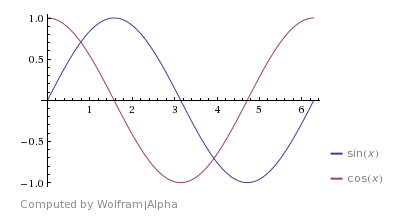
For now, let’s drop the “divide by two” part and look at the equations we have.

Value_{cosine} = \sum\limits_{n=0}^{N-1} Sample_n * Cos(2\pi*Frequency*n/N)

Value_{sine} = \sum\limits_{n=0}^{N-1} Sample_n * Sin(2\pi*Frequency*n/N)

Those equations above do exactly what we worked through in the samples.

The part that might be confusing is the part inside of the Cos() and Sin() so I’ll explain that real quick.

Looking at the graph cos(x) and sin(x) you’ll see that they both make one full cycle between the x values of 0 and 2*pi (aprox. 6.28):

If instead we change it to a graph of cos(2*pi*x) and sin(2*pi*x) you’ll notice that they both make one full cycle between the x values of 0 and 1:

This means that we can think of the wave forms in terms of percent (0 to 1) instead of in radians (0 to 2pi).

Next, we multiply by the frequency we are looking for. We do this because that multiplication makes the wave form repeat that many times between 0 and 1. It makes us a wave of the desired frequency, still remaining in “percent space” where we can go from 0 to 1 to get samples on our cosine and sine waves.

Here’s a graph of cos(2*pi*x*2) and sin(2*pi*x*2), to show some 2hz frequency waves:

Lastly, we multiply by n/N. In our sum, n is our index variable and it goes from 0 to N-1. This is very much like a for loop. n/N is our current percent done we are in the for loop, so when we multiply by n/N, we are just sampling at a different location (by percentage done) on our cosine and sine waves that are at the specified frequencies.

Not too difficult right?

Imaginary Numbers

Wouldn’t it be neat if instead of having to do two separate calculations for our cosine and sine values, we could just do a single calculation that would give us both values?

Well, interestingly, we can! This is where imaginary numbers come in. Don’t get scared, they are here to make things simpler and more convenient, not to make things more complicated or harder to understand (:

There is something called Euler’s Identity which states the below:

e^{ix} = cos(x) + i*sin(x)

That looks pretty useful for our usage case doesn’t it? If you notice that our equations both had the same parameters for cos and sin, that means that we can just use this identity instead!

We can now take our two equations and combine them into a single equation:

Value = \sum\limits_{n=0}^{N-1} Sample_n * e^{i *2\pi * Frequency*n/N}

When we do the above calculation, we will get a complex number out with a real and imaginary part. The real part of the complex number is just the cosine value, while the imaginary part of the complex number is the sine value. Nothing scary has happened, we’ve just used/abused complex numbers a bit to give us what we want in a more compact form.

Multiple Frequencies

Now we know how to look for a single, specific frequency.

What if you want to look for multiple frequencies though? Further more, what if you don’t even know what frequencies to look for?

When doing the discrete Fourier transform on a stream of samples, there are a specific set of frequencies that it checks for. If you have N samples, it only checks for N different frequencies. You could ask about other frequencies, but these frequencies are enough to reconstruct the original signal from only the frequency data.

The first N/2 frequencies are going to be the frequencies 0 (DC) through N/2. N/2 is the Nyquist frequency and is the highest frequency that your signal is able of holding.

After N/2 comes the negative frequencies, counting from a large negative frequency (N/2-1) up to the last frequency which is -1.

As an example, if you had 8 samples and ran the DFT, you’d get 8 complex numbers as outputs, which represent these frequencies:

[0hz, 1hz, 2hz, 3hz, 4hz, -3hz, -2hz, -1hz]

The important take away from this section is that if you have N samples, the DFT asks only about N very specific frequencies, which will give enough information to go from frequency domain back to time domain and get the signal data back.

That then leads to this equation below, where we just put a subscript on Value, to signify which frequency we are probing for.

Value_{Frequency} = \sum\limits_{n=0}^{N-1} Sample_n * e^{2\pi i*Frequency*n/N}

Frequency is an integer, and is between 0 and N-1. We can say that mathematically by listing this information along with the equation:

Frequency \in [0,N), Frequency \in \mathbb Z

Final Form

Math folk use letters and symbols instead of words in their equations.

The letter k is used instead of frequency.

Instead of Value_{Frequency} , the symbol is X_{k} .

Instead of Sample_n , the symbol is x_n.

This gives us a more formal version of the equation:

X_k= \sum\limits_{n=0}^{N-1} x_n * e^{2\pi ikn/N}

k\in [0,N), k \in \mathbb Z

We are close to the final form, but we aren’t quite done yet!

Remember the divide by two? I had us take out the divide by two so that I could re-introduce it now in it’s correct form. Basically, since we are querying for N frequencies, we need to divide each frequency’s result by N. I mentioned that we had to divide by N/2 to make the amplitude information correct, but since we are checking both positive AND negative frequencies, we have to divide by 2*(N/2), or just N. That makes our equation become this:

X_k= 1/N \sum\limits_{n=0}^{N-1} x_n * e^{2\pi ikn/N}

k\in [0,N), k \in \mathbb Z

Lastly, we actually want to make the waves go backwards, so we make the exponent negative. The reason for this is a deeper topic than I want to get into right now, but you can read more about why here if you are curious: DFT – Why are the definitions for inverse and forward commonly switched?

That brings us to our final form of the formula for the discrete Fourier transform:

X_k= 1/N \sum\limits_{n=0}^{N-1} x_n * e^{-2\pi ikn/N}

k\in [0,N), k \in \mathbb Z

Taking a Test Drive

If we use that formula to calculate the DFT of a simple, 4 sample, 1hz cosine wave (1, 0, -1, 0), we get as output [0, 0.5, 0, -0.5].

That means the following:

  • 0hz : 0 amplitude
  • 1hz : 0.5 amplitude
  • 2hz : 0 amplitude
  • -1hz : -0.5 amplitude

It is a bit strange that the simple 1hz, 1.0 amplitude cosine wave was split in half, and made into a 1hz cosine wave and -1hz cosine wave, each contributing half amplitude to the result, but that is “just how it works”. I don’t have a very good explanation for this though. My personal understanding just goes that if we are checking for both positive AND negative frequencies, that makes it ambiguous whether it’s a 1hz wave with 1 amplitude, or -1hz wave with -1 amplitude. Since it’s ambiguous, both must be true, and they get half the amplitude each. If I get a better understanding, I’ll update this paragraph, or make a new post on it.

Making The Inverse Discrete Fourier Transform

Making the formula for the Inverse DFT is really simple.

We start with our DFT formula, drop the 1/N from the front, and also make the exponent to e positive instead of negative. That is all! The intuition here for me is that we are just doing the reverse of the DFT process, to do the inverse DFT process.

x_k= \sum\limits_{n=0}^{N-1} X_n * e^{2\pi ikn/N}

k\in [0,N), k \in \mathbb Z

While the DFT takes in real valued signals and gives out complex valued frequency data, the IDFT takes in complex valued frequency data, and gives out real valued signals.

A fun thing to try is to take some data, DFT it, modify the frequency data, then IDFT it to see what comes out the other side.

Other Notes

Here are some other things of note about the discrete Fourier transform and it’s inverse.

Data Repeating Forever

When you run the DFT on a stream of data, the math is such that it assumes that the stream of data you gave it repeats forever both forwards and backwards in time. This is important because if you aren’t careful, you can add frequency content to your data that you didn’t intend to be there.

For instance, if you tile a 1hz sine wave, it’s continuous, and there is only the 1hz frequency present:

However, if you tile a 0.9hz sine wave, there is a discontinuity, which means that there will be other, unintended frequencies present when you do a DFT of the data, to be able to re-create the discontinuity:

Fast Fourier Transform

There are a group of algorithms called “Fast Fourier Transforms”. You might notice that if we have N samples, taking the DFT is an O(N^2) operation. Fast Fourier transforms can bring it down to O(N log N).

DFT / IDFT Formula Variations

The formula we came up with is one possible DFT formula, but there are a handful of variations that are acceptable, even though different variations come up with different values!

The first option is whether to make the e exponent negative or not. Check out these two formulas to see what I mean.

X_k= \sum\limits_{n=0}^{N-1} x_n * e^{2\pi ikn/N}
vs
X_k= \sum\limits_{n=0}^{N-1} x_n * e^{-2\pi ikn/N}

Either one is acceptable, but when providing DFT’d data, you should mention which one you did, and make sure and use the opposite one in your inverse DFT formula.

The next options is whether to divide by N or not, like the below:

X_k= \sum\limits_{n=0}^{N-1} x_n * e^{2\pi ikn/N}
vs
X_k= 1/N \sum\limits_{n=0}^{N-1} x_n * e^{2\pi ikn/N}

Again, either one is acceptable, but you need to make sure and let people know which one you did, and also make sure and use the opposite one in your inverse DFT formula.

Instead of dividing by N, some people actually divide by 1/sqrt(N) in both the DFT and inverse DFT. Wolfram alpha does this for instance!

You can read more about this stuff here: DFT – Why are the definitions for inverse and forward commonly switched?

One thing to note though is that if doing 1/N on the DFT (my personal preference), the 0hz (DC) frequency bin gives you the average value of the signal, and the amplitude data you get out of the other bins is actually correct (keeping in mind the amplitudes are split in half between positive and negative frequencies).

Why Calculate Negative Frequencies

The negative frequencies are able to be calculated on demand from the positive frequency information (eg complex conjugation), so why should we even bother calculating them? Sure it’d be more computationally efficient not to calculate them, especially when just doing frequency analysis, right?!

Here’s a discussion about that: Why calculate negative frequencies of DFT?

Higher Dimensions

It’s possible to DFT in 2d, 3d, and higher. The last blog post shows how to do this with 2d images, but I’d also like to write a blog post like this one specifically talking about the intuition behind multi dimensional DFTs.

Example Program Source Code

Here’s some simple C++ source code which calculates the DFT and inverse DFT, optionally showing work in case you want to try to work some out by hand to better understand this. Working a few out by hand really helped me get a better intuition for all this stuff.

Program Output:

Source Code:

#include <stdio.h>
#include <complex>
#include <vector>

#include <fcntl.h>
#include <io.h>
 
// set to 1 to have it show you the steps performed.  Set to 0 to hide the work.
// useful if checking work calculated by hand.
#define SHOW_WORK 1
 
#if SHOW_WORK
    #define PRINT_WORK(...) wprintf(__VA_ARGS__)
#else
    #define PRINT_WORK(...)
#endif

// Use UTF-16 encoding for Greek letters
static const wchar_t kPi = 0x03C0;
static const wchar_t kSigma = 0x03A3;
 
typedef float TRealType;
typedef std::complex<TRealType> TComplexType;
 
const TRealType c_pi = (TRealType)3.14159265359;
const TRealType c_twoPi = (TRealType)2.0 * c_pi;
 
//=================================================================================
TComplexType DFTSample (const std::vector<TRealType>& samples, int k)
{
    size_t N = samples.size();
    TComplexType ret;
    for (size_t n = 0; n < N; ++n)
    {
        TComplexType calc = TComplexType(samples[n], 0.0f) * std::polar<TRealType>(1.0f, -c_twoPi * TRealType(k) * TRealType(n) / TRealType(N));
        PRINT_WORK(L"    n = %i : (%f, %f)n", n, calc.real(), calc.imag());
        ret += calc;
    }
    ret /= TRealType(N);
    PRINT_WORK(L"    Sum the above and divide by %in", N);
    return ret;
}
 
//=================================================================================
std::vector<TComplexType> DFTSamples (const std::vector<TRealType>& samples)
{
    PRINT_WORK(L"DFT:  X_k = 1/N %cn[0,N) x_k * e^(-2%cikn/N)n", kSigma, kPi);
 
    size_t N = samples.size();
    std::vector<TComplexType> ret;
    ret.resize(N);
    for (size_t k = 0; k < N; ++k)
    {
        PRINT_WORK(L"  k = %in", k);
        ret[k] = DFTSample(samples, k);
        PRINT_WORK(L"  X_%i = (%f, %f)n", k, ret[k].real(), ret[k].imag());
    }
    PRINT_WORK(L"n");
    return ret;
}
 
//=================================================================================
TRealType IDFTSample (const std::vector<TComplexType>& samples, int k)
{
    size_t N = samples.size();
    TComplexType ret;
    for (size_t n = 0; n < N; ++n)
    {
        TComplexType calc = samples[n] * std::polar<TRealType>(1.0f, c_twoPi * TRealType(k) * TRealType(n) / TRealType(N));
        PRINT_WORK(L"    n = %i : (%f, %f)n", n, calc.real(), calc.imag());
        ret += calc;
    }
    PRINT_WORK(L"    Sum the above and take the real componentn");
    return ret.real();
}
 
//=================================================================================
std::vector<TRealType> IDFTSamples (const std::vector<TComplexType>& samples)
{
    PRINT_WORK(L"IDFT:  x_k = %cn[0,N) X_k * e^(2%cikn/N)n", kSigma, kPi);
 
    size_t N = samples.size();
    std::vector<TRealType> ret;
    ret.resize(N);
    for (size_t k = 0; k < N; ++k)
    {
        PRINT_WORK(L"  k = %in", k);
        ret[k] = IDFTSample(samples, k);
        PRINT_WORK(L"  x_%i = %fn", k, ret[k]);
    }
    PRINT_WORK(L"n");
    return ret;
}
 
//=================================================================================
template<typename LAMBDA>
std::vector<TRealType> GenerateSamples (int numSamples, LAMBDA lambda)
{
    std::vector<TRealType> ret;
    ret.resize(numSamples);
    for (int i = 0; i < numSamples; ++i)
    {
        TRealType percent = TRealType(i) / TRealType(numSamples);
        ret[i] = lambda(percent);
    }
    return ret;
}
 
//=================================================================================
int main (int argc, char **argv)
{
	// Enable Unicode UTF-16 output to console
	_setmode(_fileno(stdout), _O_U16TEXT);

    // You can test specific data samples like this:
    //std::vector<TRealType> sourceData = { 1, 0, 1, 0 }; 
    //std::vector<TRealType> sourceData = { 1, -1, 1, -1 };
 
    // Or you can generate data samples from a function like this
    std::vector<TRealType> sourceData = GenerateSamples(
        4,
        [] (TRealType percent)
        {
            const TRealType c_frequency = TRealType(1.0);
            return cos(percent * c_twoPi * c_frequency);
        }
    );
 
    // Show the source data
    wprintf(L"nSource = [ ");
    for (TRealType v : sourceData)
        wprintf(L"%f ",v);
    wprintf(L"]nn");
 
    // Do a dft and show the results
    std::vector<TComplexType> dft = DFTSamples(sourceData);
    wprintf(L"dft = [ ");
    for (TComplexType v : dft)
        wprintf(L"(%f, %f) ", v.real(), v.imag());
    wprintf(L"]nn");
 
    // Do an inverse dft of the dft data, and show the results
    std::vector<TRealType> idft = IDFTSamples(dft);
    wprintf(L"idft = [ ");
    for (TRealType v : idft)
        wprintf(L"%f ", v);
    wprintf(L"]n");
     
    return 0;
}

Links

Explaining how to calculate the frequencies represented by the bins of output of DFT:
How do I obtain the frequencies of each value in an FFT?

Another good explanation of the Fourier transform if it isn’t quite sinking in yet:
An Interactive Guide To The Fourier Transform

Some nice dft calculators that also have inverse dft equivelants:
DFT Calculator 1
IDFT Calculator 1
DFT Calculator 2
IDFT Calculator 2

Wolfram alpha can also do DFT and IDFT, but keep in mind that the formula used there is different and divides the results by 1/sqrt(N) in both DFT and IDFT so will be different values than you will get if you use a different formula.

Wolfram Alpha: Fourier[{1, 0, -1, 0}] = [0,1,0,1]

Wolfram Alpha: Inverse Fourier[{0, 1 , 0, 1}] = [1, 0, -1, 0]

Fourier Transform (And Inverse) Of Images

I attended SIGGRAPH this year and there were some amazing talks.

There were quite a few talks dealing with the Fourier transform of images and sampling patterns, signal frequencies and bandwidth so I feel compelled to write up a blog post about the Fourier transform and inverse Fourier transform of images, as a transition to some other things that I want to write up.

At the bottom of this post is the source code to the program i used to make the examples. It’s a single CPP file that does not link to any libraries, and does not include any non standard headers (besides windows.h). It should be super simple to copy, paste, compile and use!

Fourier Transform Overview

The Fourier transform converts data into the frequencies of sine and cosine waves that make up that data. Since we are going to be dealing with sampled data (pixels), we are going to be using the discrete Fourier transform.

After you perform the Fourier transform, you can run the inverse Fourier transform to get the original image back out.

You can also optionally modify the frequency data before running the inverse Fourier transform, which would give you an altered image as output.

In audio, a fourier transform is 1D, while with images, it’s 2D. That slows things down because a 1D Fourier transform is O(N^2) while a 2D Fourier transform is O(N^4) .

This is quite an expensive operation as you can see, but there are some things that can mitigate the issue:

  • The operation is separable on each axis. AKA only the naive implementation is O(N^4) .
  • There is something called “The Fast Fourier Transform” which can make a 1D fourier transform go from O(N^2) to O(N log N) time complexity.
  • Each pixel of output can be calculated without consideration of the other output pixels. The algorithm only needs read access to the source image or source data. This means that you can run this across however many cores you have on your CPU or GPU.

The items above are true of both the Fourier transform as well as the inverse Fourier transform.

The 2D Fourier transform takes a grid of REAL values as input of size MxN and returns a grid of COMPLEX values as output, also of size MxN.

The inverse 2D Fourier transform takes a grid of COMPLEX values as input, of size MxN and returns a grid of REAL values as output, also of size MxN.

The complex values are (of course!) made up of two components. You can get the amplitude of the frequency represented by the complex value by treating these components as a vector and getting the length. You can get the phase (angle that the frequency starts at) of the frequency by treating it like a vector and getting the angle it represents – like by using atan2(imaginary, real).

For more detailed information about the Fourier transform or the inverse Fourier transform, including the mathematical equations, please see the links at the end of this post!

Image Examples

I’m going to show some examples of images that have been Fourier transformed, modified, and inverse Fourier transformed back. This should hopefully give you a more intuitive idea of what this stuff is all about.

I’m working with the source images in grey scale so i only have to work with one color channel (more on how to do that here: Blog.Demofox.Org: Converting RGB to Grayscale). You could easily do this same stuff with color images, but you would need to work with each color channel individually.

Zelda Guy

Here is the old man from “The Legend of Zelda” who gives you the sword. This image is 84×80 which takes about 1.75 seconds to do a fourier or inverse fourier transform with my naiive implementation of unoptimized code.

Taking a fourier transform of the greyscale version of that image gives me the following frequency amplitude (first) and phase (second) information. Note that we put the frequency amplitude through a log function to make the lesser represented frequencies show up more visibly.


Note that the center of the image represents frequency 0, aka DC. As you move out from the center, you get to higher and higher frequencies.

If you put that information into the inverse Fourier transform, you get the original image back out (in greyscale of course):

What if we changed the phase information though? Here’s what it looks like if we set all the frequencies to start at phase (angle) 0 instead of the proper angles, and then do an inverse Fourier transform:

It came out to be a completely different image! It has all the right frequencies, but the image is completely unrecognizable due to us messing with the phase data.

Interestingly, while your eyes are good at noticing differences in phase, your ears are not. That means that if this was a sound, instead of an image, you wouldn’t even be able to tell the difference. Strange isn’t it?

Now let’s do a low pass filter to our data. In other words, we are going to zero out the amplitude of all frequencies that are above a certain amount. We are going to zero out the frequencies that are farther than 10% of the image diagonal radius. That makes our frequency information look like this:

If we run the inverse Fourier transform on it, we get this:

The image got blurier because the high frequencies were removed. The high frequencies represent the small details of the image.

We also got some “ringing artifacts” which are the things that look like halos around the old man. This is also due to removing high frequency details. The short explanation for this is that it is very difficult to add sinusoids of different amplitudes and frequencies together to make a flat surface. To do so, you need a lot of small high frequency waves to fill in the areas next to the round hum humps to flatten it out. It’s the same issue you see when trying to make a square wave with additive synthesis, if you’ve read any of my posts on audio synthesis.

Now let’s try a high pass filter, where we remove frequencies that are closer than 10% of the image diagonal radius. First is the frequency amplitude information, and then the resulting image:


The results look pretty strange. These are the high frequency details that the blurry image is missing!

You could use a high pass filter on an image to do edge detection. You could use a low pass filter on an image to remove high frequency details before making the image smaller to prevent the aliasing that can happen when making an image smaller.

Let’s look at some other images that have been given similar treatment.

SIGGRAPH

Here’s a picture of myself at SIGGRAPH with my friend Paul who I used to work with at inXile! The image is 100×133 and takes about 6.5-7 seconds to do a Fourier transform or an inverse Fourier transform.

Here is the Fourier transform and inverse Fourier transform:


Here is the low pass frequency info and inverse Fourier transform:


Here is the high pass:


And here is the zero phase:

Simple Images

Lastly, here are some simple images, along with their frequency magnitude and phases. Sorry that they are so small, but hopefully you get the idea.

Horizontal Stripes:


Horizontal Stripe:


Vertical Stripes:


Vertical Stripe:


Diagonal Stripe:


You might notice that the Fourier transform frequency amplitudes actually run perpendicular to the orientation of the stripes. Look for a post soon which makes use of this property (:

Example Code

Here is the code I used to generate the examples above.

If you pass this program the name of a 24 bit bmp file, it will generate and save the DFT, and also the inverse DFT to show that the image can survive a round trip. It will also do a low pass filter, high pass filter, and set the phase of all frequencies to zero, saving off both the frequency amplitude information, as well as the image generated from the frequency information for those operations.

The program below is written for clarity, not speed. In particular, the DFT and IDFT code is naively implemented so is O(N^4). To speed it up, it should be threaded, do the work on each axis separately, and also use a fast Fourier transform implementation.

#define _CRT_SECURE_NO_WARNINGS
 
#include <stdio.h>
#include <stdint.h>
#include <array>
#include <vector>
#include <complex>
#include <windows.h>  // for bitmap headers and performance counter.  Sorry non windows people!

const float c_pi = 3.14159265359f;
const float c_rootTwo = 1.41421356237f;

typedef uint8_t uint8;

struct SProgress
{
    SProgress (const char* message, int total) : m_message(message), m_total(total)
    {
        m_amount = 0;
        m_lastPercent = 0;
        printf("%s   0%%", message);

        QueryPerformanceFrequency(&m_freq);
        QueryPerformanceCounter(&m_start);
    }

    ~SProgress ()
    {
        // make it show 100%
        m_amount = m_total;
        Update(0);

        // show how long it took
        LARGE_INTEGER end;
        QueryPerformanceCounter(&end);
        float seconds = ((float)(end.QuadPart - m_start.QuadPart)) / m_freq.QuadPart;
        printf(" (%0.2f seconds)n", seconds);
    }

    void Update (int delta = 1)
    {
        m_amount += delta;
        int percent = int(100.0f * float(m_amount) / float(m_total));
        if (percent <= m_lastPercent)
            return;

        m_lastPercent = percent;
        printf("%c%c%c%c", 8, 8, 8, 8);
        if (percent < 100)
            printf(" ");
        if (percent < 10)
            printf(" ");
        printf("%i%%", percent);
    }

    int m_lastPercent;
    int m_amount;
    int m_total;
    const char* m_message;

    LARGE_INTEGER m_start;
    LARGE_INTEGER m_freq;
};
 
struct SImageData
{
    SImageData ()
        : m_width(0)
        , m_height(0)
    { }
 
    long m_width;
    long m_height;
    long m_pitch;
    std::vector<uint8> m_pixels;
};

struct SImageDataComplex
{
    SImageDataComplex ()
        : m_width(0)
        , m_height(0)
    { }

    long m_width;
    long m_height;
    std::vector<std::complex<float>> m_pixels;
};
 
bool LoadImage (const char *fileName, SImageData& imageData)
{
    // open the file if we can
    FILE *file;
    file = fopen(fileName, "rb");
    if (!file)
        return false;
 
    // read the headers if we can
    BITMAPFILEHEADER header;
    BITMAPINFOHEADER infoHeader;
    if (fread(&header, sizeof(header), 1, file) != 1 ||
        fread(&infoHeader, sizeof(infoHeader), 1, file) != 1 ||
        header.bfType != 0x4D42 || infoHeader.biBitCount != 24)
    {
        fclose(file);
        return false;
    }
 
    // read in our pixel data if we can. Note that it's in BGR order, and width is padded to the next power of 4
    imageData.m_pixels.resize(infoHeader.biSizeImage);
    fseek(file, header.bfOffBits, SEEK_SET);
    if (fread(&imageData.m_pixels[0], imageData.m_pixels.size(), 1, file) != 1)
    {
        fclose(file);
        return false;
    }
 
    imageData.m_width = infoHeader.biWidth;
    imageData.m_height = infoHeader.biHeight;
 
    imageData.m_pitch = imageData.m_width*3;
    if (imageData.m_pitch & 3)
    {
        imageData.m_pitch &= ~3;
        imageData.m_pitch += 4;
    }
 
    fclose(file);
    return true;
}
 
bool SaveImage (const char *fileName, const SImageData &image)
{
    // open the file if we can
    FILE *file;
    file = fopen(fileName, "wb");
    if (!file) {
        printf("Could not save %sn", fileName);
        return false;
    }
 
    // make the header info
    BITMAPFILEHEADER header;
    BITMAPINFOHEADER infoHeader;
 
    header.bfType = 0x4D42;
    header.bfReserved1 = 0;
    header.bfReserved2 = 0;
    header.bfOffBits = 54;
 
    infoHeader.biSize = 40;
    infoHeader.biWidth = image.m_width;
    infoHeader.biHeight = image.m_height;
    infoHeader.biPlanes = 1;
    infoHeader.biBitCount = 24;
    infoHeader.biCompression = 0;
    infoHeader.biSizeImage = image.m_pixels.size();
    infoHeader.biXPelsPerMeter = 0;
    infoHeader.biYPelsPerMeter = 0;
    infoHeader.biClrUsed = 0;
    infoHeader.biClrImportant = 0;
 
    header.bfSize = infoHeader.biSizeImage + header.bfOffBits;
 
    // write the data and close the file
    fwrite(&header, sizeof(header), 1, file);
    fwrite(&infoHeader, sizeof(infoHeader), 1, file);
    fwrite(&image.m_pixels[0], infoHeader.biSizeImage, 1, file);
    fclose(file);

    printf("%s savedn", fileName);
    return true;
}
 
void ImageToGrey (const SImageData &srcImage, SImageData &destImage)
{
    destImage = srcImage;

    for (int x = 0; x < srcImage.m_width; ++x)
    {
        for (int y = 0; y < srcImage.m_height; ++y)
        {
            const uint8 *src = &srcImage.m_pixels[(y * srcImage.m_pitch) + x * 3];
            uint8 *dest = &destImage.m_pixels[(y * destImage.m_pitch) + x * 3];

            uint8 grey = uint8((float(src[0]) * 0.3f + float(src[1]) * 0.59f + float(src[2]) * 0.11f));
            dest[0] = grey;
            dest[1] = grey;
            dest[2] = grey;
        }
    }
}

std::complex<float> DFTPixel (const SImageData &srcImage, int K, int L)
{
    std::complex<float> ret(0.0f, 0.0f);

    for (int x = 0; x < srcImage.m_width; ++x)
    {
        for (int y = 0; y < srcImage.m_height; ++y)
        {
            // Get the pixel value (assuming greyscale) and convert it to [0,1] space
            const uint8 *src = &srcImage.m_pixels[(y * srcImage.m_pitch) + x * 3];
            float grey = float(src[0]) / 255.0f;

            // Add to the sum of the return value
            float v = float(K * x) / float(srcImage.m_width);
            v += float(L * y) / float(srcImage.m_height);
            ret += std::complex<float>(grey, 0.0f) * std::polar<float>(1.0f, -2.0f * c_pi * v);
        }
    }

    return ret;
}
 
void DFTImage (const SImageData &srcImage, SImageDataComplex &destImage)
{
    // NOTE: this function assumes srcImage is greyscale, so works on only the red component of srcImage.
    // ImageToGrey() will convert an image to greyscale.

    // size the output dft data
    destImage.m_width = srcImage.m_width;
    destImage.m_height = srcImage.m_height;
    destImage.m_pixels.resize(destImage.m_width*destImage.m_height);

    SProgress progress("DFT:", srcImage.m_width * srcImage.m_height);
 
    // calculate 2d dft (brute force, not using fast fourier transform)
    for (int x = 0; x < srcImage.m_width; ++x)
    {
        for (int y = 0; y < srcImage.m_height; ++y)
        {
            // calculate DFT for that pixel / frequency
            destImage.m_pixels[y * destImage.m_width + x] = DFTPixel(srcImage, x, y);

            // update progress
            progress.Update();
        }
    }
}

uint8 InverseDFTPixel (const SImageDataComplex &srcImage, int K, int L)
{
    std::complex<float> total(0.0f, 0.0f);
    for (int x = 0; x < srcImage.m_width; ++x)
    {
        for (int y = 0; y < srcImage.m_height; ++y)
        {
            // Get the pixel value
            const std::complex<float> &src = srcImage.m_pixels[(y * srcImage.m_width) + x];

            // Add to the sum of the return value
            float v = float(K * x) / float(srcImage.m_width);
            v += float(L * y) / float(srcImage.m_height);
            std::complex<float> result = src * std::polar<float>(1.0f, 2.0f * c_pi * v);

            // sum up the results
            total += result;
        }
    }

    float idft = std::abs(total) / float(srcImage.m_width*srcImage.m_height);

    // make sure the values are in range
    if (idft < 0.0f)
        idft = 0.0f;
    if (idft > 1.0f)
        idft = 1.0;

    return uint8(idft * 255.0f);
}

void InverseDFTImage (const SImageDataComplex &srcImage, SImageData &destImage)
{
    // size the output image
    destImage.m_width = srcImage.m_width;
    destImage.m_height = srcImage.m_height;
    destImage.m_pitch = srcImage.m_width * 3;
    if (destImage.m_pitch & 3)
    {
        destImage.m_pitch &= ~3;
        destImage.m_pitch += 4;
    }
    destImage.m_pixels.resize(destImage.m_pitch*destImage.m_height);

    SProgress progress("Inverse DFT:", srcImage.m_width*srcImage.m_height);

    // calculate inverse 2d dft (brute force, not using fast fourier transform)
    for (int x = 0; x < srcImage.m_width; ++x)
    {
        for (int y = 0; y < srcImage.m_height; ++y)
        {
            // calculate DFT for that pixel / frequency
            uint8 idft = InverseDFTPixel(srcImage, x, y);
            uint8* dest = &destImage.m_pixels[y*destImage.m_pitch + x * 3];
            dest[0] = idft;
            dest[1] = idft;
            dest[2] = idft;

            // update progress
            progress.Update();
        }
    }
}

void GetMagnitudeData (const SImageDataComplex& srcImage, SImageData& destImage)
{
    // size the output image
    destImage.m_width = srcImage.m_width;
    destImage.m_height = srcImage.m_height;
    destImage.m_pitch = srcImage.m_width * 3;
    if (destImage.m_pitch & 3)
    {
        destImage.m_pitch &= ~3;
        destImage.m_pitch += 4;
    }
    destImage.m_pixels.resize(destImage.m_pitch*destImage.m_height);

    // get floating point magnitude data
    std::vector<float> magArray;
    magArray.resize(srcImage.m_width*srcImage.m_height);
    float maxmag = 0.0f;
    for (int x = 0; x < srcImage.m_width; ++x)
    {
        for (int y = 0; y < srcImage.m_height; ++y)
        {
            // Offset the information by half width & height in the positive direction.
            // This makes frequency 0 (DC) be at the image origin, like most diagrams show it.
            int k = (x + srcImage.m_width / 2) % srcImage.m_width;
            int l = (y + srcImage.m_height / 2) % srcImage.m_height;
            const std::complex<float> &src = srcImage.m_pixels[l*srcImage.m_width + k];

            float mag = std::abs(src);
            if (mag > maxmag)
                maxmag = mag;

            magArray[y*srcImage.m_width + x] = mag;
        }
    }
    if (maxmag == 0.0f)
        maxmag = 1.0f;

    const float c = 255.0f / log(1.0f+maxmag);

    // normalize the magnitude data and send it back in [0, 255]
    for (int x = 0; x < srcImage.m_width; ++x)
    {
        for (int y = 0; y < srcImage.m_height; ++y)
        {
            float src = c * log(1.0f + magArray[y*srcImage.m_width + x]);

            uint8 magu8 = uint8(src);

            uint8* dest = &destImage.m_pixels[y*destImage.m_pitch + x * 3];
            dest[0] = magu8;
            dest[1] = magu8;
            dest[2] = magu8;
        }
    }
}

void GetPhaseData (const SImageDataComplex& srcImage, SImageData& destImage)
{
    // size the output image
    destImage.m_width = srcImage.m_width;
    destImage.m_height = srcImage.m_height;
    destImage.m_pitch = srcImage.m_width * 3;
    if (destImage.m_pitch & 3)
    {
        destImage.m_pitch &= ~3;
        destImage.m_pitch += 4;
    }
    destImage.m_pixels.resize(destImage.m_pitch*destImage.m_height);

    // get floating point phase data, and encode it in [0,255]
    for (int x = 0; x < srcImage.m_width; ++x)
    {
        for (int y = 0; y < srcImage.m_height; ++y)
        {
            // Offset the information by half width & height in the positive direction.
            // This makes frequency 0 (DC) be at the image origin, like most diagrams show it.
            int k = (x + srcImage.m_width / 2) % srcImage.m_width;
            int l = (y + srcImage.m_height / 2) % srcImage.m_height;
            const std::complex<float> &src = srcImage.m_pixels[l*srcImage.m_width + k];

            // get phase, and change it from [-pi,+pi] to [0,255]
            float phase = (0.5f + 0.5f * std::atan2(src.real(), src.imag()) / c_pi);
            if (phase < 0.0f)
                phase = 0.0f;
            if (phase > 1.0f)
                phase = 1.0;
            uint8 phase255 = uint8(phase * 255);

            // write the phase as grey scale color
            uint8* dest = &destImage.m_pixels[y*destImage.m_pitch + x * 3];
            dest[0] = phase255;
            dest[1] = phase255;
            dest[2] = phase255;
        }
    }
}

int main (int argc, char **argv)
{
    float scale = 1.0f;
    int filter = 0;
 
    bool showUsage = argc < 2;
    char *srcFileName = argv[1];
 
    if (showUsage)
    {
        printf("Usage: <source>nn");
        return 1;
    }

    // trim off file extension from source filename so we can make our other file names
    char baseFileName[1024];
    strcpy(baseFileName, srcFileName);
    for (int i = strlen(baseFileName) - 1; i >= 0; --i)
    {
        if (baseFileName[i] == '.')
        {
            baseFileName[i] = 0;
            break;
        }
    }

    // Load source image if we can
    SImageData srcImage;
    if (LoadImage(srcFileName, srcImage))
    {
        printf("%s loaded (%i x %i)n", srcFileName, srcImage.m_width, srcImage.m_height);

        // do DFT on a greyscale version of the image, instead of doing it per color channel
        SImageData greyImage;
        ImageToGrey(srcImage, greyImage);
        SImageDataComplex frequencyData;
        DFTImage(greyImage, frequencyData);

        // save magnitude information
        {
            char outFileName[1024];
            strcpy(outFileName, baseFileName);
            strcat(outFileName, ".raw.mag.bmp");

            SImageData destImage;
            GetMagnitudeData(frequencyData, destImage);
            SaveImage(outFileName, destImage);
        }

        // save phase information
        {
            char outFileName[1024];
            strcpy(outFileName, baseFileName);
            strcat(outFileName, ".raw.phase.bmp");

            SImageData destImage;
            GetPhaseData(frequencyData, destImage);
            SaveImage(outFileName, destImage);
        }

        // inverse dft the modified frequency and save the result
        {
            char outFileName[1024];
            strcpy(outFileName, baseFileName);
            strcat(outFileName, ".raw.idft.bmp");

            SImageData modifiedImage;
            InverseDFTImage(frequencyData, modifiedImage);
            SaveImage(outFileName, modifiedImage);
        }

        // Low Pass Filter: Remove high frequencies, write out frequency magnitudes, write out inverse dft
        {
            printf("n=====LPF=====n");

            // remove frequencies that are too far from frequency 0.
            // Note that even though our output frequency images have frequency 0 (DC) in the center, that
            // isn't actually how it's stored in our SImageDataComplex structure.  Pixel (0,0) is frequency 0.
            SImageDataComplex dft = frequencyData;
            float halfWidth = float(dft.m_width / 2);
            float halfHeight = float(dft.m_height / 2);
            for (int x = 0; x < dft.m_width; ++x)
            {
                for (int y = 0; y < dft.m_height; ++y)
                {
                    float relX = 0.0f;
                    float relY = 0.0f;

                    if (x < halfWidth)
                        relX = float(x) / halfWidth;
                    else
                        relX = (float(x) - float(dft.m_width)) / halfWidth;

                    if (y < halfHeight)
                        relY = float(y) / halfHeight;
                    else
                        relY = (float(y) - float(dft.m_height)) / halfHeight;

                    float dist = sqrt(relX*relX + relY*relY) / c_rootTwo; // divided by root 2 so our distance is from 0 to 1
                    if (dist > 0.1f)
                        dft.m_pixels[y*dft.m_width + x] = std::complex<float>(0.0f, 0.0f);
                }
            }

            // write dft magnitude data
            char outFileName[1024];
            strcpy(outFileName, baseFileName);
            strcat(outFileName, ".lpf.mag.bmp");
            SImageData destImage;
            GetMagnitudeData(dft, destImage);
            SaveImage(outFileName, destImage);

            // inverse dft and save the image
            strcpy(outFileName, baseFileName);
            strcat(outFileName, ".lpf.idft.bmp");
            SImageData modifiedImage;
            InverseDFTImage(dft, modifiedImage);
            SaveImage(outFileName, modifiedImage);
        }

        // High Pass Filter: Remove low frequencies, write out frequency magnitudes, write out inverse dft
        {
            printf("n=====HPF=====n");

            // remove frequencies that are too close to frequency 0.
            // Note that even though our output frequency images have frequency 0 (DC) in the center, that
            // isn't actually how it's stored in our SImageDataComplex structure.  Pixel (0,0) is frequency 0.
            SImageDataComplex dft = frequencyData;
            float halfWidth = float(dft.m_width / 2);
            float halfHeight = float(dft.m_height / 2);
            for (int x = 0; x < dft.m_width; ++x)
            {
                for (int y = 0; y < dft.m_height; ++y)
                {
                    float relX = 0.0f;
                    float relY = 0.0f;

                    if (x < halfWidth)
                        relX = float(x) / halfWidth;
                    else
                        relX = (float(x) - float(dft.m_width)) / halfWidth;

                    if (y < halfHeight)
                        relY = float(y) / halfHeight;
                    else
                        relY = (float(y) - float(dft.m_height)) / halfHeight;

                    float dist = sqrt(relX*relX + relY*relY) / c_rootTwo; // divided by root 2 so our distance is from 0 to 1
                    if (dist < 0.1f)
                        dft.m_pixels[y*dft.m_width + x] = std::complex<float>(0.0f, 0.0f);
                }
            }

            // write dft magnitude data
            char outFileName[1024];
            strcpy(outFileName, baseFileName);
            strcat(outFileName, ".hpf.mag.bmp");
            SImageData destImage;
            GetMagnitudeData(dft, destImage);
            SaveImage(outFileName, destImage);

            // inverse dft and save the image
            strcpy(outFileName, baseFileName);
            strcat(outFileName, ".hpf.idft.bmp");
            SImageData modifiedImage;
            InverseDFTImage(dft, modifiedImage);
            SaveImage(outFileName, modifiedImage);
        }

        // ZeroPhase
        {
            printf("n=====Zero Phase=====n");

            // Set phase to zero for all frequencies.
            // Note that even though our output frequency images have frequency 0 (DC) in the center, that
            // isn't actually how it's stored in our SImageDataComplex structure.  Pixel (0,0) is frequency 0.
            SImageDataComplex dft = frequencyData;
            float halfWidth = float(dft.m_width / 2);
            float halfHeight = float(dft.m_height / 2);
            for (int x = 0; x < dft.m_width; ++x)
            {
                for (int y = 0; y < dft.m_height; ++y)
                {
                    std::complex<float>& v = dft.m_pixels[y*dft.m_width + x];
                    float mag = std::abs(v);
                    v = std::complex<float>(mag, 0.0f);
                }
            }

            // write dft magnitude data
            char outFileName[1024];
            strcpy(outFileName, baseFileName);
            strcat(outFileName, ".phase0.mag.bmp");
            SImageData destImage;
            GetMagnitudeData(dft, destImage);
            SaveImage(outFileName, destImage);

            // inverse dft and save the image
            strcpy(outFileName, baseFileName);
            strcat(outFileName, ".phase0.idft.bmp");
            SImageData modifiedImage;
            InverseDFTImage(dft, modifiedImage);
            SaveImage(outFileName, modifiedImage);
        }
    }
    else
        printf("could not read 24 bit bmp file %snn", srcFileName);

    return 0;
}

Links

Here are some links that I found useful:
Fourier Transform
http://www.thefouriertransform.com/
Introduction To Fourier Transforms For Image Processing